Building: Difference between revisions
No edit summary |
|||
| (18 intermediate revisions by 2 users not shown) | |||
| Line 1: | Line 1: | ||
[[File:Api_current_situation_building.png|thumb|right|400px|[[Building]] related to [[Function]], [[Address]] | [[File:Api_current_situation_building.png|thumb|right|400px|[[Building]] related to [[Function]], [[Address]]es and [[Plot]]]] | ||
In the {{software}}, Buildings are a collection of physical objects present on the surface and below ground. These include constructions and roads placed by people, planted trees and agriculture, nature, culverts and drainage pipes. | In the {{software}}, Buildings are a collection of physical objects present on the surface and below ground. These include constructions and roads placed by people, planted trees and agriculture, nature, culverts and drainage pipes. | ||
===Function of a Building=== | |||
A Building is always assigned | A Building is always assigned a [[Function]], which specifies properties shared by buildings of the same type. These also include visual properties. Each individual Building can also override most of these properties if necessary. See also [[#attributes|attributes]] and [[List of Functions]]; | ||
===Sections=== | |||
[[File:Building_section_floors.png|thumb|right|200px|Several Buildings consisting of three sections with each a different amount of floors (3, 4 and 2).]] | [[File:Building_section_floors.png|thumb|right|200px|Several Buildings consisting of three sections with each a different amount of floors (3, 4 and 2).]] | ||
Buildings consist of one or more [[section]]s. | Buildings always consist of one or more [[section]]s. Each section stores a part of the building's surface geometry, as well as the amount of the floors of that section. This allows one building to consist of multiple sections of different floors and heights, while each section shares the properties of that building. Building sections are not allowed to overlap. | ||
===Type of Layer=== | |||
A Building is also part of one [[layer]]; ''surface'', ''underground'' or ''bridge''. This layer can put restrictions on a building when editing it. It also determines how it is treated by calculation models. For example, Buildings in the layer surface are considered to be directly on top of the surface terrain and can override the maximum rain infiltration rate. | A Building is also part of one [[layer]]; ''surface'', ''underground'' or ''bridge''. The layer a Building belongs to is determined by their main [[Category]]. This layer can put restrictions on a building when editing it. It also determines how it is treated by calculation models. For example, Buildings in the layer surface are considered to be directly on top of the surface terrain and can override the maximum rain infiltration rate. | ||
===Ownership=== | |||
A Building is always owned by one [[stakeholder]]. A building is generally situated in one [[plot]], but can be spread among more. A plot has an owner as well, which is often the same, but can be different from, the building owner. See also [[ownership]]. | A Building is always owned by one [[stakeholder]]. A building is generally situated in one [[plot]], but can be spread among more. A plot has an owner as well, which is often the same, but can be different from, the building owner. See also [[ownership]]. | ||
===Impact of overlays and indicators=== | |||
Buildings have an impact on various [[overlays]] and [[indicators]]; a large concrete | Buildings have an impact on various [[overlays]] and [[indicators]]; a large concrete warehouse will probably have a negative influence on the [[Green (Indicator)|green]] and [[Parking (Indicator)|parking]] indicators, prompting [[stakeholders]] to respond to these changes, if required for their [[Indicator|indicator objective]]s. For an example on Buildings and their effects [[Functions#Example|see also]]. | ||
===Initial buildings=== | |||
When a new project is generated using the [[New Project Wizard]], Buildings will generally be placed automatically in the project based on the used data [[sources]]. Additional buildings can be imported using the Geo-wizard or manually added and adjusted using the [[Editor]]. During a [[session]], stakeholders can plan the construction of new Buildings and the demolition of existing buildings, as integral part of the session mechanics. [[Upgrade Type|Upgrading]] existing buildings with green roofs, renovation etc., during a session is also possible. | When a new project is generated using the [[New Project Wizard]], Buildings will generally be placed automatically in the project based on the used data [[sources]]. Additional buildings can be imported using the Geo-wizard or manually added and adjusted using the [[Editor]]. During a [[session]], stakeholders can plan the construction of new Buildings and the demolition of existing buildings, as integral part of the session mechanics. [[Upgrade Type|Upgrading]] existing buildings with green roofs, renovation etc., during a session is also possible. | ||
| Line 28: | Line 28: | ||
* '''Underground''': A building having a function that belongs to the category: underground. | * '''Underground''': A building having a function that belongs to the category: underground. | ||
* '''Standard building''': A building belonging to a function that is not a road or underground category. | * '''Standard building''': A building belonging to a function that is not a road or underground category. | ||
* '''Residence''': A residential building of | * '''Residence''': A residential building of any of the following [[categories]]: SOCIAL, NORMAL, LUXE, SENIOR or STUDENT. | ||
* '''Solid''': A building with attribute SOLID is part of the [[Elevation_model#DSM_(building_height)|DSM]]. | * '''Solid''': A building with attribute SOLID is part of the [[Elevation_model#DSM_(building_height)|DSM]]. | ||
* '''Vacant''': Whether a building is settled by residents or not. | * '''Vacant''': Whether a building is settled by residents or not. | ||
| Line 44: | Line 44: | ||
==Attributes== | ==Attributes== | ||
The following points are important regarding building attributes: | |||
* A building inherits all attributes from its [[function]] | * A building inherits all attributes from its [[function]] | ||
* Not all properties of a function , such as name, image and description, are attributes. | * Not all properties of a function , such as name, image and description, are attributes. | ||
| Line 70: | Line 70: | ||
Walls are categorized in the following levels: Ground, Extra, Top and Basement. Each level has a texture and a [[color]]. Windows, doors etc are defined using [[decals]]. | Walls are categorized in the following levels: Ground, Extra, Top and Basement. Each level has a texture and a [[color]]. Windows, doors etc are defined using [[decals]]. | ||
A roof is generated using the surface polygon of a building section. On top of the roof, objects can be placed, called furniture. An | A roof is generated using the surface polygon of a building section. On top of the roof, objects can be placed, called furniture. An example of roof furniture is a chimney. The height of a roof is determined by the slanting roof height. | ||
A Building can also be visualized without walls and roofs. In such case furniture is placed on top of the [[DTM]], and can represent a plant, crop or tree, as well as industrial installations. | A Building can also be visualized without walls and roofs. In such case furniture is placed on top of the [[DTM]], and can represent a plant, crop or tree, as well as industrial installations. | ||
| Line 78: | Line 78: | ||
===Colors=== | ===Colors=== | ||
Building colors can be overwritten using various [[Function Value#Assets and visualization|color function values]]: | Building colors can be overwritten using various [[Function Value#Assets and visualization|color function values]]: | ||
{{Function values|suppresscategory=yes| | |||
{{:Basement color (Function Value)}} | |||
{{:Ground color (Function Value)}} | |||
{{:Extra color (Function Value)}} | |||
{{:Top color (Function Value)}} | |||
{{:Roof color (Function Value)}} | |||
}} | |||
All of these colors are ignored for the visualization of a Building when the following attribute is defined: | All of these colors are ignored for the visualization of a Building when the following attribute is defined: | ||
* [[Geometry color (Building Attribute)]] | * [[Geometry color (Building Attribute)]] | ||
This attribute | This attribute allows for specifying a single visualization color of a building. Removing this attribute restores the visualization back to either the colors defined by the [[Custom Geometry]], in case it has any, or to the [[Function Value#Assets and visualization|color function values]] of that Building. | ||
===Custom Geometry=== | ===Custom Geometry=== | ||
A building's visualization can be overwritten by assigning a Custom Geometry to it. Generally these are automatically assigned when importing 3D models at new project generation or when importing 3D models using the Geo Import Wizard. | A building's visualization can be overwritten by assigning a [[Custom Geometry]] to it. Generally these are automatically assigned when importing 3D models at new project generation or when importing 3D models using the Geo Import Wizard. | ||
<gallery> | <gallery> | ||
| Line 98: | Line 100: | ||
{{article end | {{article end | ||
|notes=*{{SourcedItem}} | |notes=*{{SourcedItem}} | ||
* [[Building]]s can also be added to a measure. Activating that Measure will result in the planning of Building's in the Planned Situation; [[Map Type]] Maquette. | |||
|seealso= | |||
*[[Function]] | |||
*[[Function Override]] | |||
*[[Measure]] | |||
*[[Stakeholder]] | |||
*[[Model Set]] | |||
*[[Tree]] | |||
*[[Road]] | |||
|howtos= | |howtos= | ||
<div style="column-count:2"> | <div style="column-count:2"> | ||
| Line 113: | Line 124: | ||
* [[How to visualize the year of construction using an overlay]] | * [[How to visualize the year of construction using an overlay]] | ||
</div> | </div> | ||
|api=*[[Api session items buildings]] | |api= | ||
*[[Api session items buildings]] | |||
*[[Api session event editor building]] | |||
}} | }} | ||
Latest revision as of 13:41, 12 October 2026

In the Tygron Platform, Buildings are a collection of physical objects present on the surface and below ground. These include constructions and roads placed by people, planted trees and agriculture, nature, culverts and drainage pipes.
Function of a Building
A Building is always assigned a Function, which specifies properties shared by buildings of the same type. These also include visual properties. Each individual Building can also override most of these properties if necessary. See also attributes and List of Functions;
Sections

Buildings always consist of one or more sections. Each section stores a part of the building's surface geometry, as well as the amount of the floors of that section. This allows one building to consist of multiple sections of different floors and heights, while each section shares the properties of that building. Building sections are not allowed to overlap.
Type of Layer
A Building is also part of one layer; surface, underground or bridge. The layer a Building belongs to is determined by their main Category. This layer can put restrictions on a building when editing it. It also determines how it is treated by calculation models. For example, Buildings in the layer surface are considered to be directly on top of the surface terrain and can override the maximum rain infiltration rate.
Ownership
A Building is always owned by one stakeholder. A building is generally situated in one plot, but can be spread among more. A plot has an owner as well, which is often the same, but can be different from, the building owner. See also ownership.
Impact of overlays and indicators
Buildings have an impact on various overlays and indicators; a large concrete warehouse will probably have a negative influence on the green and parking indicators, prompting stakeholders to respond to these changes, if required for their indicator objectives. For an example on Buildings and their effects see also.
Initial buildings
When a new project is generated using the New Project Wizard, Buildings will generally be placed automatically in the project based on the used data sources. Additional buildings can be imported using the Geo-wizard or manually added and adjusted using the Editor. During a session, stakeholders can plan the construction of new Buildings and the demolition of existing buildings, as integral part of the session mechanics. Upgrading existing buildings with green roofs, renovation etc., during a session is also possible.
Categorization
In the Tygron Platform, buildings can be categorized in multiple ways depending on the context. For example, some calculation models only take into account buildings that belong to a road system, have a specific attribute or are situated underground.
These categories are used to distinguish buildings:
- Road and Road system: A building with a function that belongs to one of these function categories: Road, intersection or bridge.
- Underground: A building having a function that belongs to the category: underground.
- Standard building: A building belonging to a function that is not a road or underground category.
- Residence: A residential building of any of the following categories: SOCIAL, NORMAL, LUXE, SENIOR or STUDENT.
- Solid: A building with attribute SOLID is part of the DSM.
- Vacant: Whether a building is settled by residents or not.
- Layer: A building belongs to either of these layers: surface, underground or bridge. This can restrict to what function a building can be changed.
- Function: Buildings with a specific function
- Category: Buildings with a function belonging to a specific function category.
- Attribute: Buildings have a specific attribute.
- Key: Buildings that have an attribute specified in an overlay as a key. For example Culvert or Weir
-
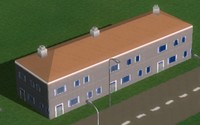 European housing
 -
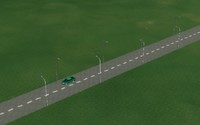 Dutch Asphalt Road
 -
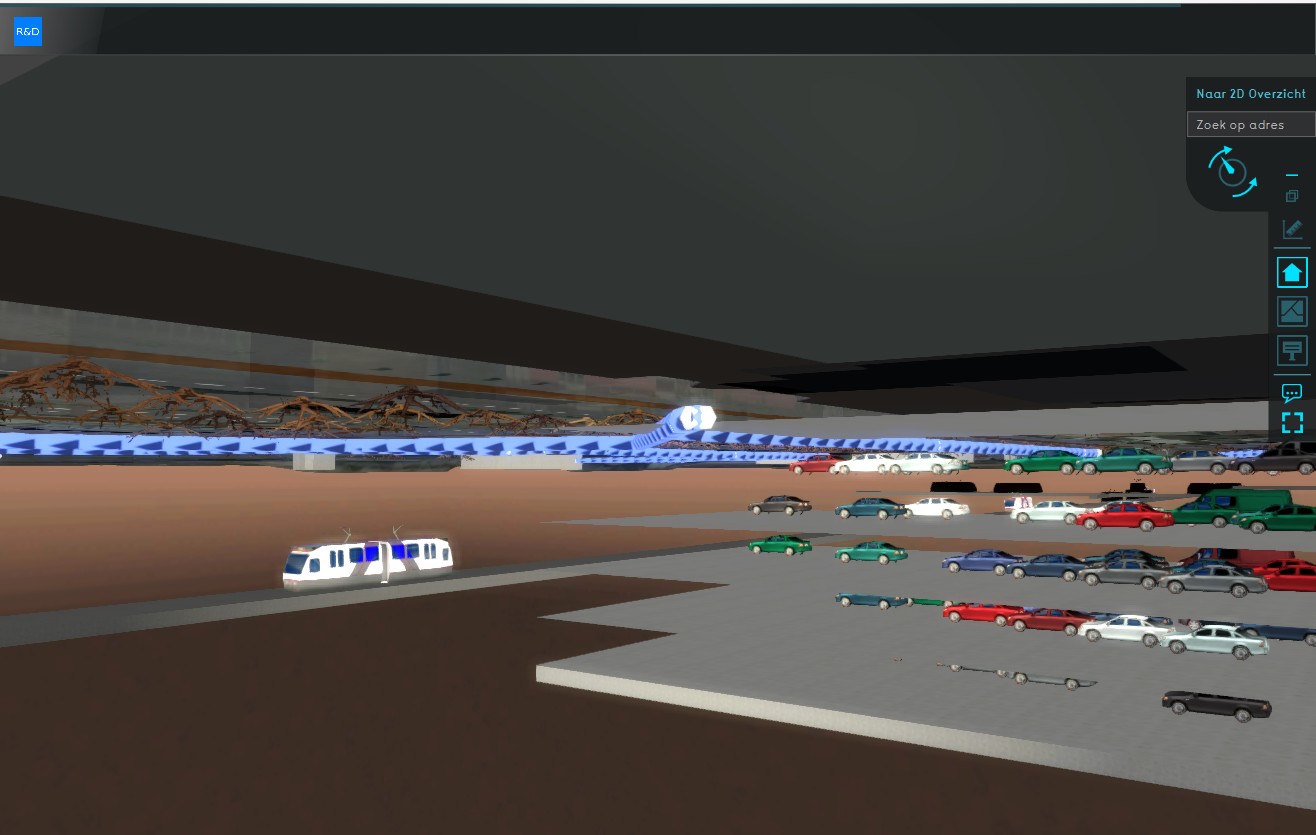 Underground buildings


Attributes
The following points are important regarding building attributes:
- A building inherits all attributes from its function
- Not all properties of a function , such as name, image and description, are attributes.
- A function's attribute can be overridden by its related Function Override
- A building can override each attribute.
- A building can define additional attributes not present in a function.
- Removing an attribute from a building does not remove that attribute from its function.
It is possible to access and modify the Attributes of Buildings using queries.
| Icon | Attribute | Unit | Range | Description |
|---|---|---|---|---|
| BAG_ID | Integer | A unique identifier for the Building as assigned by the BAG. | ||
| BRP_CODE | Nominal | Crop identification number provided by the Basisregistratie Gewaspercelen (BRP) Source | ||
| CONSTRUCTION_FINISH_DATE | milliseconds after epoch | Attribute indicating the date this Building was constructed, in milliseconds after epoch. | ||
| GEOMETRY_COLOR | Color | A building color that takes precedence over other color function values and Custom Geometries colors. | ||
| NWB_ID | Integer | A unique identifier for a road as assigned by the NWB. | ||
| POPULATION_DENSITY_M2 | people/m2 | The average population per m2 of lot size of this building. | ||
| POWER_LINE_BUILDING_ID | ItemID | The ID of the next Transmission Tower Building to connect powerlines to. | ||
| PRIVATE_YARD | boolean | Whether the building is a private yard belonging to a residence or private stakeholder. |
Visualization
The visualization of a Building is by default based on a 3D model generated by the Tygron Platform. Model Sets and subsequent Model Data linked by the Function of a Building determines its default visualization. A default 3D Model generally consist of walls, a roof, optionally a basement and (randomly) placed furniture.
Walls are categorized in the following levels: Ground, Extra, Top and Basement. Each level has a texture and a color. Windows, doors etc are defined using decals.
A roof is generated using the surface polygon of a building section. On top of the roof, objects can be placed, called furniture. An example of roof furniture is a chimney. The height of a roof is determined by the slanting roof height.
A Building can also be visualized without walls and roofs. In such case furniture is placed on top of the DTM, and can represent a plant, crop or tree, as well as industrial installations.
Finally, the Building style setting also determines the way a building is visualized.
Colors
Building colors can be overwritten using various color function values:
| Function value | Attribute | Unit | Range | Description |
|---|---|---|---|---|
| Basement color | BASEMENT_COLOR | color | -2147483648 to 2147483647 | The color of walls at the basement floor of a building. |
| Ground color | GROUND_COLOR | Color | -2147483648 to 2147483647 | The color of walls at the bottom floor of a Building. |
| Extra color | EXTRA_COLOR | color | -2147483648 to 2147483647 | The color of the walls of the floors of the building which are neither the top nor bottom floor. |
| Top color | TOP_COLOR | color | -2147483648 to 2147483647 | The color of the walls of the top floor of a building, unless that floor is also the bottom floor. |
| Roof color | ROOF_COLOR | color | -2147483648 to 2147483647 | The color of the roof of a building. For flat building (such as gardens and roads), it is also the color of the ground surface. |
All of these colors are ignored for the visualization of a Building when the following attribute is defined:
This attribute allows for specifying a single visualization color of a building. Removing this attribute restores the visualization back to either the colors defined by the Custom Geometry, in case it has any, or to the color function values of that Building.
Custom Geometry
A building's visualization can be overwritten by assigning a Custom Geometry to it. Generally these are automatically assigned when importing 3D models at new project generation or when importing 3D models using the Geo Import Wizard.
-
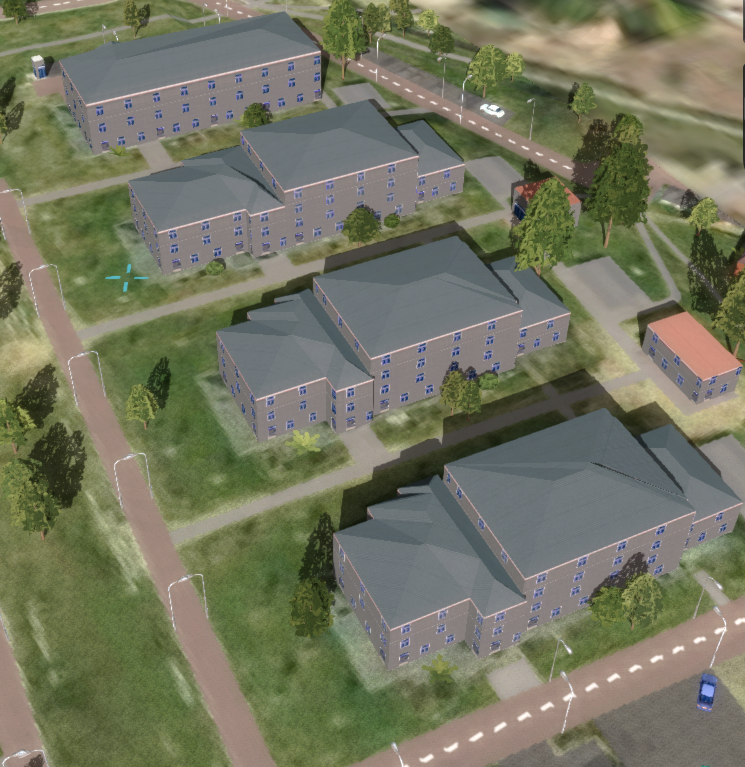 Building with a 3D model generated by the Tygron Platform.
 -
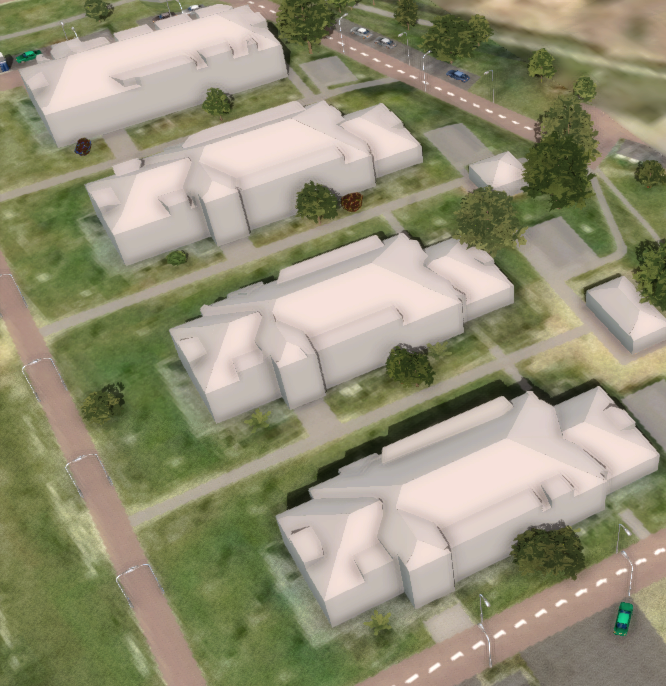 Building with an imported Custom Geometry

Notes
- Building is a Sourced Item, which means it records which Sources created it and which Sources changed any of its properties.
- Buildings can also be added to a measure. Activating that Measure will result in the planning of Building's in the Planned Situation; Map Type Maquette.
How-to's
- How to add and remove buildings
- How to edit building properties
- How to edit building addresses
- How to draw selections for buildings
- How to adjust Building Costs
- How to correct a building at the edge of the project area
- How to correct multiple buildings on the same location
- How to create a Geo Plugin to import Buildings at Project creation
- How to import Buildings with a specified amount of floors
- How to create an Overlay showing the presence of structures
- How to create an Overlay which highlights unused land
- How to visualize the year of construction using an overlay
See also
API Endpoints
 Current Situation
- Buildings • Terrains • Administrative • Areas • Networks • Overlays • Indicators • Panels • Globals • Queries • Geo Import
- Buildings
- Function • Function Override • Section • Category • Custom Geometry • Category Value • Function Value • Function Values Table • List of Functions
- Traffic
- Unit Type • Unit Data • Unit Data Override
- Terrain
- Height sector • Elevation model • Elevation GeoTIFF • Elevation Grid Overlay • Ground Price • Terrain Type • Terrain Type Override • List of Terrain Types
- Administrative
- Neighborhood • Zone • Permission Popup • Plot • Zip Code
- Queries
- Net Cluster • Net Function • Net Line • Net Load • Net Node • Net Setting • Net Type • Net Wizard
- Editor