How to import 3D Models from ArcGIS Online
Jump to navigation
Jump to search
How to log in an ArcGIS Online account in the Tygron Client Application:
- Click on the Community tab and click on Sign in with ArcGIS
- In the new panel that pops up, choose Default ArcGIS Online and click on Continue to login
- Fill in your username and password
- Upon success, a confirmation message appears and the panel closes automatically.
- To add private or organizational data, see the instructions below.
-
 Sign in with ArcGIS link in Community Tab of the ribbon bar.
 -
 Arcgis default Login panel
 -
 Arcgis Sign in panel.
 -
 Link changed when logged in with Arcgis.


How to import 3D Models from ArcGIS Online:
- Select Current Situation in the ribbon bar.
- Open the Geo Data Wizard and click next on the introduction step.
- Select the Buildings option in the Select Type step.
- Choose the Catalogue service option in the Import Method step.
- Choose the Select Catalogue service option with ArcGIS Online selected. (also to access the Enterprise portal data).
- In the Select Service step, click on the search option to browse through your Esri content , Esri organization content and Esri open data, available for this Project map.
- In order to import 3D models, make sure to select a source of type Scene Service.
- In the Import from Layer step, features are obtained automatically. Optionally adjust the selected layer and click next to import the data from an other layer.
- In case features were obtained, continue to the Update or replace step.
- Select the third option named Update only the 3D Model of existing Buildings.
- Finalize the wizard.
-
 Situation before importing 3D Models.
 -
 Selecting the Catalog Service option.
 -
 Finding a 3D Model Scene Service while logged in.
 -
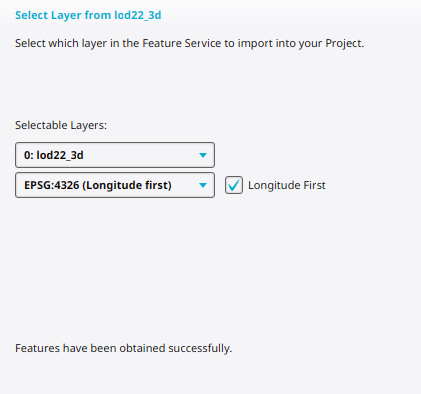 Obtained features for selected Service Layer.
 -
 Visual view of the features.
 -
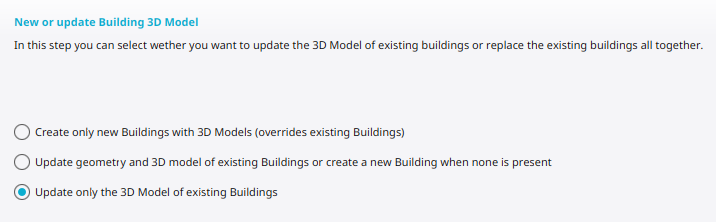 Selecting the option Update 3D Models of existing Buildings.
 -
 Situation after importing 3D Models.


Notes
- If your organization uses a Custom ArcGIS Enterprise Portal, select that option in the ArcGIS Login panel. An additional access token is required for the Tygron Platform to communicate with ArcGIS. Such a token [1] can be created using ArcGIS Portal for your Enterprise.
- Choosing another option in the 'Update or replace' step requires additional configuration of the buildings' function and owner. The surface shape of imported buildings is derived from their 3D Model.
- In ArcGIS Online, 3D Models are generally imported from Scene Layers.
How-to's
- How to log in an ArcGIS Online account in the Tygron Client Application
- How to log in an ArcGIS Enterprise account in the Tygron Client Application
- How to log out an ArcGIS account in the Tygron Client Application
- How to import data from ArcGIS Online
- How to import i3s scene layer in new project
- How to import 3D BAG data
See also
References
- ↑ Arcgis Access Token ∙ Found at: https://developers.arcgis.com/documentation/security-and-authentication/reference/access-tokens/ ∙ (last visited: 09-03-2026)