Calculation panel: Difference between revisions
No edit summary |
|||
| (6 intermediate revisions by 3 users not shown) | |||
| Line 21: | Line 21: | ||
==Scheduled Update (long running)== | ==Scheduled Update (long running)== | ||
To ensure fair resource distribution, calculations are capped at 30 minutes; any exceeding this limit will timeout. | |||
When a calculation is expected to take longer than 30 minutes, it is possible to schedule a long running calculation. This means the {{software}} allocates specific calculation resources without a time limit, which should not hinder other calculations taking shorter amounts of time. | When a calculation is expected to take longer than 30 minutes, it is possible to schedule a long running calculation. This means the {{software}} allocates specific calculation resources without a time limit, which should not hinder other calculations taking shorter amounts of time. | ||
When scheduling a long running calculation, | When scheduling a long-running calculation, you can choose to be notified upon completion via email, SMS (registered or provided), or no alert. In addition, opting to schedule a long running calculations will automatically put the Project [[Session]] in [[Keep Alive]] mode. This means the {{software}} can be closed on the user's computer, and the [[Session]] will remain active, allowing a user to reconnect to the [[Session]] within a week. | ||
Like with shorter calculations, if all calculation resources which allow long running calculations are already in use, the calculation remains queued until resources free up. | Like with shorter calculations, if all calculation resources which allow long running calculations are already in use, the calculation remains queued until resources free up. | ||
| Line 37: | Line 37: | ||
{{main|X query (Excel)#Resetting X queries}} | {{main|X query (Excel)#Resetting X queries}} | ||
Often, [[Excel]]s for [[Indicator]]s or [[Panel]]s use [[X query (Excel)|X-Queries]]. These queries are interpreted by the {{software}} as "for every" of a certain [[Item]]. For example, {code| | Often, [[Excel]]s for [[Indicator]]s or [[Panel]]s use [[X query (Excel)|X-Queries]]. These queries are interpreted by the {{software}} as "for every" of a certain [[Item]]. For example, {code|SELECT_NAME_WHERE_AREA_IS_X} will resolve to multiple queries, one for every Area. These individual queries are then reused whenever a calculation is performed. | ||
When new [[Item]]s matching the [[X-Query]] are added, or such [[Item]]s are removed, it is necessary to use the "Reset X-Queries" option, to force the {{software}} to re-evaluate for which [[Item]]s individual queries should be generated. | When new [[Item]]s matching the [[X-Query]] are added, or such [[Item]]s are removed, it is necessary to use the "Reset X-Queries" option, to force the {{software}} to re-evaluate for which [[Item]]s individual queries should be generated. Failure to reset queries may exclude new items from calculations or cause errors by referencing deleted items. | ||
{{gallery | {{gallery | ||
|Update_Indicators_option1.jpg|Update Indicators option | |Update_Indicators_option1.jpg|Update Indicators option | ||
| | |ResetXQueries1.jpg|Reset X-Queries option | ||
}} | }} | ||
===When to choose which option?=== | ===When to choose which option?=== | ||
Choose Reset | Choose Reset X-Queries if the amount of [[area]]s or [[neighborhood]]s is changed (for example by adding or removing an area/neighborhood). | ||
Choose Update Indicators if the amount of areas or neighborhoods stays the same (for example if you only changed an attribute of an area or if you did not use X-Queries in your Excelsheet. | Choose Update Indicators if the amount of areas or neighborhoods stays the same (for example if you only changed an attribute of an area or if you did not use X-Queries in your Excelsheet. | ||
| Line 58: | Line 58: | ||
==Iterations== | ==Iterations== | ||
{{technical|type=section}} | {{technical|type=section}} | ||
* The [[Setting]] <code>ITERATIONS</code> determines | * The [[Setting]] <code>ITERATIONS</code> determines how many times the calculation process is repeated. | ||
* When the [[Grid Overlay]] has a [[Iteration active (Grid Overlay)|ITERATION_ACTIVE]] attribute, only the iteration numbers set in this attribute will be executed. For example <code>ITERATION_ACTIVE: 0 5</code> will only calculate in iteration 0 and 5. | * When the [[Grid Overlay]] has a [[Iteration active (Grid Overlay)|ITERATION_ACTIVE]] attribute, only the iteration numbers set in this attribute will be executed. For example <code>ITERATION_ACTIVE: 0 5</code> will only calculate in iteration 0 and 5. | ||
| Line 75: | Line 75: | ||
==GPU overview== | ==GPU overview== | ||
The GPU cluster overview shows the different GPU clusters that are available for calculation and their status. If they are busy with calculating components of other projects of other users, it will be visible here. | The GPU cluster overview shows the different GPU clusters that are available for calculation and their status. If they are busy with calculating components of other projects of other users, it will be visible here. Your active calculation jobs are also listed, where you can cancel them using the cancel icon. The GPU clusters where short is stated are used for short calculations (max 30 minutes). The other GPU clusters are available for [[Calculation_panel#Scheduled Update (long running)|Long running scheduled]] calculations. | ||
<gallery> | <gallery> | ||
File:Busy 2026.jpg|200px|One of the clusters is busy with another job | File:Busy 2026.jpg|200px|One of the clusters is busy with another job | ||
File:Cancel. | File:Cancel 2026.jpg|200px|The calculation time of one of the components in your project is visible and the option to cancel it | ||
</gallery> | </gallery> | ||
{{article end | {{article end | ||
Latest revision as of 08:58, 14 October 2026
The Calculation Panel helps you to manage the Simulation Core of your project. The Calculation Panel can be found by hovering with your mouse over the Calculation Cloud button in the ribbon bar.

The options in this panel will allow you to set up how indicators, panels and Overlays are being (re)calculated and provide an overview of the calculation time of some of the components in your project. For more guidelines on calculation performance see Troubleshooting calculation performance.
In the top of the panel, you can find information on the total amount of grid cells in your project. This amount of grid cells relates to the Grid size and influences the performance.
Auto Update (small changes)
The Auto Update (small changes) option is by default disabled. When active it ensures that whenever you make a change in the Editor or Scenario Test Run, the indicators, panels and overlays will be recalculated immediately, except for large changes which include X-queries and most model attribute's. For example switching Water Overlay from Rainfall to Groundwater requires a manual update.
When Auto-update is disabled, you will have to manually refresh the project after making any adjustment. You can refresh the project manually by choosing one of the available options; Scheduled Update (long running), Update or Reset X-Queries. Clicking on the Auto-update button itself triggers the Update Indicators option.
Compare the three different Project Update states below.
-
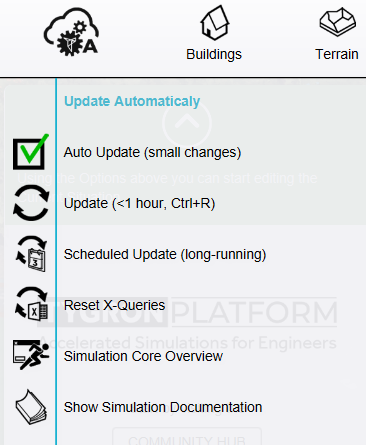 Auto update on
 -
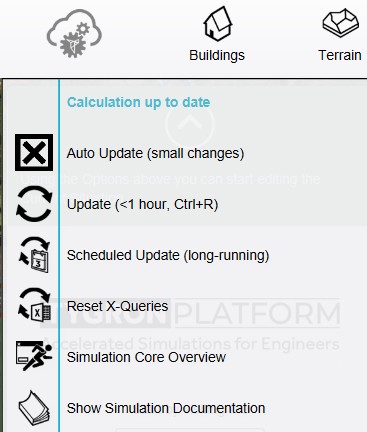 Auto update off but the project is up to date
 -
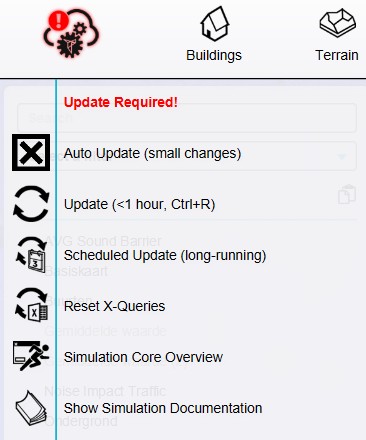 Auto update is off and manual recalculation is required


Scheduled Update (long running)
To ensure fair resource distribution, calculations are capped at 30 minutes; any exceeding this limit will timeout.
When a calculation is expected to take longer than 30 minutes, it is possible to schedule a long running calculation. This means the Tygron Platform allocates specific calculation resources without a time limit, which should not hinder other calculations taking shorter amounts of time.
When scheduling a long-running calculation, you can choose to be notified upon completion via email, SMS (registered or provided), or no alert. In addition, opting to schedule a long running calculations will automatically put the Project Session in Keep Alive mode. This means the Tygron Platform can be closed on the user's computer, and the Session will remain active, allowing a user to reconnect to the Session within a week.
Like with shorter calculations, if all calculation resources which allow long running calculations are already in use, the calculation remains queued until resources free up.
-
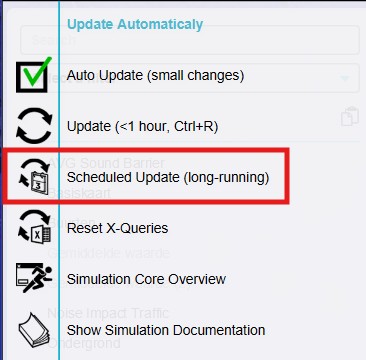 Scheduled Update (long running) option.
 -
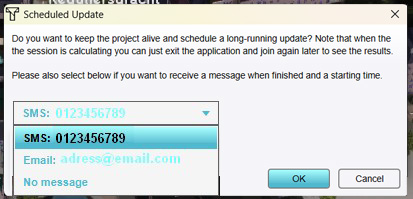 Options to be notified (or not).


Reset X-Queries
- Main article: X query (Excel)#Resetting X queries
Often, Excels for Indicators or Panels use X-Queries. These queries are interpreted by the Tygron Platform as "for every" of a certain Item. For example, {code|SELECT_NAME_WHERE_AREA_IS_X} will resolve to multiple queries, one for every Area. These individual queries are then reused whenever a calculation is performed.
When new Items matching the X-Query are added, or such Items are removed, it is necessary to use the "Reset X-Queries" option, to force the Tygron Platform to re-evaluate for which Items individual queries should be generated. Failure to reset queries may exclude new items from calculations or cause errors by referencing deleted items.
-
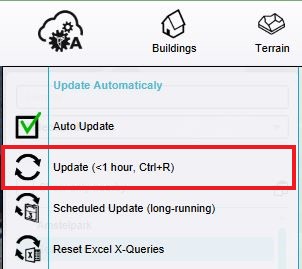 Update Indicators option
 -
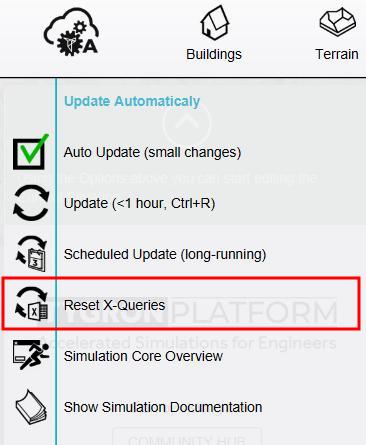 Reset X-Queries option


When to choose which option?
Choose Reset X-Queries if the amount of areas or neighborhoods is changed (for example by adding or removing an area/neighborhood). Choose Update Indicators if the amount of areas or neighborhoods stays the same (for example if you only changed an attribute of an area or if you did not use X-Queries in your Excelsheet.
Using any one of these option affects all Indicators, Panels and Grid Overlays.
Limit Map
- Limit Map determines the rectangle that will be part of the simulation, when empty the entire map is used.
- When you do not want to calculate the entire map (e.g. due to memory limits or performance) but only a rectangle subsection use this option.
Iterations

- The Setting
ITERATIONSdetermines how many times the calculation process is repeated. - When the Grid Overlay has a ITERATION_ACTIVE attribute, only the iteration numbers set in this attribute will be executed. For example
ITERATION_ACTIVE: 0 5will only calculate in iteration 0 and 5.
Simulation Core Overview
- Main article: Simulation Core Overview

The Simulation Core Overview shows an overview of the components in a project and their calculation time. If your project performance is slow, check the overview to see which component(s) could cause this.
Rasterization
- The Rasterization determines how polygons are converted to grid cells.
- By default the combined option is selected.
GPU overview
The GPU cluster overview shows the different GPU clusters that are available for calculation and their status. If they are busy with calculating components of other projects of other users, it will be visible here. Your active calculation jobs are also listed, where you can cancel them using the cancel icon. The GPU clusters where short is stated are used for short calculations (max 30 minutes). The other GPU clusters are available for Long running scheduled calculations.
-
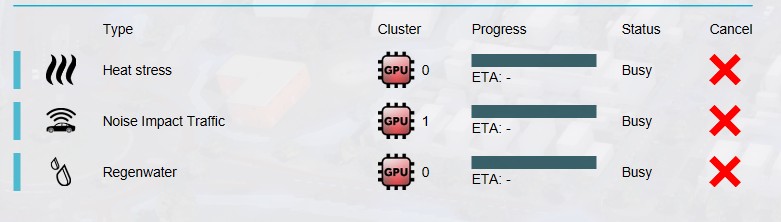 One of the clusters is busy with another job
 -
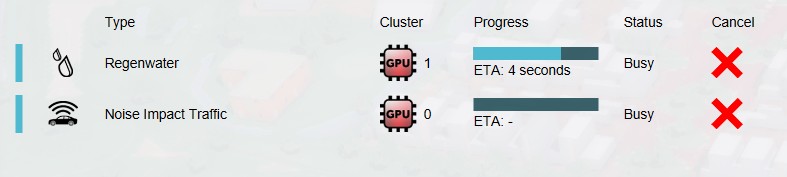 The calculation time of one of the components in your project is visible and the option to cancel it


How-to's
- How to delay Grid Overlay calculations
- How to calculate only a part of the Project map
- How to combine multiple calculations into a single result
- How to use a limit map in a Scenario
See also
API Endpoints