Measurement: Difference between revisions
Jump to navigation
Jump to search
No edit summary |
No edit summary |
||
| Line 1: | Line 1: | ||
[[File:Api_current_situation_calculation.png|thumb|right|400px|[[Measurement]] in comparison to [[Overlay]]s.]] | [[File:Api_current_situation_calculation.png|thumb|right|400px|[[Measurement]] in comparison to [[Overlay]]s.]] | ||
In {{software}}, a measurement is an item that allows users to record and inspect spatial data. Measurements can be positioned in the [[project map]] using the [[Measurement Tool]] and are applied to a [[grid overlay]] or to an attribute related to a specific grid overlay. | |||
Measurements are accessible by | Measurements are accessible by | ||
Revision as of 09:13, 8 July 2026

In Tygron Platform, a measurement is an item that allows users to record and inspect spatial data. Measurements can be positioned in the project map using the Measurement Tool and are applied to a grid overlay or to an attribute related to a specific grid overlay.
Measurements are accessible by
Types
Currently three types of measurements are supported:
- Point measurement, to inspect the value of a grid overlay for a specific location. Optionally displays values over time in case the overlay supports timeframes.
- Line measurement, to inspect the variation in values of a grid overlay on the line drawn.
- Object measurement, to inspect the value of an output attribute of a grid overlay related to that object. Optionally displays values over time in case the overlay supports timeframes.
Adding a measurement
Measurements can be added, inspected, imported and exported using the measuring tool. It is accessible in the navigation panel, by clicking on the icon above the overlay bar.
-
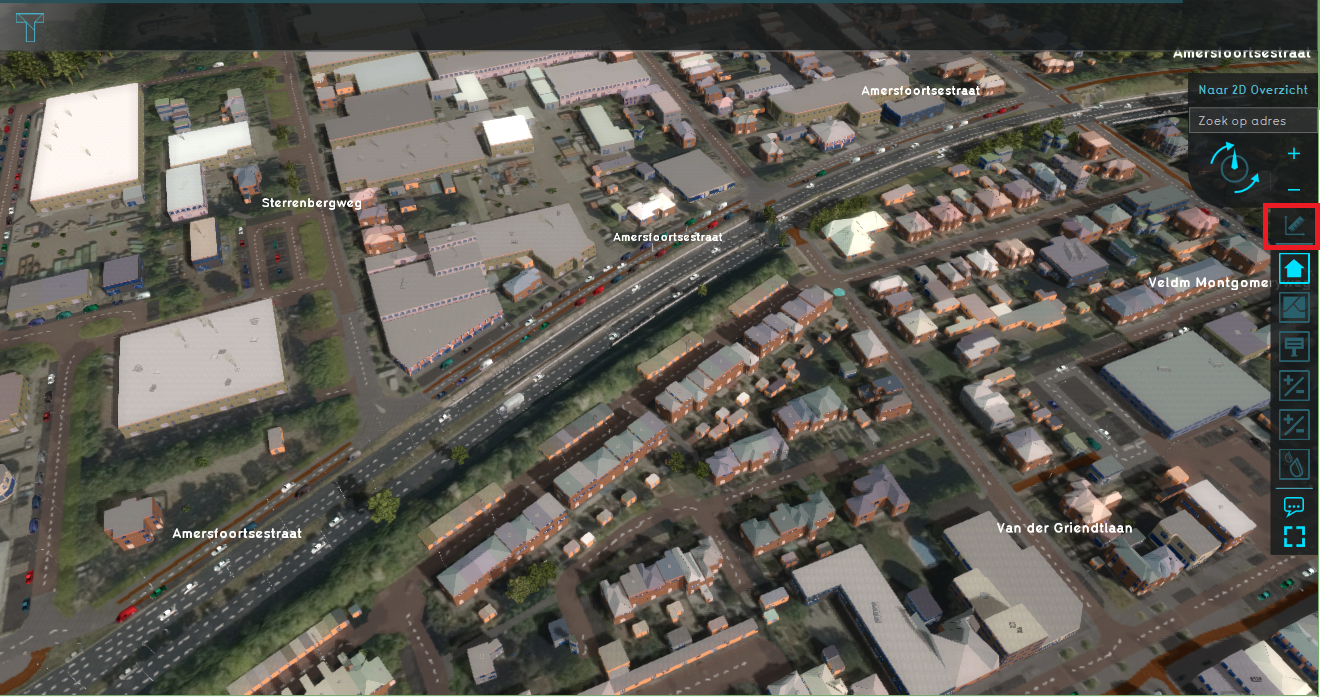 The location of the measuring tool in the overlay bar.
 -
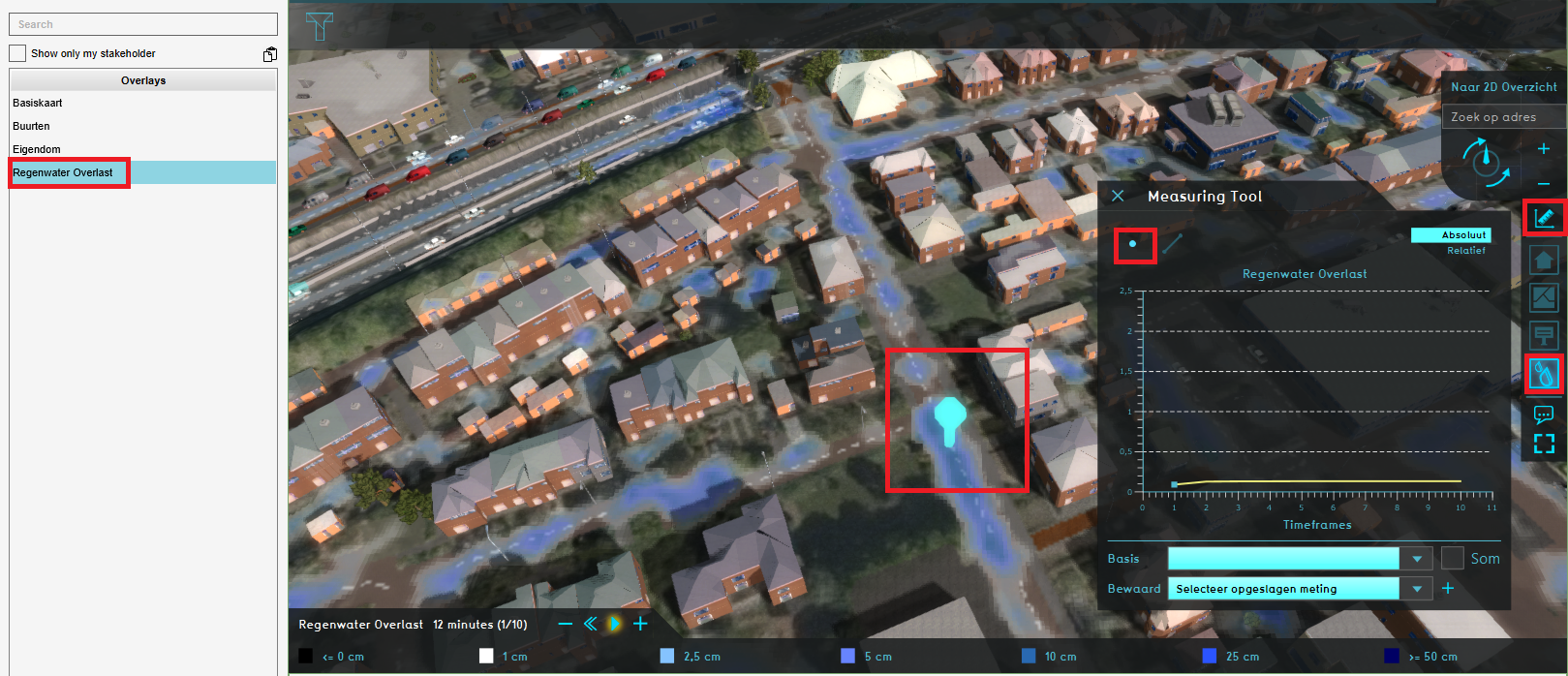 Making a point measurement in a Rainfall overlay's grid.


Notes
- Measurement is a Sourced Item, which means it records which Sources created it and which Sources changed any of its properties.
How-to's
- How to make a line measurement
- How to make a point measurement
- How to inspect object output attributes of an overlay using the measurement tool
- How to export an Object output attribute as measurement
- How to export measurements
- How to import measurements
- How to save and load a measurement
API Endpoints
 Current Situation
- Buildings • Terrains • Administrative • Areas • Networks • Overlays • Indicators • Panels • Globals • Queries • Geo Import
- Buildings
- Function • Function Override • Section • Category • Custom Geometry • Category Value • Function Value • Function Values Table • List of Functions
- Traffic
- Unit Type • Unit Data • Unit Data Override
- Terrain
- Height sector • Elevation model • Elevation GeoTIFF • Elevation Grid Overlay • Ground Price • Terrain Type • Terrain Type Override • List of Terrain Types
- Administrative
- Neighborhood • Zone • Permission Popup • Plot • Zip Code
- Queries
- Net Cluster • Net Function • Net Line • Net Load • Net Node • Net Setting • Net Type • Net Wizard
- Editor