How to edit an overlay legend: Difference between revisions
Jump to navigation
Jump to search
No edit summary |
No edit summary |
||
| Line 22: | Line 22: | ||
|seealso=*[[Grid Overlay]] | |seealso=*[[Grid Overlay]] | ||
*[[Overlay]] | *[[Overlay]] | ||
|howtos=*[[How to configure a Grid Overlay legend]] | |||
|api=*[[Api session event editor overlay set custom legend]] | |api=*[[Api session event editor overlay set custom legend]] | ||
*[[Api session event editor overlay add legend entry]] | *[[Api session event editor overlay add legend entry]] | ||
Revision as of 13:47, 3 September 2026
How to Modify the Legend of an Overlay:
- Select the desired Overlay from list of overlays on the left panel
- Select the Legend tab in the right panel
- Notice the sets of values with corresponding colors
- Select the "Has Custom Legend" option
- Select "Add" at the bottom of the right panel
- A new Entry will appear
- Edit the name, value and color of the new entry
- Notice that the new entry is automatically sorted
-
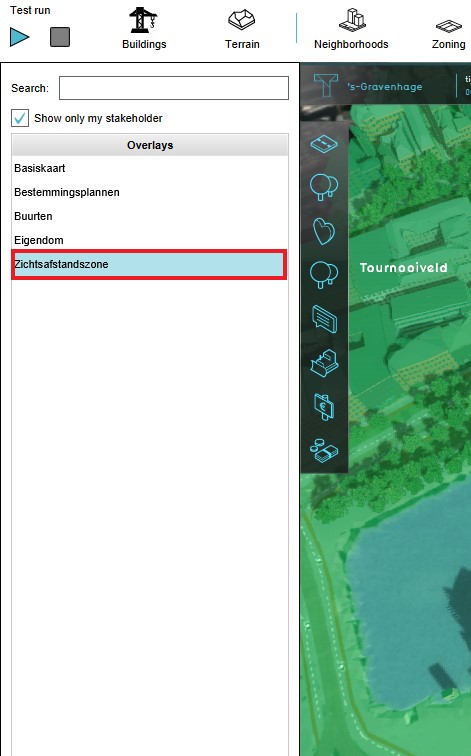 Select Sight Distance Overlay
 -
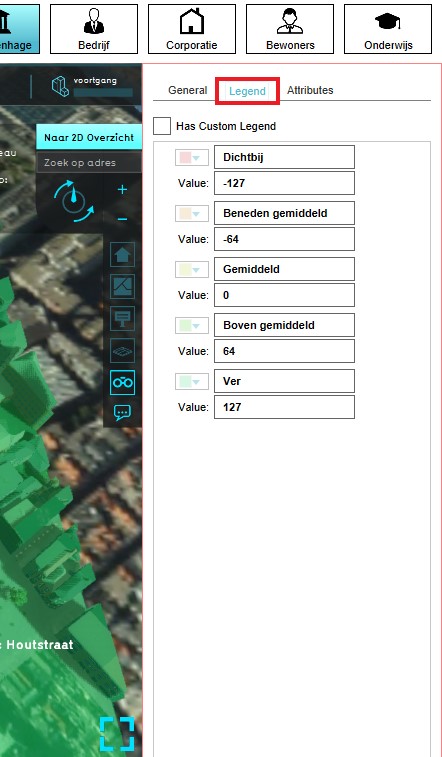 Select Legend tab
 -
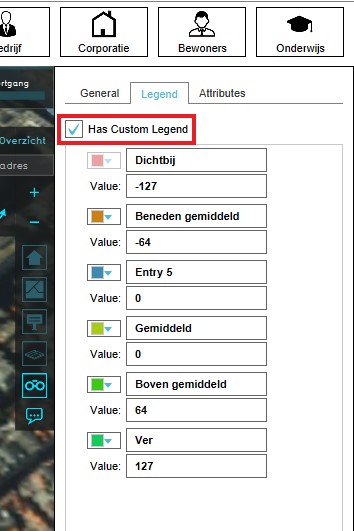 Select "Has Custom Legend"
 -
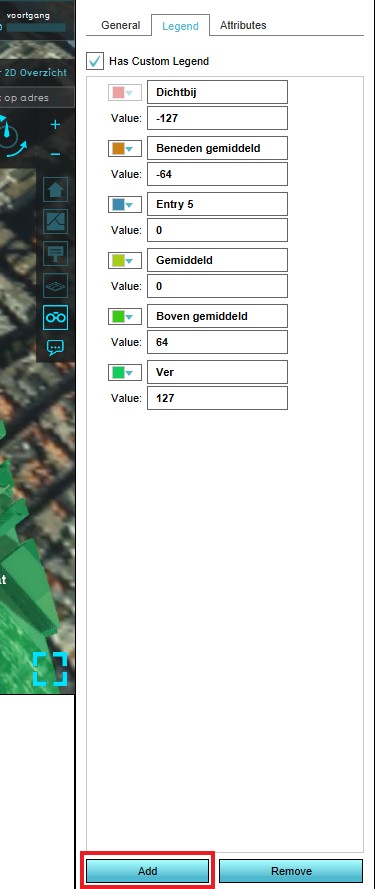 Add new entry
 -
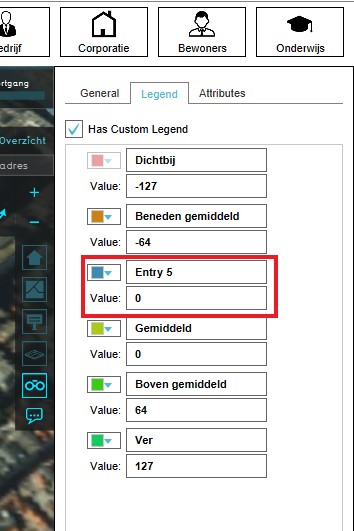 Edit the name, value and color of the entry


How to Copy the Legend of an Overlay:
- Select the desired Overlay from list of overlays on the left panel
- Select the Legend tab in the right panel
- Notice the sets of values with corresponding colors
- Select the "Has Custom Legend" option
- Hover over the edit icon in the top right and choose copy.
- Select the Overlay you want the copied Legend to go to.
- Select the Legend tab in the right panel
- Hover over the edit icon in the top right and choose paste.
-
Select Sight Distance Overlay
-
Select Legend tab
-
Select "Has Custom Legend"
-
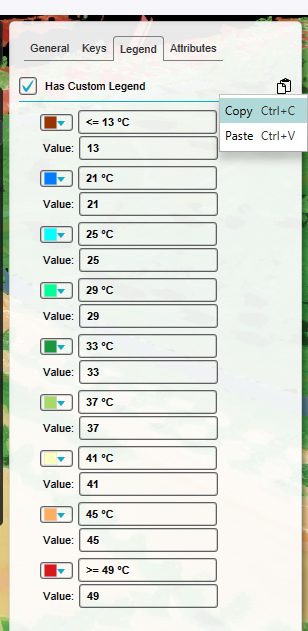 Copy/Paste Legend

How-to's
See also
API Endpoints
- Api session event editor overlay set custom legend
- Api session event editor overlay add legend entry
- Api session event editor overlay remove legend entry
- Api session event editor overlay set legend entry color
- Api session event editor overlay set legend entry name
- Api session event editor overlay set legend entry value