Camera: Difference between revisions
Jump to navigation
Jump to search
No edit summary |
|||
| (2 intermediate revisions by the same user not shown) | |||
| Line 31: | Line 31: | ||
The available automatic camera modes are: | The available automatic camera modes are: | ||
<gallery widths=200px heights=200px> | <gallery widths=200px heights=200px> | ||
File:camera_cinematic.png|[[ | File:camera_cinematic.png|[[Cinematic]] | ||
File:camera_cinematic_edit.png|[[ | File:camera_cinematic_edit.png|[[Cinematic edit camera]] | ||
File:camera_circle.png|[[ | File:camera_circle.png|[[Circling camera]] | ||
</gallery> | </gallery> | ||
{{Camera nav}} | {{Camera nav}} | ||
{{Editor ui nav}} | {{Editor ui nav}} | ||
Latest revision as of 09:40, 6 July 2026
The Camera provides a particular view of project in the 3D Visualization. The user can choose between different camera modes. Each camera mode has a particular way of navigation controls attached to it.
The available camera modes are:
- Standard camera modes that you can control by using the mouse and allow interaction with the 3D Visualization.
- Walking camera modes that allow you to take a close look and walk through the 3D Visualization from the perspective of a person.
- Automatic camera modes that guide the user through the 3D Visualization along predefined paths.
Standard
The available standard camera modes are:
-
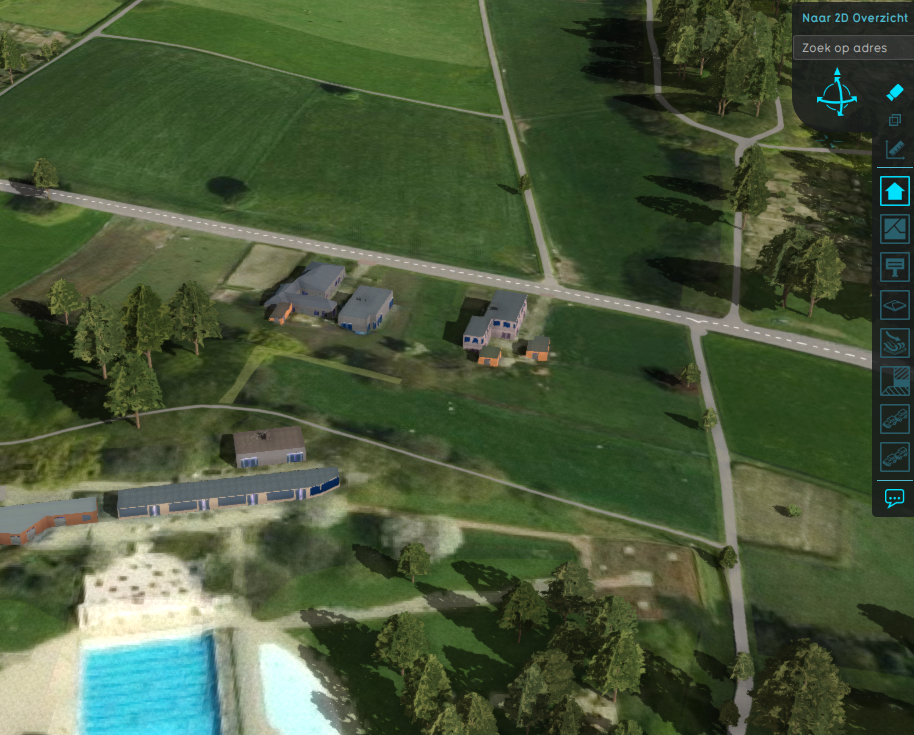
-
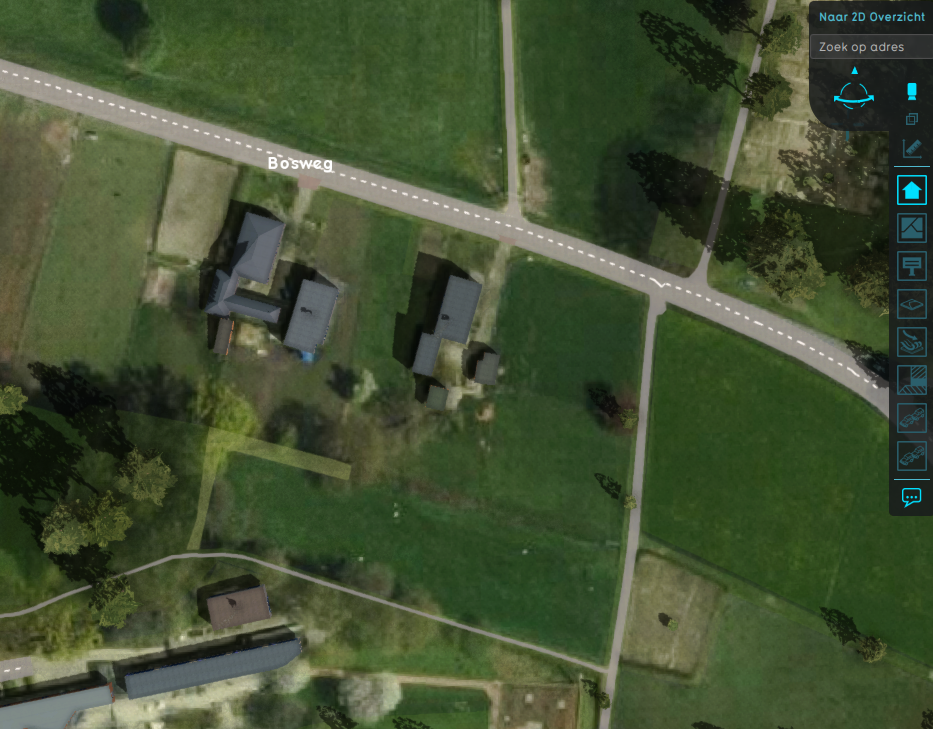
-
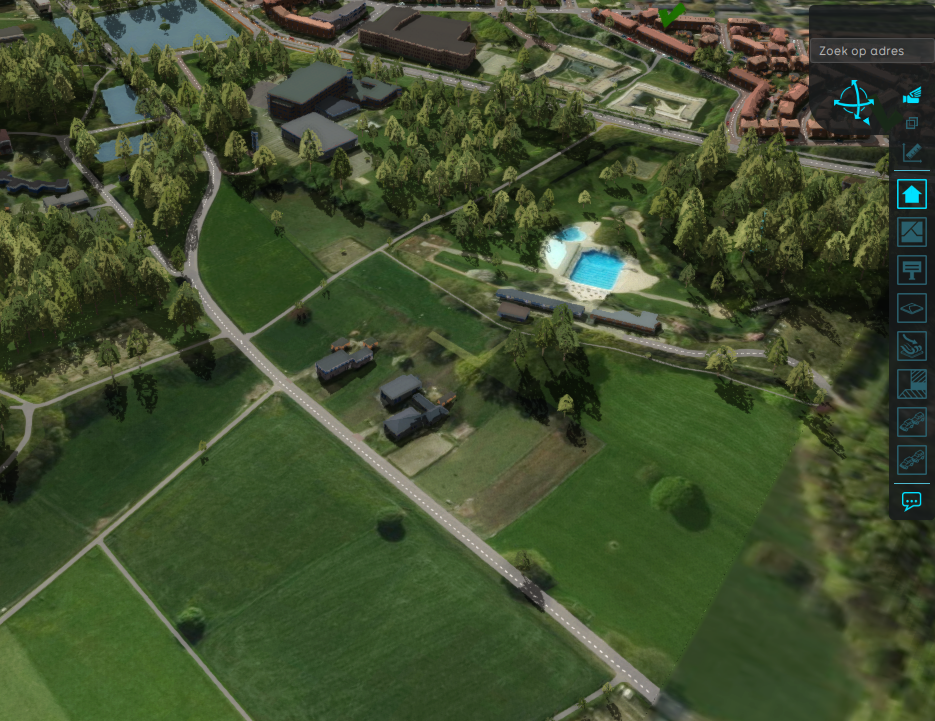
-
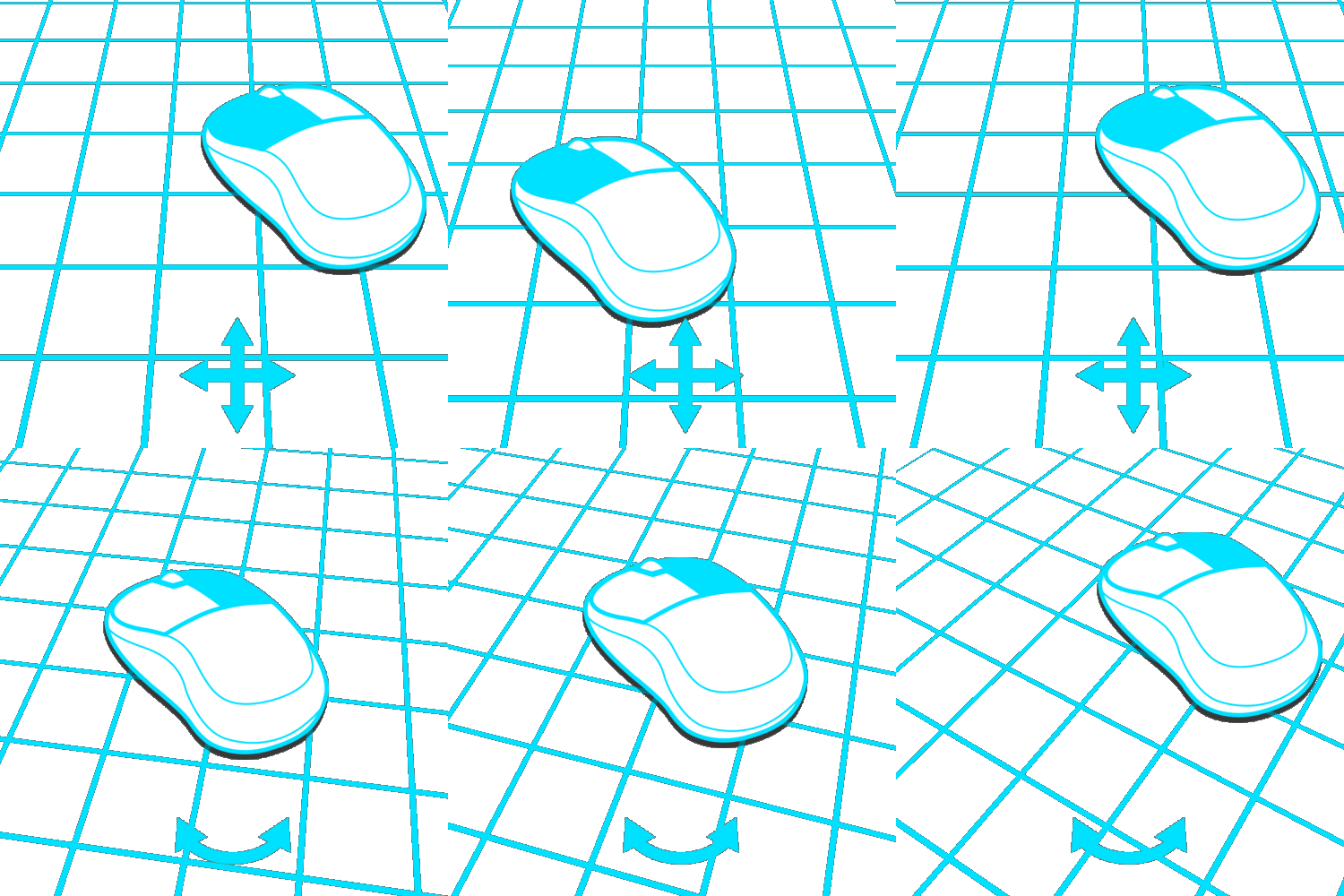 Dragging with the mouse while holding a mouse button will move the camera


You can switch between these modes by clicking on the corresponding icon in the navigation panel: 


Walking
The available walking camera modes are:


Walking camera modes are accessed by continuously zooming in while in the standard camera modes. Zooming out from the walking camera modes allow you to return to the previously selected standard camera mode.
You can switch between these walking modes by:
- Clicking on the

 icon in the navigation panel.
 - Pressing the space key on your keyboard.


Automatic
The available automatic camera modes are:


