How to add and remove an Attribute
Adding and removing overlays is a generic process, however, certain overlays are dependent on other assets being present too, such as indicators, terrains, vacancy, images, etc. For more information please refer to the respective main articles for the specific overlays.
-
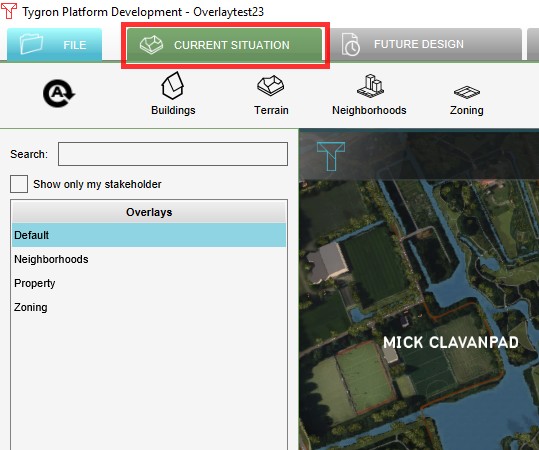 1. Select 'Current Situation'
-
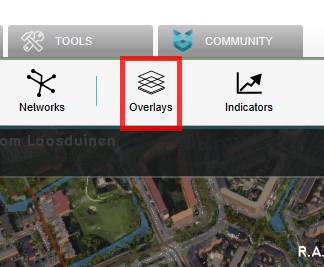 2. Select Overlays
-
3. Select desired Overlay from pop up menu
-
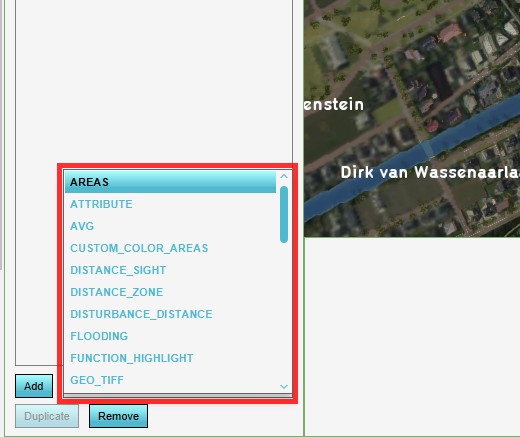 4. ... or select desired overlay from drop down menu on the bottom of the left panel
-
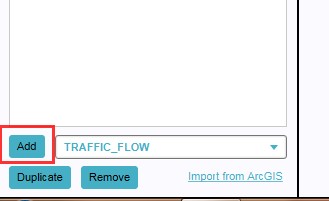 5. Select 'Add' from the bottom of the left panel
-
6. Fill in parameters on the right panel (required for some overlays)
-
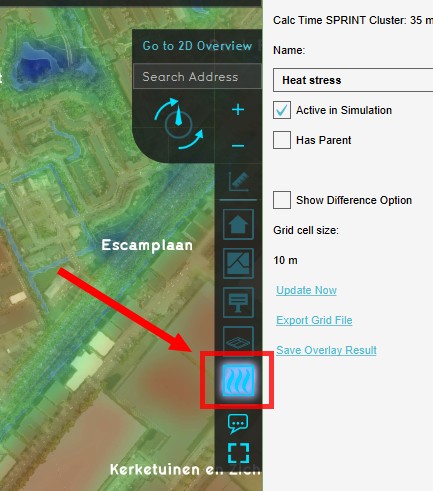 7. The overlay icon will now appear under the mini map


-
1. Select 'Current Situation'
-
2. Select Overlays
-
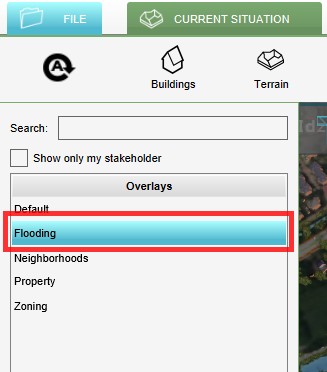 3. Select desired overlay from the list of active overlays on the left panel
-
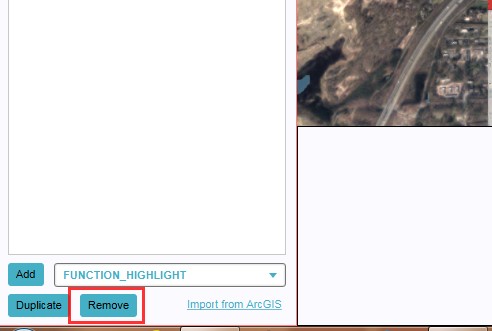 4. Select 'Remove' from the bottom of the left panel
-
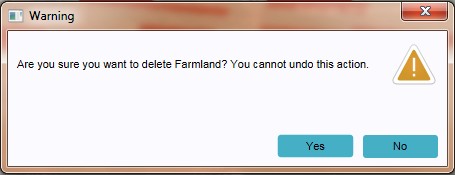 5. Confirm the removal in the pop up confirmation message


Sometimes it can be convenient to duplicate an already existing overlay. To do so, follow the steps for removal, but select 'Duplicate' in stead of 'Remove'.