Attribute Actions: Difference between revisions
No edit summary |
No edit summary |
||
| (29 intermediate revisions by 2 users not shown) | |||
| Line 1: | Line 1: | ||
[[File:Breezeicons-actions-22-tag-new.png]] | [[File:Api_future_design.png|thumb|right|400px|[[Attribute Action]]s in relation to other [[Action]]s]] | ||
[[File:Breezeicons-actions-22-tag-new.png|50px|left]] | |||
Attribute Actions are [[action]]s that provide a convenient way to add or update one or more [[attribute]]s of a [[building]] at once. Attribute Actions do not change the Function of a Building. Therefore they provide an alternative to [[Upgrade Type]]s. Attribute Actions can be added to [[Action Menu]]s to make them accessible to [[Stakeholder]]s. An Attribute Actions can be configured to adjust attribute values for specific building selections. | |||
== | ==Solar Panel example== | ||
Attribute | For example, an Attribute Action can add the [[attribute]] [[Solar panels (Function Value)|SOLAR_PANELS]] with a value of 1.0. This attribute can then be used in indicator and overlay calculations using [[Average Overlay]]s and [[TQL]]. | ||
<gallery widths=200px|heights=300px> | |||
File:attribute_action_solar_panels1.png|Adding a new [[Attribute Action]]. | |||
File:attribute_action_solar_panels2.png|Configured a SOLAR_PANELS attribute with value 1. | |||
File:attribute_action_plan.png|Planning the [[Attribute Action]] in a test-run [[session]]. | |||
File:attribute_action_planned.png|The effects of a planned [[Attribute Action]], where the building now has solar panels. | |||
</gallery> | |||
== Where can I find Attribute Actions in the {{software}}? == | == Where can I find Attribute Actions in the {{software}}? == | ||
| Line 63: | Line 71: | ||
--> | --> | ||
{{article end | |||
*[[ | |howtos= | ||
*[[Attribute | *[[How to add an Attribute Action to your project]] | ||
*[[ | |seealso= | ||
*[[ | *[[Attribute]]s | ||
*[[Attribute action panel]] | |||
*[[Attribute Overlay]] | |||
*[[Average Overlay]] | |||
|api=*[[Api session items attributeactions]] | |||
*[[Api session event editor attributeaction]] | |||
}} | |||
{{Template:Editor_future_design_nav}} | |||
[[Category:Items]][[Category:Attribute Action]][[Category:Action]] | |||
{{Template: | |||
[[Category:Items]] | |||
Latest revision as of 12:19, 8 July 2026


Attribute Actions are actions that provide a convenient way to add or update one or more attributes of a building at once. Attribute Actions do not change the Function of a Building. Therefore they provide an alternative to Upgrade Types. Attribute Actions can be added to Action Menus to make them accessible to Stakeholders. An Attribute Actions can be configured to adjust attribute values for specific building selections.
Solar Panel example
For example, an Attribute Action can add the attribute SOLAR_PANELS with a value of 1.0. This attribute can then be used in indicator and overlay calculations using Average Overlays and TQL.
-
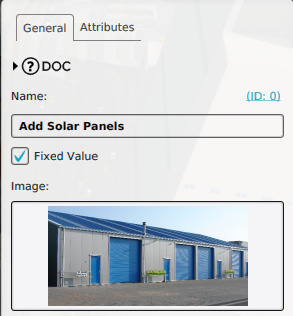 Adding a new Attribute Action.
 -
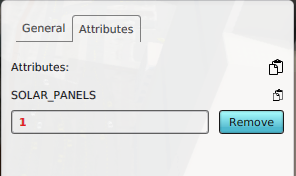 Configured a SOLAR_PANELS attribute with value 1.
 -
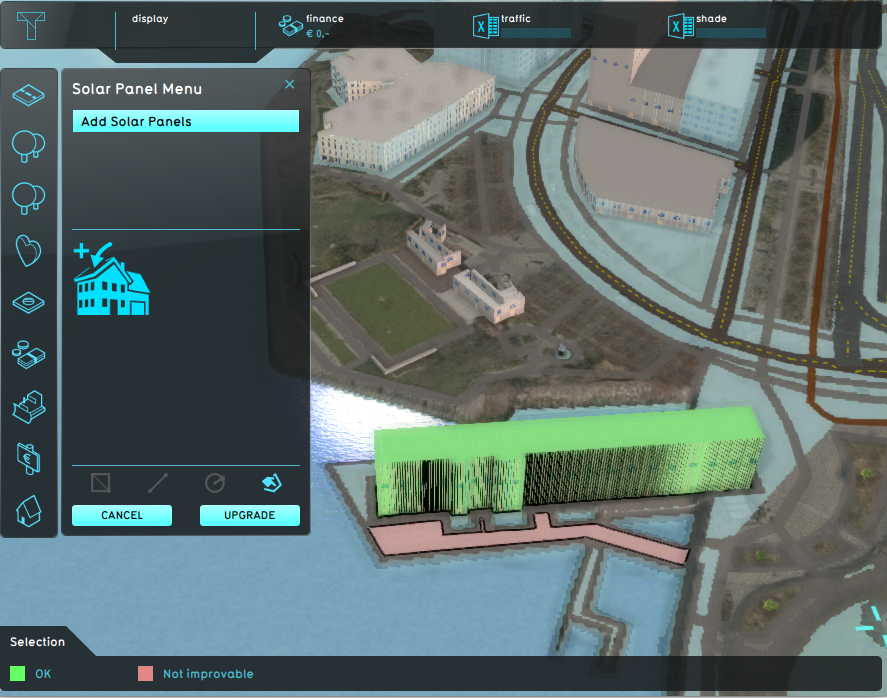 Planning the Attribute Action in a test-run session.
 -
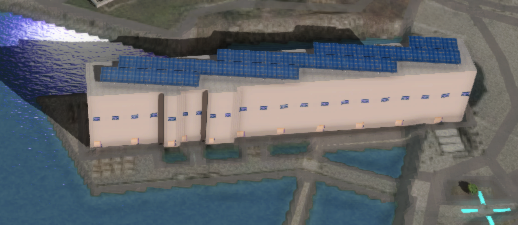 The effects of a planned Attribute Action, where the building now has solar panels.


Where can I find Attribute Actions in the Tygron Platform?
Editor → Future Design (Ribbon tab) → Attributes (Ribbon bar)
Attribute Actions can be found under the Future Design tab in the editor of the Tygron Platform.
How-to's
See also
API Endpoints
 Future Design
- Test Run • Actions • Action Menus • Measures • Parametric • Attributes • Levee Types • Upgrade Types • Event Bundles • Active Stakeholders
- Actions
- Building • TerrainSpatial • GridSpatial • TiffSpatial • LeveeSpatial • UpgradeSpatial
- Special Option