Distance Overlay: Difference between revisions
Created page with "==Safety Zone (Overlay)== {{learned|what the safety zone overlay is.|which information is displayed on the safety zone overlay.|}} ==What the safety zone overlay is== File:..." |
No edit summary |
||
| (131 intermediate revisions by 10 users not shown) | |||
| Line 1: | Line 1: | ||
[[File:Safety Zone-Overlay.jpg|thumb|left|Distance Zone Overlay]] | |||
The Distance Zone Overlay is an [[Grid overlay|overlay]] which can be used for displaying zones around buildings. One use case for this could be a zone around a wind turbine that resembles the noise contour. The distance zone is always a circle situated around the affected building(s). The radius of this circle can be adjusted in the [[Function_Values|function value tabel]]. See below for more information on how to adjust the function value. | |||
The overlay can also be modified to count how many zones are overlapping each other. See below for more information on how to enable this "Count Hits instead of Distance" option. An example use case for this overlay can be found on the [[Use cases Distance Overlay]] page. | |||
[[File: | For calculating Travel distances, see [[Travel Distance Overlay]]. | ||
{{clear}} | |||
==Additional information displayed in hover panel== | |||
<gallery widths=200px> | |||
File:Distance_zone_popup.JPG|The distance of the selected object which has a distance zone is displayed | |||
File:Distance_hits_popup.JPG|The number of overlapping zones is displayed | |||
</gallery> | |||
When clicking on a specific location in the map, the hover panel gives additional information of the distance from the clicked location to the object which has a distance zone.<br> | |||
If the "Count Hits instead of Distance" option is enabled, the overlay show the number of overlapping zones on the clicked location. | |||
==Hit count== | |||
= | When the option [[Hit count (Distance Overlay)|Hit count]] is selected, the functionality of this overlay changes to counting for each grid cell how many objects are within the [[Attribute (Distance Overlay)|defined distance]] of those objects. Which objects are considered depends on the configured [[Rasterization (Distance Overlay)|rasterization]] and whether they have a distance defined that is larger than 0. | ||
<gallery widths=200px > | |||
File:distance_overlay_of_windmills_500m.jpg|[[Attribute (Distance Overlay)|Distance]] to windmills (500m) | |||
File:distance_overlay_hitcount_of_windmills_500m.jpg|[[Hit count (Distance Overlay)|Hit count]] of windmills (500m) | |||
</gallery> | |||
=== | ==Results== | ||
The result of the [[Distance Overlay]] is a grid which shows, depending on the value of the [[Hit count (Distance Overlay)|hit count attribute]]: | |||
<br | #The distance to the closest [[Item]] when it is within its defined [[Distance zone m (Distance Overlay)|Distance zone m]].<br> | ||
#The amount of times this [[grid cell]] is within the defined [[Distance zone m (Distance Overlay)|Distance zone m]] of an [[Item]]. | |||
{{result types| | |||
{{:Zone result type (Distance Overlay)}} | |||
}} | |||
==Variants== | |||
The following overlays that previously were separate entities can now be constructed using a general distance overlay: | |||
* [[Safety Distance Overlay]] | |||
[[ | {{article end | ||
|howtos= | |||
[[ | * [[How to add and remove an Overlay]] | ||
* [[How to edit an overlay legend]] | |||
= | * [[How to specify the distance zone radius of a function]] | ||
* [[How to configure the Distance Zone Overlay to count features]] | |||
* [[Use cases Distance Overlay]] | |||
|seealso= | |||
* [[Model attributes (Distance Overlay)]] | |||
* [[Attribute (Distance Overlay)]] | |||
* [[Distance zone m (Function Value)]] | |||
* [[Average Overlay]] | |||
* [[Sight Distance Overlay]] | |||
* [[Travel Distance Overlay]] | |||
}} | |||
{{DistanceOverlay nav}} | |||
{{Overlay nav}} | |||
Latest revision as of 09:26, 29 April 2026

The Distance Zone Overlay is an overlay which can be used for displaying zones around buildings. One use case for this could be a zone around a wind turbine that resembles the noise contour. The distance zone is always a circle situated around the affected building(s). The radius of this circle can be adjusted in the function value tabel. See below for more information on how to adjust the function value. The overlay can also be modified to count how many zones are overlapping each other. See below for more information on how to enable this "Count Hits instead of Distance" option. An example use case for this overlay can be found on the Use cases Distance Overlay page.
For calculating Travel distances, see Travel Distance Overlay.
Additional information displayed in hover panel
-
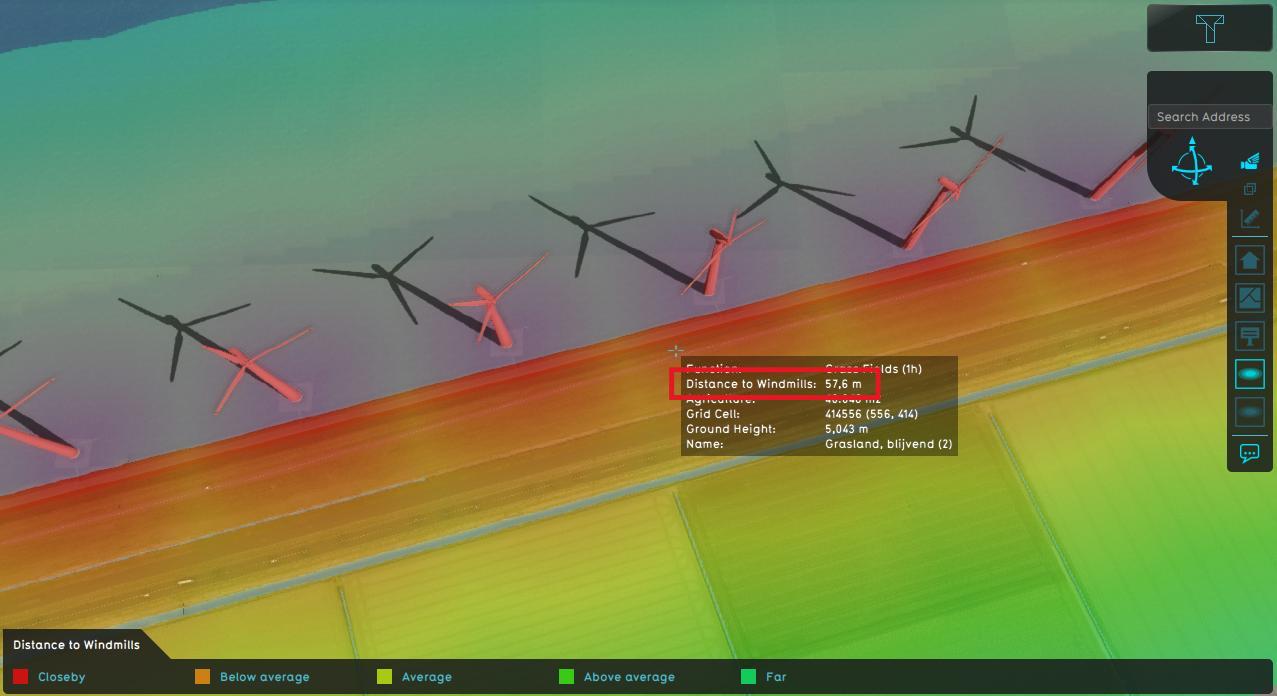 The distance of the selected object which has a distance zone is displayed
 -
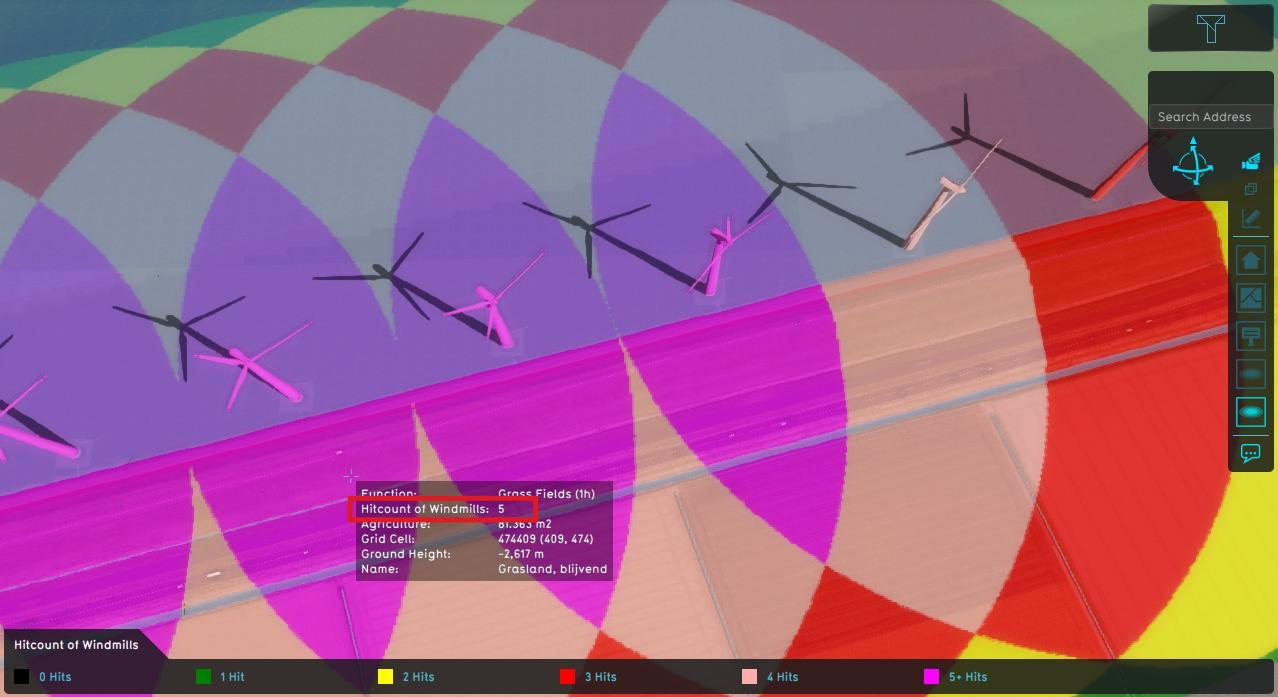 The number of overlapping zones is displayed


When clicking on a specific location in the map, the hover panel gives additional information of the distance from the clicked location to the object which has a distance zone.
If the "Count Hits instead of Distance" option is enabled, the overlay show the number of overlapping zones on the clicked location.
Hit count
When the option Hit count is selected, the functionality of this overlay changes to counting for each grid cell how many objects are within the defined distance of those objects. Which objects are considered depends on the configured rasterization and whether they have a distance defined that is larger than 0.


Results
The result of the Distance Overlay is a grid which shows, depending on the value of the hit count attribute:
- The distance to the closest Item when it is within its defined Distance zone m.
- The amount of times this grid cell is within the defined Distance zone m of an Item.
| Icon | Result type | Unit | Mode | Description |
|---|---|---|---|---|
 |
ZONE | m | 1.The distance to the closest Item when it is within its defined Distance zone m. 2.The amount of times this grid cell is within the defined Distance zone m of an Item. |
Variants
The following overlays that previously were separate entities can now be constructed using a general distance overlay:
How-to's
- How to add and remove an Overlay
- How to edit an overlay legend
- How to specify the distance zone radius of a function
- How to configure the Distance Zone Overlay to count features
- Use cases Distance Overlay
See also