How to import 3D Models from ArcGIS Online
How to log in an ArcGIS Online account in the Tygron Client Application:
- Click on the Community tab and click on Sign in with ArcGIS
- In the new panel that pops up, choose Default ArcGIS Online and click on Continue to login
- Fill in your username and password
- Upon success, a confirmation message appears and the panel closes automatically.
- To add private or organizational data, see the instructions below.
-
 Sign in with ArcGIS link in Community Tab of the ribbon bar.
 -
 Arcgis default Login panel
 -
 Arcgis Sign in panel.
 -
 Link changed when logged in with Arcgis.


How to import 3D Models from ArcGIS Online:
- Select Current Situation in the ribbon bar.
- Open the Geo Data Wizard and click next on the introduction step.
- Select the Buildings option in the Select Type step.
- Choose the Catalogue service option in the Import Method step.
- Choose the Select Catalogue service option with ArcGIS Online selected. (also to access the Enterprise portal data).
- In the Select Service step, click on the search option to browse through your Esri content , Esri organization content and Esri open data, available for this Project area.
- In order to import 3D models, make sure to select a source of type Scene Service.
- In the Import from Layer step, features are obtained automatically. Optionally adjust the selected layer and click next to import the data from an other layer.
- In case features were obtained, continue to the Update or replace step.
- Select the third option named Update only the 3D Model of existing Buildings.
- Finalize the wizard.
-
 Situation before importing 3D Models.
 -
 Selecting the Catalog Service option.
 -
 Finding a 3D Model Scene Service while logged in.
 -
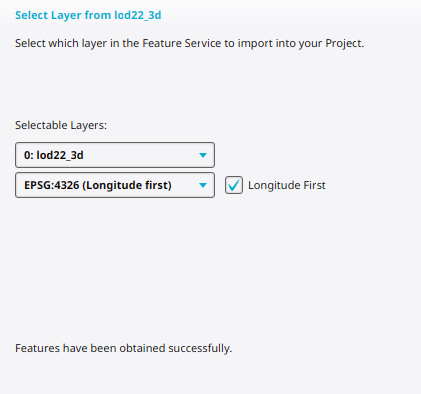 Obtained features for selected Service Layer.
 -
 Visual view of the features.
 -
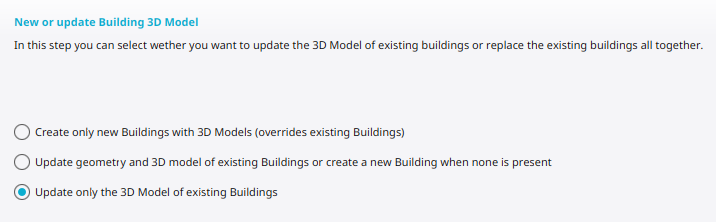 Selecting the option Update 3D Models of existing Buildings.
 -
 Situation after importing 3D Models.


Notes
- If your organization uses a Custom ArcGIS Enterprise Portal, select that option in the ArcGIS Login panel. An additional access token is required for the Tygron Platform to communicate with ArcGIS. Such a token [1] can be created using ArcGIS Portal for your Enterprise.
- Selecting an other option in the Update or replace step adds additional steps to configure with what function and owner the new Buildings should be imported. The surface shape of imported buildings is derived from their 3D Model.
- In ArcGIS Online, 3D Models are generally imported from Scene Layers.
How-to's
- How to log in an ArcGIS Online account in the Tygron Client Application
- How to log in an ArcGIS Enterprise account in the Tygron Client Application
- How to log out an ArcGIS account in the Tygron Client Application
- How to import data from ArcGIS Online
- How to import i3s scene layer in new project
- How to import 3D BAG data
See also
References
- ↑ Arcgis Access Token ∙ Found at: https://developers.arcgis.com/documentation/security-and-authentication/reference/access-tokens/ ∙ (last visited: 09-03-2026)