Free Cam: Difference between revisions
Jump to navigation
Jump to search
No edit summary |
|||
| Line 3: | Line 3: | ||
The {{software}} offers an option to activate a free camera navigation mode. This makes it possible to take a screenshot or record a movie of the current situation in the 3D Visualization of the project. | The {{software}} offers an option to activate a free camera navigation mode. This makes it possible to take a screenshot or record a movie of the current situation in the 3D Visualization of the project. | ||
Navigate using the keyboard or by clicking and dragging the mouse. See [[Camera#Free]]. | |||
==How to use the Free Cam== | ==How to use the Free Cam== | ||
| Line 21: | Line 21: | ||
To return to the normal mode in the {{software}} the 'Return to Normal' button in the bottom panel should be selected. | To return to the normal mode in the {{software}} the 'Return to Normal' button in the bottom panel should be selected. | ||
Modify 3D graphics by selecting 'Switch to Highest 3D Graphics' in the Free Cam ribbon bar. | |||
{{article end | {{article end | ||
Latest revision as of 14:31, 8 July 2026

The Free Cam is a short name for free camera navigation mode. In this mode you can freely navigate around in the 3D Visualization.
How the Free Cam is related to the Tygron Platform
The Tygron Platform offers an option to activate a free camera navigation mode. This makes it possible to take a screenshot or record a movie of the current situation in the 3D Visualization of the project.
Navigate using the keyboard or by clicking and dragging the mouse. See Camera#Free.
How to use the Free Cam
How to start the Free Cam:
- Select Tools in the ribbon bar in the editor
- Select Free Cam in the ribbon bar
- Select the 'Start Free Camera Navigation Software' option
- Notice that the free camera navigation is activated
-
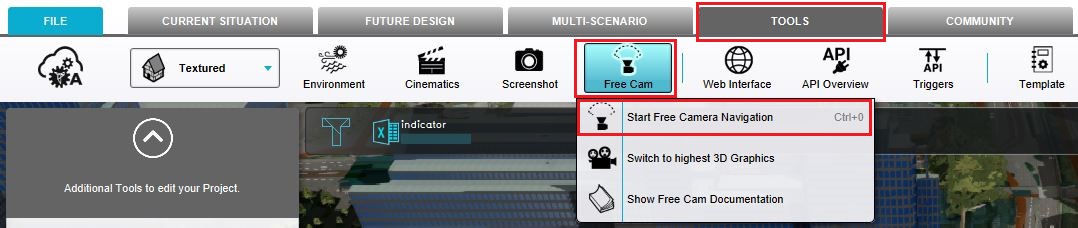 Select the Tools header, hover over Free Cam and select Start Free Camera Navigation.
 -
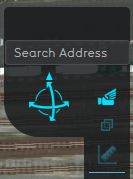 The free cam icon is shown in the navigation panel.


To return to the normal mode in the Tygron Platform the 'Return to Normal' button in the bottom panel should be selected.
Modify 3D graphics by selecting 'Switch to Highest 3D Graphics' in the Free Cam ribbon bar.
See also
 Tools
Tools