How to add and remove an Attribute
Attributes can be added to features such as Buildings, Stakeholders, Indicators, Areas and Overlays.
Attribute management is generally consistent, though some features require additional assets (e.g., indicators or terrains). Refer to the feature's main article for details.
Adding an Attribute
Editor → The type of data to edit (Ribbon bar) → The data to edit (Left panel) → Attributes tab (Right panel)
How to add an Attribute:
- Select the feature you want to add an attribute to
- Select the Attribute tab on the right side
- Enter a name/ value pair for the new Attribute
- Select 'Save New Attribute'
- Notice the new attribute is added to the feature
-
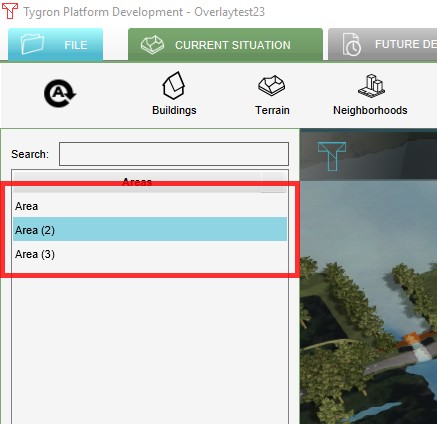 1. Select the feature where you would like to add an Attribute to
 -
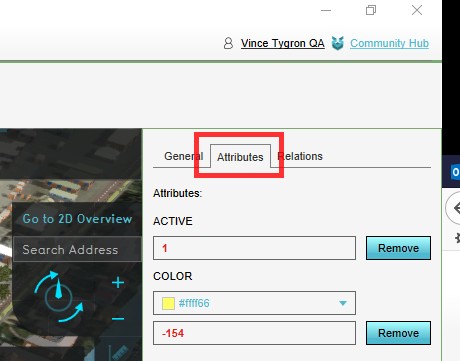 2. Select the Attribute tab
 -
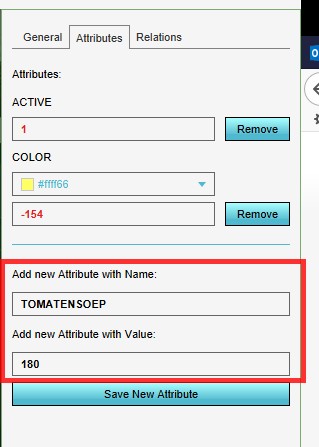 3. Enter a name/ value pair for the new Attribute
 -
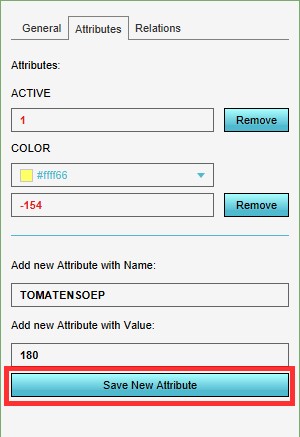 4. Select 'Save New Attribute'
 -
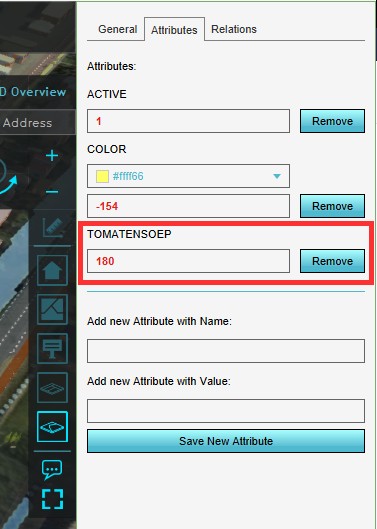 5. Notice the new attribute is added to the feature


Removing an Attribute
Editor → The type of data to edit (Ribbon bar) → The data to edit (Left panel) → Attributes tab (Right panel)
How to remove an Attribute:
- Select the feature you want to remove the attribute from
- Select the Attribute tab on the right side
- Select 'remove' next to the Attribute you would like to remove
- Notice the Attribute is removed
-
1. Select the feature where you would like to remove the Attribute from
-
2. Select the Attribute tab on the right side
-
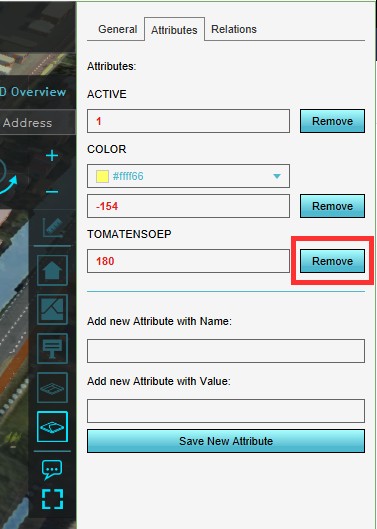 3. Select 'remove' next to the Attribute you would like to remove
 -
4. Notice the Attribute is removed


Removing all Attributes
To reset all attributes at once, select 'Reset Attributes' in the bottom corner on the right side.

See also
API Endpoints
- Api session event editor address set attribute
- Api session event editor area set attribute
- Api session event editor attributeaction set attribute
- Api session event editor building set attribute
- Api session event editor chatchannel set attribute
- Api session event editor functionoverride set attribute
- Api session event editor indicator set attribute
- Api session event editor neighborhood set attribute
- Api session event editor netfunction set attribute
- Api session event editor netline set attribute
- Api session event editor netload set attribute
- Api session event editor overlay set attribute
- Api session event editor panel set attribute
- Api session event editor parametric set attribute
- Api session event editor scenario set attribute
- Api session event editor terraintype set attribute
- Api session event editor weather set attribute
- Api session event editor zoning set attribute
- Api session event editor address set attributes
- Api session event editor area set attributes
- Api session event editor attributeaction set attributes
- Api session event editor building set attributes
- Api session event editor chatchannel set attributes
- Api session event editor functionoverride set attributes
- Api session event editor indicator set attributes
- Api session event editor neighborhood set attributes
- Api session event editor netfunction set attributes
- Api session event editor netline set attributes
- Api session event editor netload set attributes
- Api session event editor overlay set attributes
- Api session event editor panel set attributes
- Api session event editor parametric set attributes
- Api session event editor scenario set attributes
- Api session event editor terraintype set attributes
- Api session event editor weather set attributes
- Api session event editor zoning set attributes
- Api session event editor address remove attribute
- Api session event editor area remove attribute
- Api session event editor attributeaction remove attribute
- Api session event editor building remove attribute
- Api session event editor chatchannel remove attribute
- Api session event editor functionoverride remove attribute
- Api session event editor indicator remove attribute
- Api session event editor neighborhood remove attribute
- Api session event editor netfunction remove attribute
- Api session event editor netline remove attribute
- Api session event editor netload remove attribute
- Api session event editor overlay remove attribute
- Api session event editor panel remove attribute
- Api session event editor parametric remove attribute
- Api session event editor scenario remove attribute
- Api session event editor terraintype remove attribute
- Api session event editor weather remove attribute
- Api session event editor zoning remove attribute