How to create an SLPK file: Difference between revisions
| Line 25: | Line 25: | ||
===2.d Importing and assigning texture maps on an imported model=== | ===2.d Importing and assigning texture maps on an imported model=== | ||
If your model has a texture map and it is not loaded onto the model after importing you can import it manually in ArcGis Pro. To import and assign a texture follow | If your model has a texture map and it is not loaded onto the model after importing you can import it manually in ArcGis Pro. To import and assign a texture follow the steps in the [[How_to_import_and_assign_a_texture_in_ArcGIS_Pro|How to import and assigne textures]]. | ||
===3.Georeference your imported model=== | ===3.Georeference your imported model=== | ||
Revision as of 11:36, 25 February 2020
This page provides information on how to export a SLPK file with ArcGIS Pro. The ArcGIS PRo version used in this documentation is 2.4.0. To learn more about ArcGIS Pro visit ESRI's ArcGis Pro Documentation. In order to export a 3D model as a SLPK, it has to be imported into ArcGIS Pro and Georeferenced to place the model on the right location. ArcGIS Pro allows for the following file formats to be imported:
- DWG (Drawing) Used in CAD software. Can be exported from most 3D animation packages. An Autocad 2004 export works best to create an slpk file.
- OBJ (Wavefront object) Used in most 3D animation packages like Autodesk 3dsmax and Maya.
- DAE (Collada) Used in most 3D animation packages like Autodesk 3dsmax and Maya.
- 3DS (3D studio) Used as an exported file from Autodesk 3dsmax.
- FLT (OpenFlight) Used in MultiGen Creator.
- WRL (Virtual Reality Modeling Language File) A VRML file format for representing 3D vector graphics.
There are differences in how a DWG file is added to your ArcGIS Pro project from other 3D file formats. Both will be explained below.
In general for the 3D models, make sure there are no duplicate polygons in the 3D model.
1. Creating a new ArcGIS Pro project
To add a 3D model like CAD or OBJ you should first create a new project in ArcGIS Pro. When starting a new project make sure that you select a local Scene from the Blank Templates section. You can convert a local scene to a global scene after you have imported your model(s).
2.a Adding a DWG file
If you are working with CAD data, see the steps on How to import a DWG file.
2.b Importing other 3D file formats
To import other 3D files like OBJ, DAE, 3DS, FLT or WRL, see the How to import a 3D file.
2.c Import a SketchUp model
To import a SketchUp model, see the How to import a SketchUp model in ArcGIS Pro.
2.d Importing and assigning texture maps on an imported model
If your model has a texture map and it is not loaded onto the model after importing you can import it manually in ArcGis Pro. To import and assign a texture follow the steps in the How to import and assigne textures.
3.Georeference your imported model
If the 3D model is not yet on the right location on the map, follow the steps in the How to to georeference the model: How to Georeference a 3D model.
4. Export the model as a SLPK file
After importing and if needed Georeferencing your model(s) you can export them to a SLPK file by following the steps below, which are divided into three sections. Please follow them in order.
-
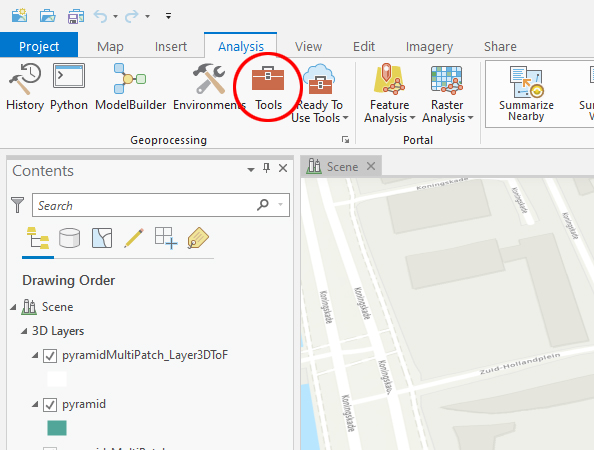 Tools
-
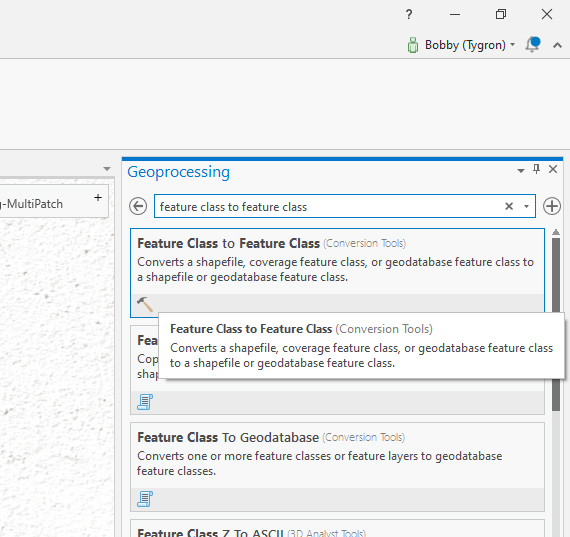 Conversion tool
-
 Input feature
-
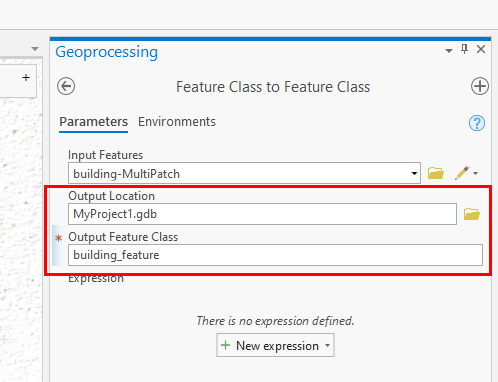 Output Feature Class


Importing a SLPK into the Tygron Platform
After creating a SLPK file, the data can be imported into the Tygron Platform by making use of the Geo data wizard. Read here for the steps on how to use the wizard.