How to create a custom breach growth formula

This how-to describes the steps necessary to iteratively update the breach width using a Template Excel Panel. This project assumes you have followed the steps to setup an iterated Flooding Overlay.
- Open a project setup with an iterative Flooding Overlay
- Add a new Breach Area
- Disabling default breach growth in Flooding Overlay (Optional)
- Import a Template Excel Panel for updating the Breach Width
- Import a Template Excel Panel for storing Breach output variables
- Import a Template Text Panel for plotting Breach output variables
- Adjust the Breach Width Excel.
Breach Area
This section describes how to define an area as a Breach Area for the Flooding Overlay.
- Select Current Situation in the ribbon bar.
- Hover over Areas, and select Add Empty Area.
- Add a new Area.
- Rename it to Breach.
- Add new attribute BREACH_HEIGHT using the Add new attribute section in the attributes tab.
- Draw a selection for the breach.
-
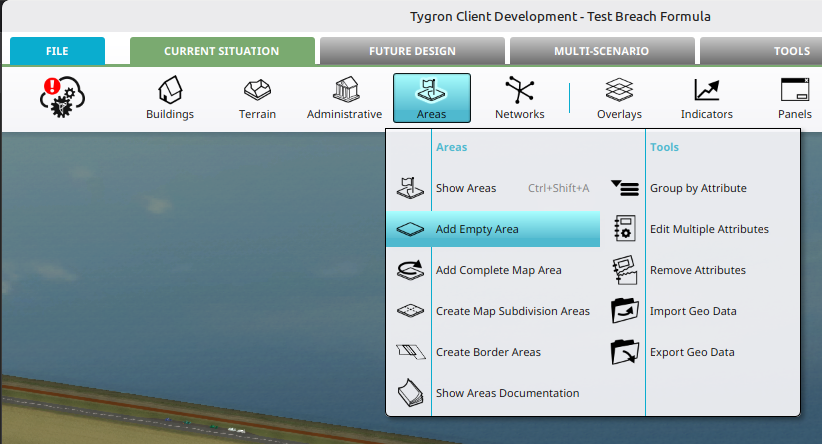 Add a new empty area.
 -
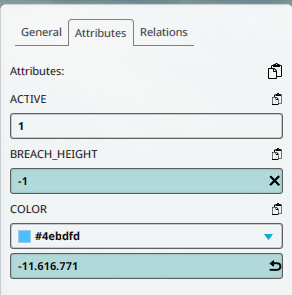 Breach height set for Breach.
 -
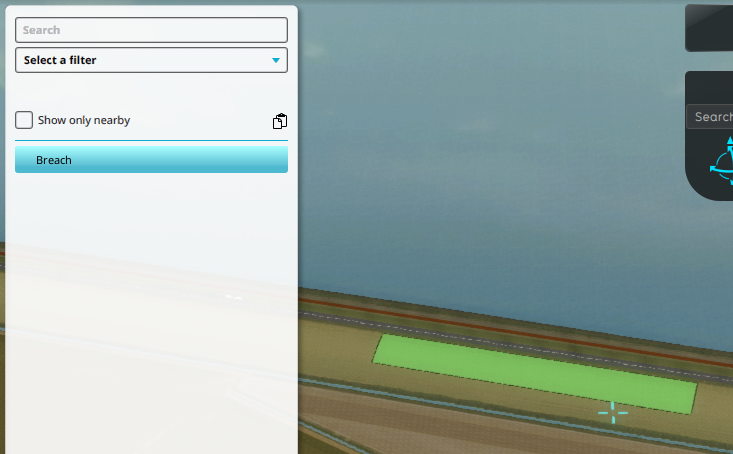 Drawn selection for breach area.


Disabling Breach Growth in Flooding Overlay
This section describes how to disable default breach growth using the Flooding Overlay wizard. This is only required when the value has already been set.
- Select Current Situation in the ribbon bar.
- Click on Overlays
- Select the Flooding Overlay
- Click on the Configuration Wizard button in its detail panel.
- Continue to the Breach Growth Step.
- Select the Breach named Breach (added in the Breach Area section).
- Uncheck the option named "Set Value" for the setting named Critical Speed
-
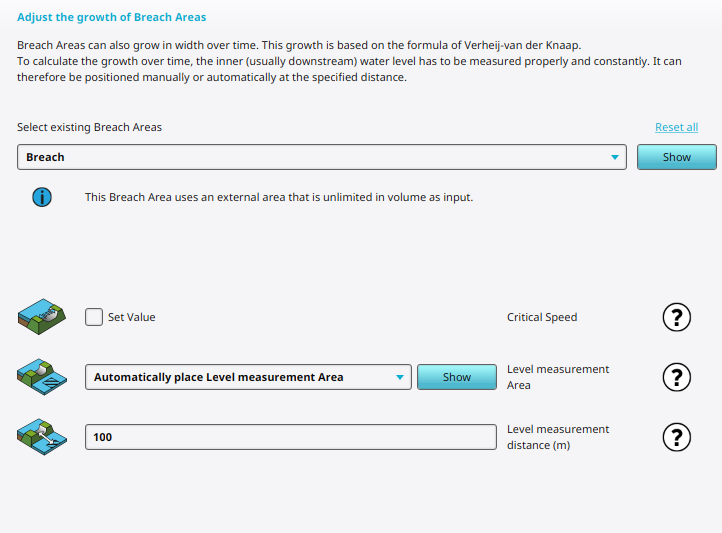 Unsetting the Critical speed option, disabling automatic breach growth.

Breach Width Excel Panel
The following how-to contains the steps to apply a Template Excel Panel to an Area identified by the attribute BREACH_HEIGHT as a Breach Area for the Flooding Overlay.
- Select Current Situation in the ribbon bar.
- Hover over Panels, and select Find more on Share.
- Navigate to Panels, Water and select the file named "Breach_width_iteration_before.xlsx"
- With the Panel selected, select the Template Tab.
- Adjust the option below Apply Template on to Areas.
- Click on the Select button and select the attribute named BREACH_HEIGHT.
- Click on the Apply Template button to create a Panel instance for the Breach Area.
-
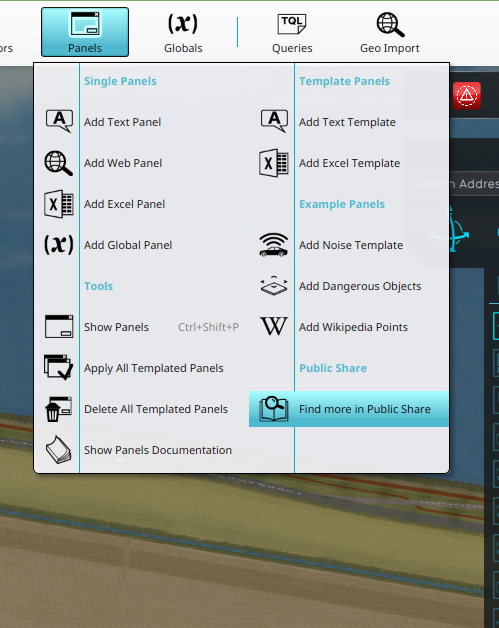 Clicking on the "Find more on Share" option in the Panel Popup in the ribbon bar.
 -
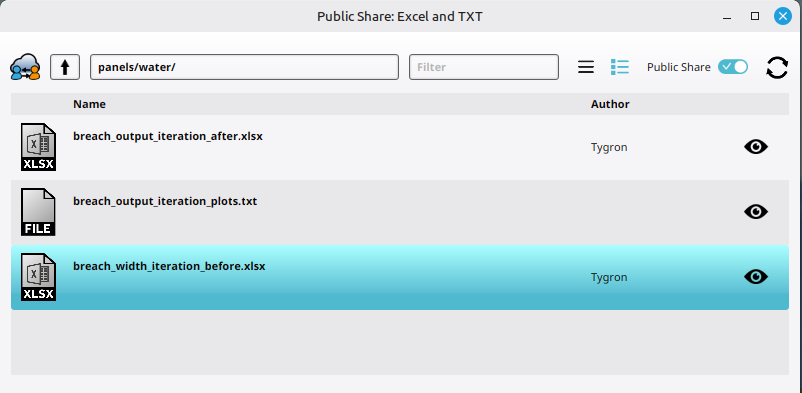 Navigating to the "Breach width iteration" before Excel file on the Public Share.
 -
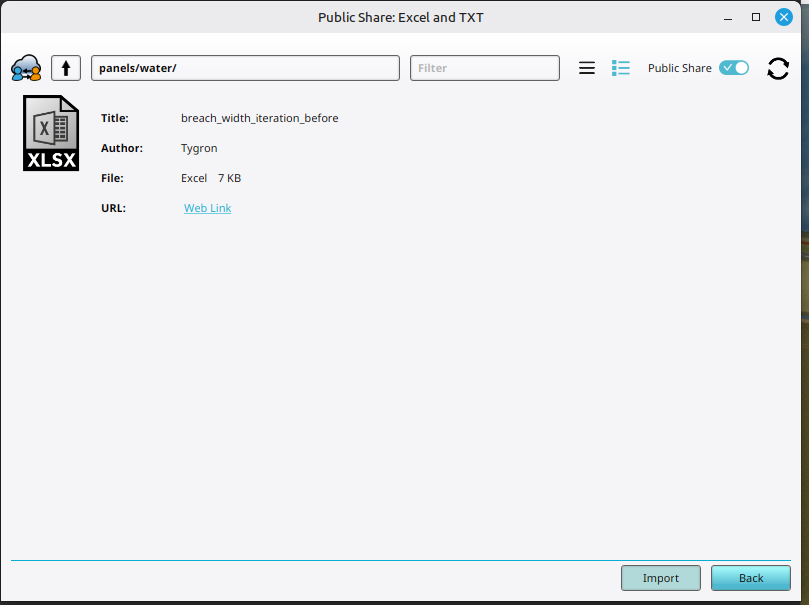 Inspecting and clicking on the import button of the "Breach width iteration before" Excel file.
 -
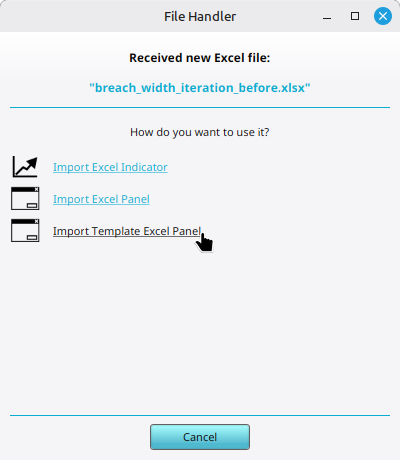 Selecting the option Import Template Excel File
 -
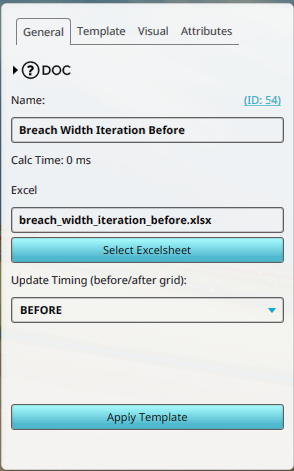 The Excel file and timing set for the Template Excel Panel.
 -
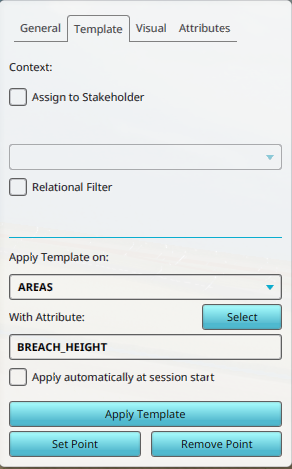 Template settings set on Areas with Breach Height attribute.
 -
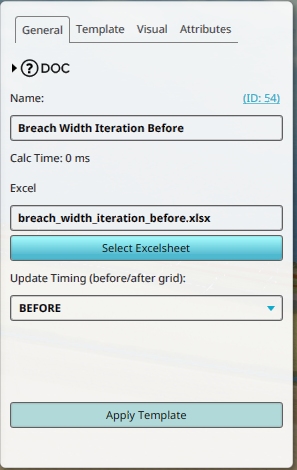 Clicking on the Apply Template button.
 -
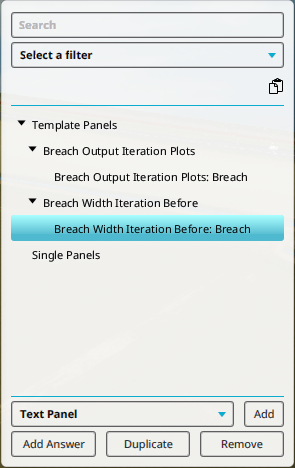 Create Excel Panel by Template Excel Panel.


Breach output values
The following how-to contains the steps to add a Template Excel Panel that stores the output values of a breach for each calculated iteration. This is necessary because each iteration overwrites the default output values. By adding this example Excel file, you can see how to obtain and store these values under new attributes in the Breach Area.
Reason: "contain"→"contains", "iterations"→"iteration"; verbose sentences shortened for clarity.
- Select Current Situation in the ribbon bar.
- Hover over Panels, and select Find more on Share.
- Navigate to Panels, Water and select the file named "Breach_output_iteration_after.xlsx"
- With the Panel selected, select the Template Tab.
- Adjust the option below Apply Template on to Areas.
- Click on the Select button and select the attribute named BREACH_HEIGHT.
- Click on the Apply Template button to create a Panel instance for the Breach Area.
-
Clicking on the "Find more on Share" option in the Panel Popup in the ribbon bar.
-
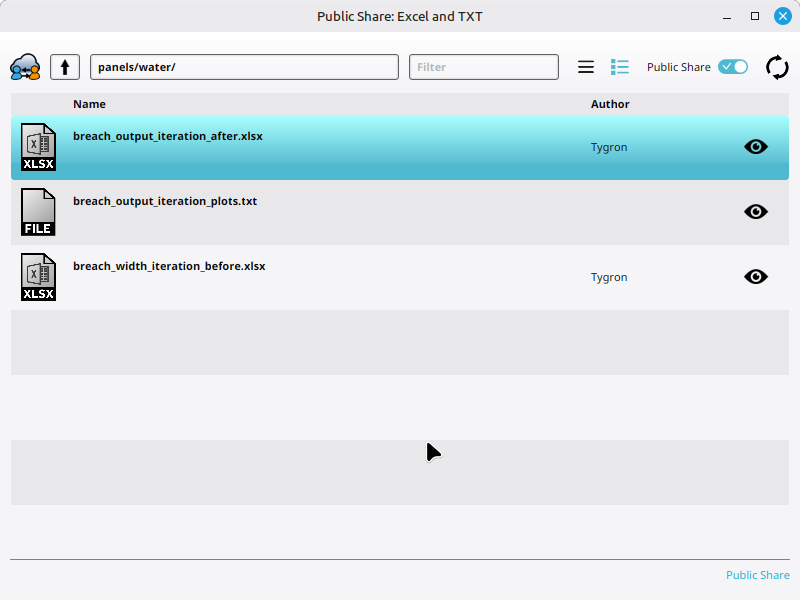 Navigating to the "Breach output iteration after" Excel file on the Public Share.
 -
Inspecting and clicking on the import button of an Excel file on the Public Share.
-
Selecting the option Import Template Excel File
-
Template settings set on Areas with Breach Height attribute.
-
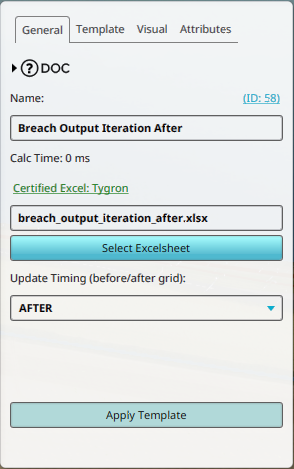 Clicking on the Apply Template button.
 -
Create Excel Panel by Template Excel Panel.


Breach output plot
The following how-to contains the steps to add a Template Text Panel that creates a simple plot of the stored output values for a Breach. The Breach Width, Breach Flow and Breach Cumulative Flow are added to the plot.
- Select Current Situation in the ribbon bar.
- Hover over Panels, and select "Find more on Share".
- Navigate to Panels, Water and select the file named "Breach_output_iteration_plots.txt"
- With the Panel selected, select the Template Tab.
- Adjust the option below Apply Template on to Areas.
- Click on the Select button and select the attribute named BREACH_HEIGHT.
- Click on the Apply Template button to create a Panel instance for the Breach Area.
-
Clicking on the "Find more on Share" option in the Panel Popup in the ribbon bar.
-
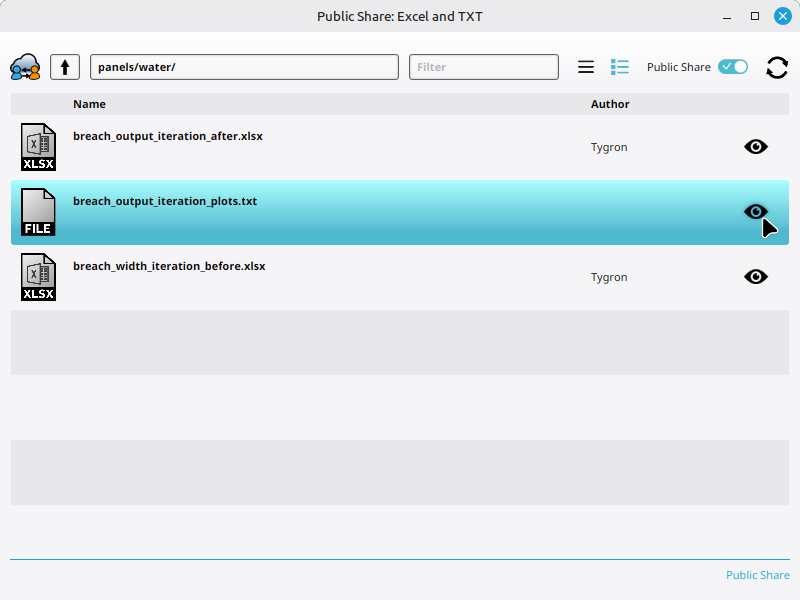 Navigating to the "Breach output iteration plots" Text file on the Public Share.
 -
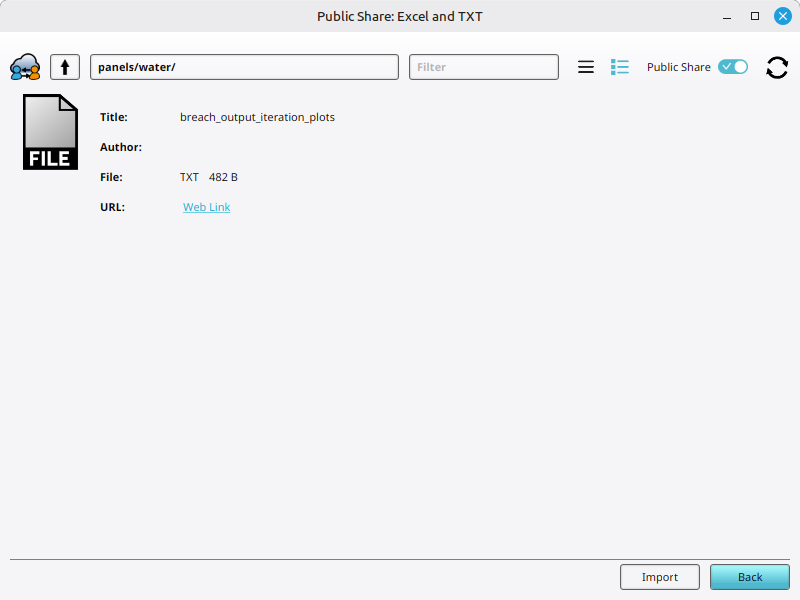 Inspecting and clicking on the import button of an Text file on the Public Share.
 -
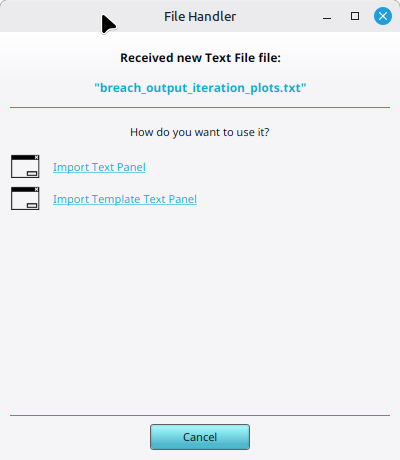 Selecting the option Import Template Text Panel
 -
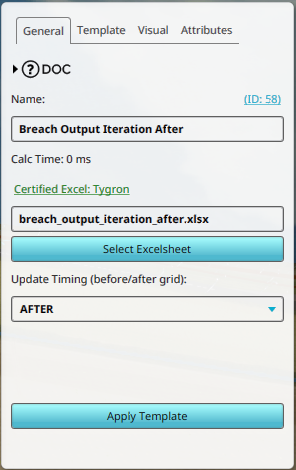 Adjusting the timing set for the Template Excel Panel.
 -
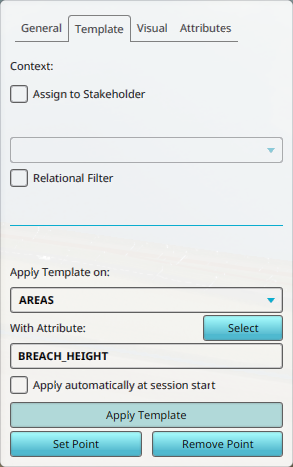 Template settings set on Areas with Breach Height attribute and clicking on the Apply Template button.
 -
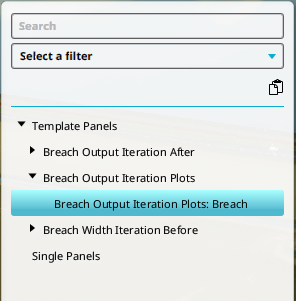 Created Text Panel by Template Text Panel.
 -
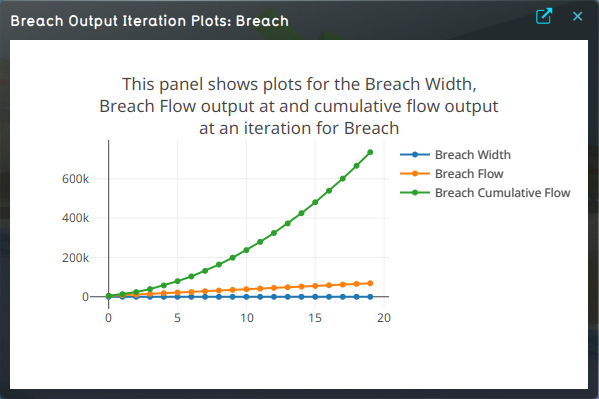 The plots of the Breach width and flow after recalculating the project.


Breach Width Excel
The following how-to contains the steps to edit the imported Breach Width Excel from a previous step.
- Edit the Breach Width Excel
- Select the Template Excel Panel named Breach width iteration before
- Click on the Select Excelsheet button to open the Select Excelsheet Panel.
- Click on the Get icon of the accentuated excel named breach_width_iteration_before.xlsx to download it.
- Open the downloaded excel file using your installed Excel editor.
- Inspect the formula used in the B column below the text: Calculated breach width.
- Apply the formula to the cells below as well.
- Save the excel file
- Select the Template Excel Panel named Breach width iteration before
- Click on the Select Excelsheet button to open the Select Excelsheet Panel.
- Click on the Upload icon of the accentuated excel named breach_width_iteration_before.xlsx to upload a file.
- Select the saved and adjusted Excelsheet.
- Confirm with the select button.
- Click on the Apply Template button to reapply the template.
- Recalculate the project by clicking on the Calculation Cloud.
-
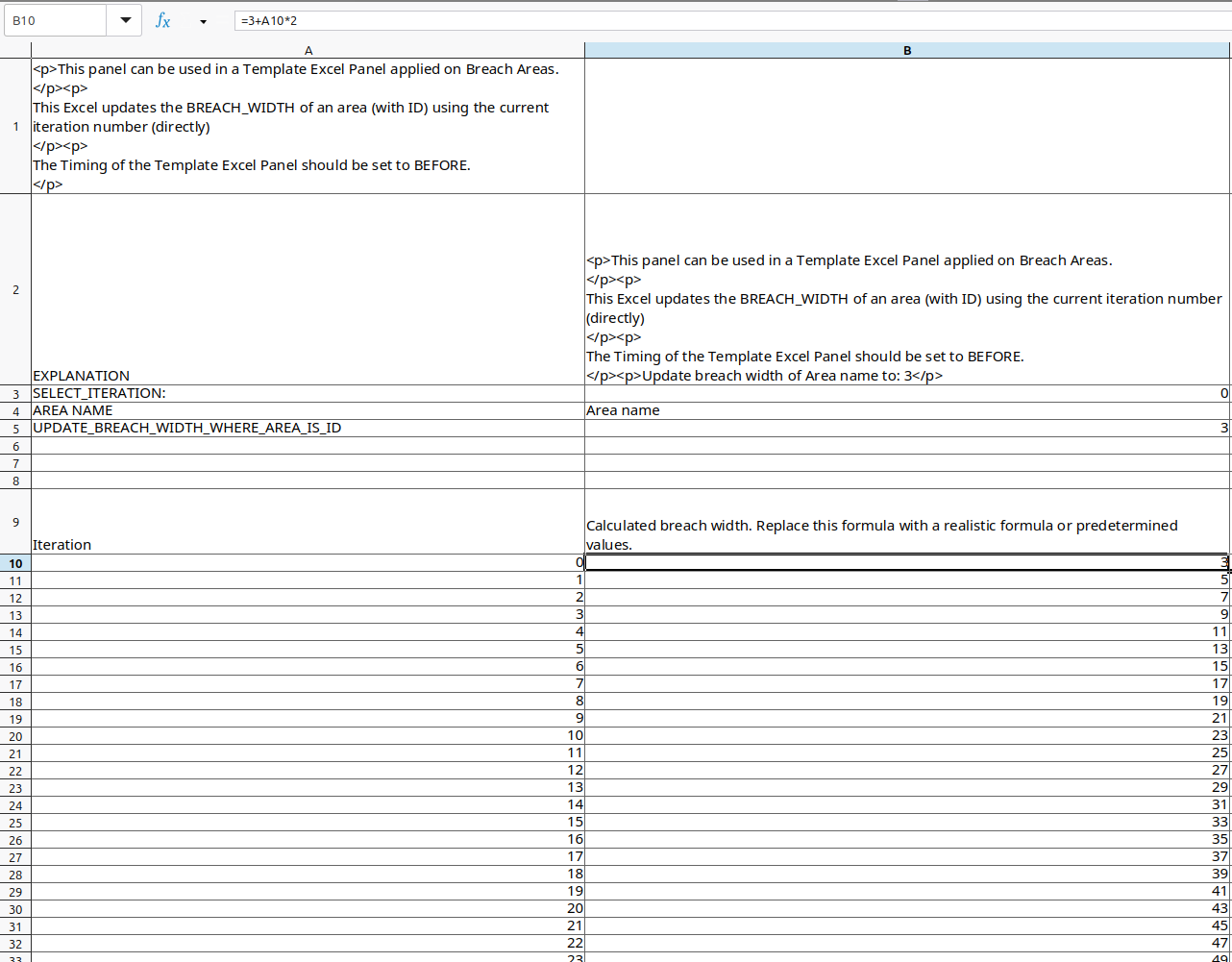 Selected cell with formula to change in opened breach width iteration before Excel file.
 -
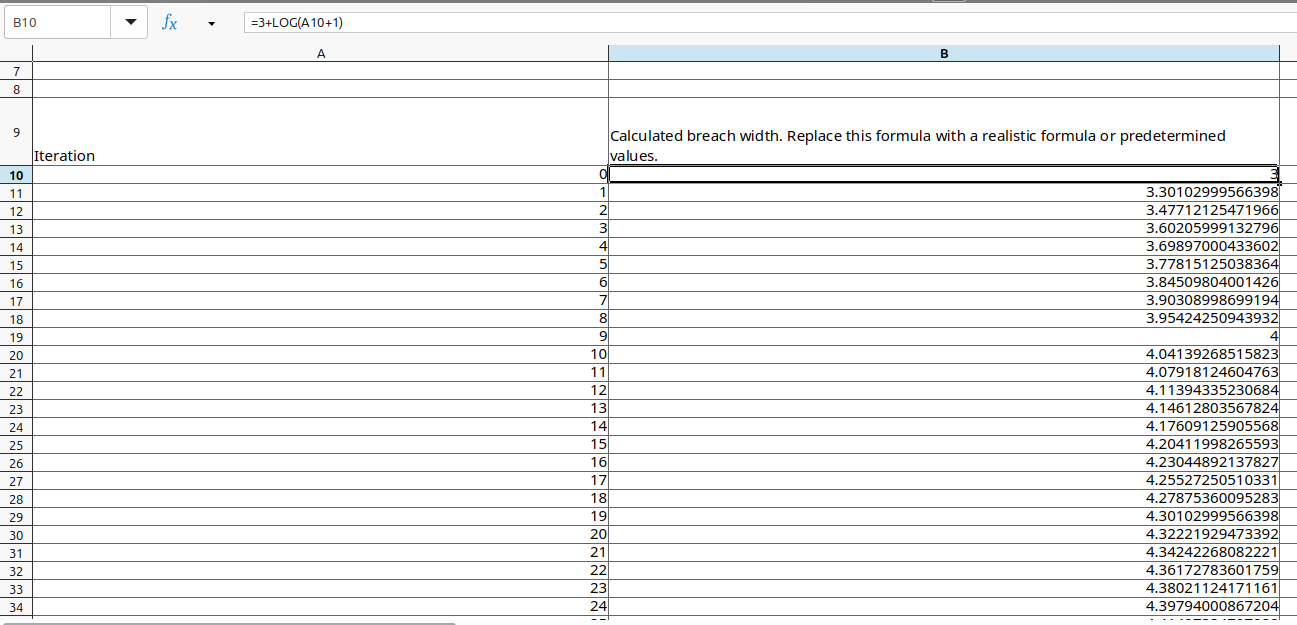 Changed formula to logarithmic growth and applied to cells below.
 -
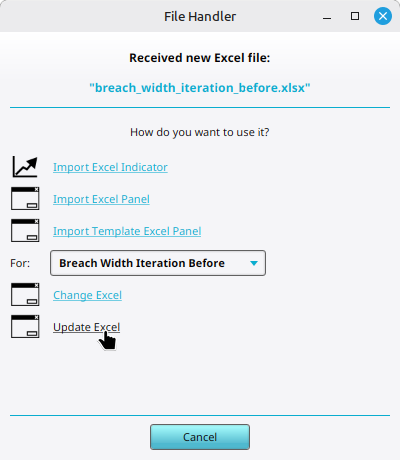 Selecting the option Change Template Excel File for Breach Width Iteration Before template panel.
 -
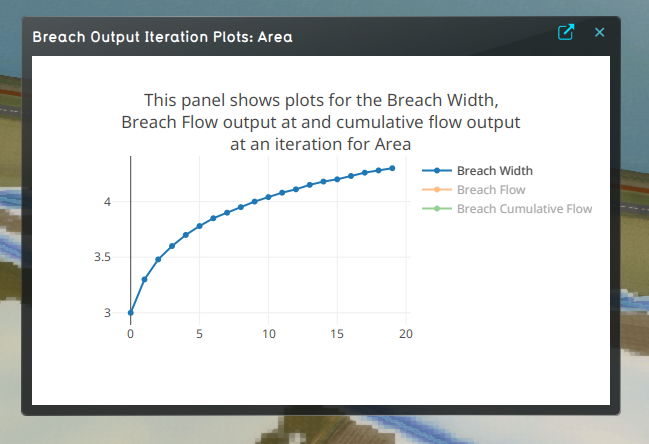 Logarithmic breach growth formula shown in Breach Width Output panel.


