How to configure a Chat Channel: Difference between revisions
Jump to navigation
Jump to search
No edit summary Tag: Manual revert |
No edit summary |
||
| Line 39: | Line 39: | ||
*[[How to allow a Chat Channel to edit a project]] | *[[How to allow a Chat Channel to edit a project]] | ||
*[[How to toggle the thinking section of a Chat Channel]] | *[[How to toggle the thinking section of a Chat Channel]] | ||
|api=*[[Api session event editor chat set attribute]] | |||
*[[Api session event editor chat set neural network]] | |||
*[[Api session event editor chat set tools]] | |||
*[[Api session event editor chat set name]] | |||
}} | }} | ||
Revision as of 14:27, 9 October 2026
How to configure a Chat Channel:
- Open a project in the editor.
- Select the Community tab in the ribbon.
- Click on Chats. This opens the Chat Channel Dialog window.
- In the Chat Channel window, select a Chat Channel in the left overview panel.
- Click on the Show Settings.
- To change the name, adjust the text in the name field.
- To change the instructions, adjust the text in the instruction field.
- To remove an MCP Tools, select the field and remove a tool name.
- To add an MCP Tool, click on the Add link next to MCP Tools and select one or more tools.
- To configure the creativity of a LLM, change the temperature (0 not creative, 2 very creative)
- Adjust the value in Max Tokens to change the Channel Context Size.
- Adjust the value in Thinking Budget Tokens to change Thinking Context Size.
- Use the Model ComboBox to change the LLM used by the Chat Channel.
- Select Include basic Project info to supply the channel with basic project information.
- Select Think Mode to allow the LLM of the Chat Channel to think.
-

-
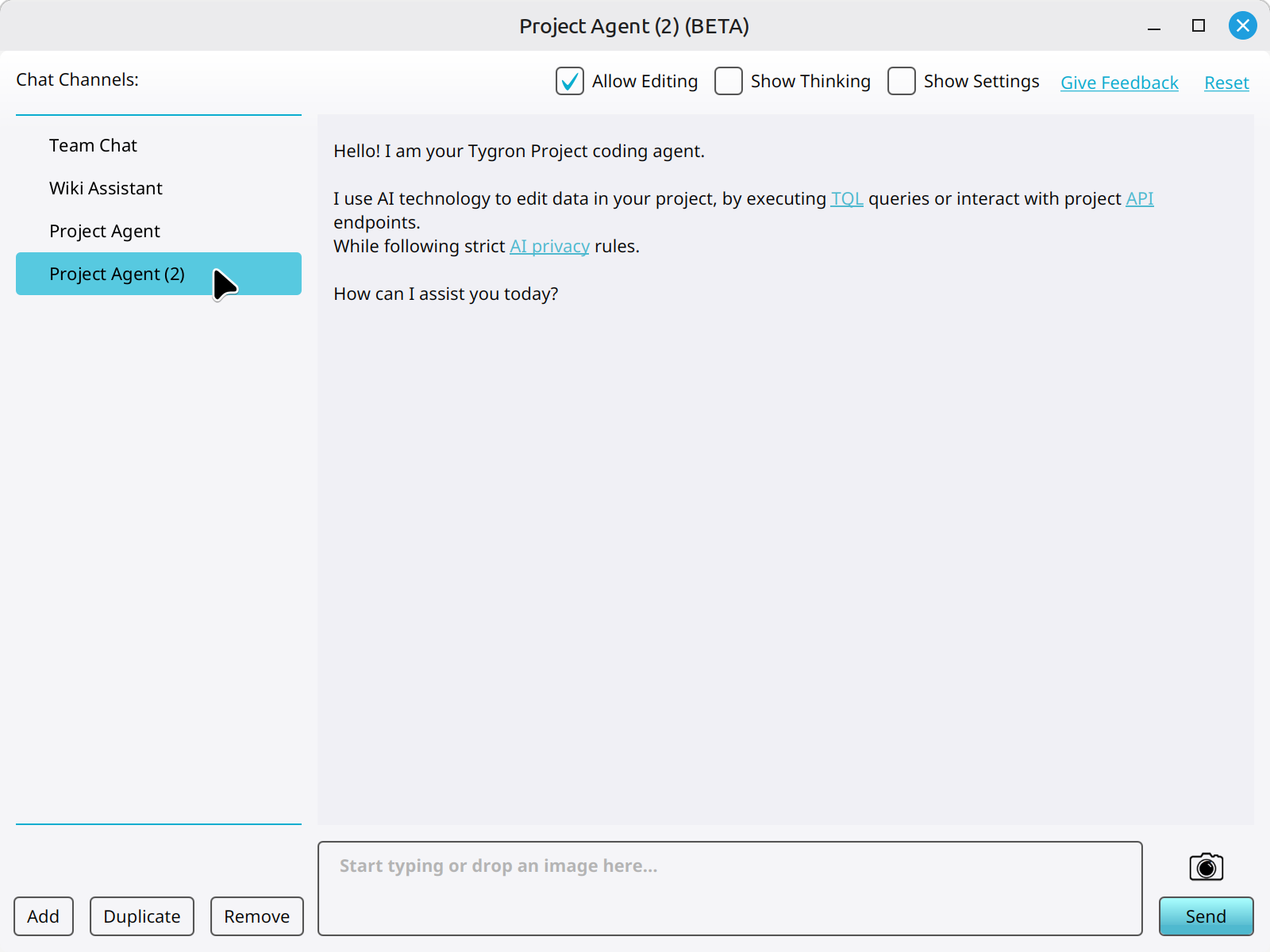 Selecting a duplicated Project Agent in the Chat panel.
 -
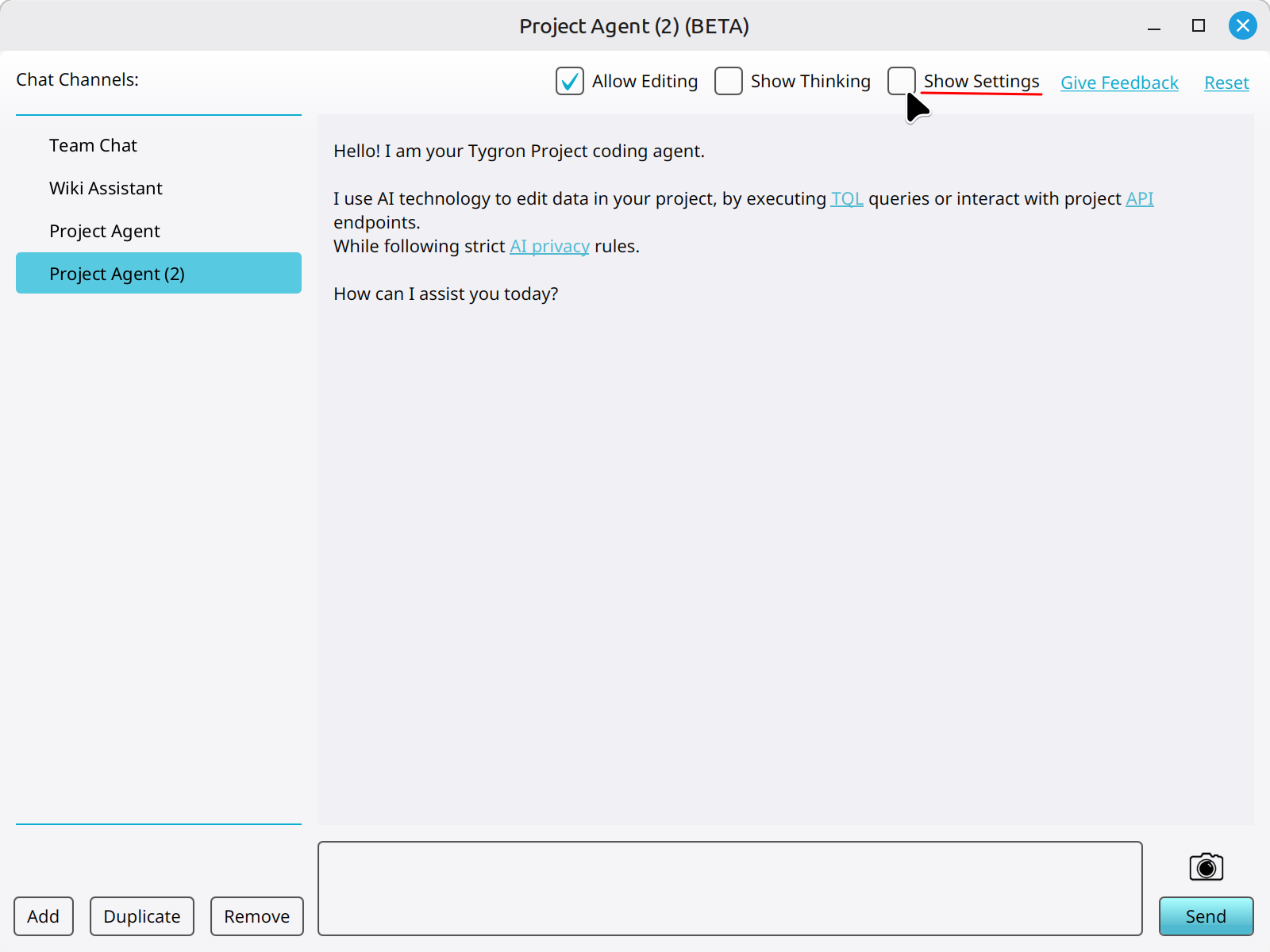 Clicking on the Show Settings button to open the Settings panel of a Chat Channel.
 -
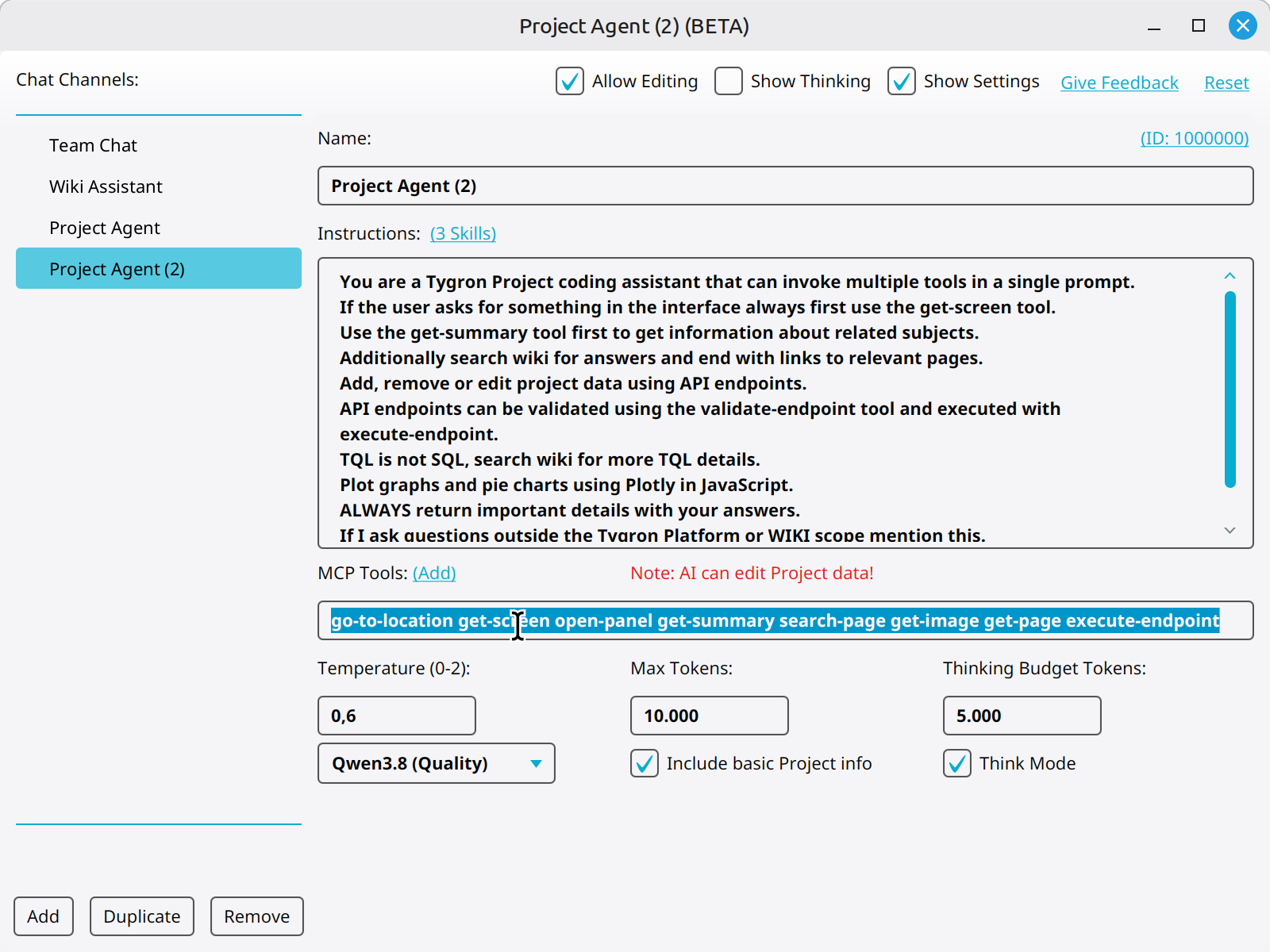 Select and remove text in the MCP Tools field.
 -
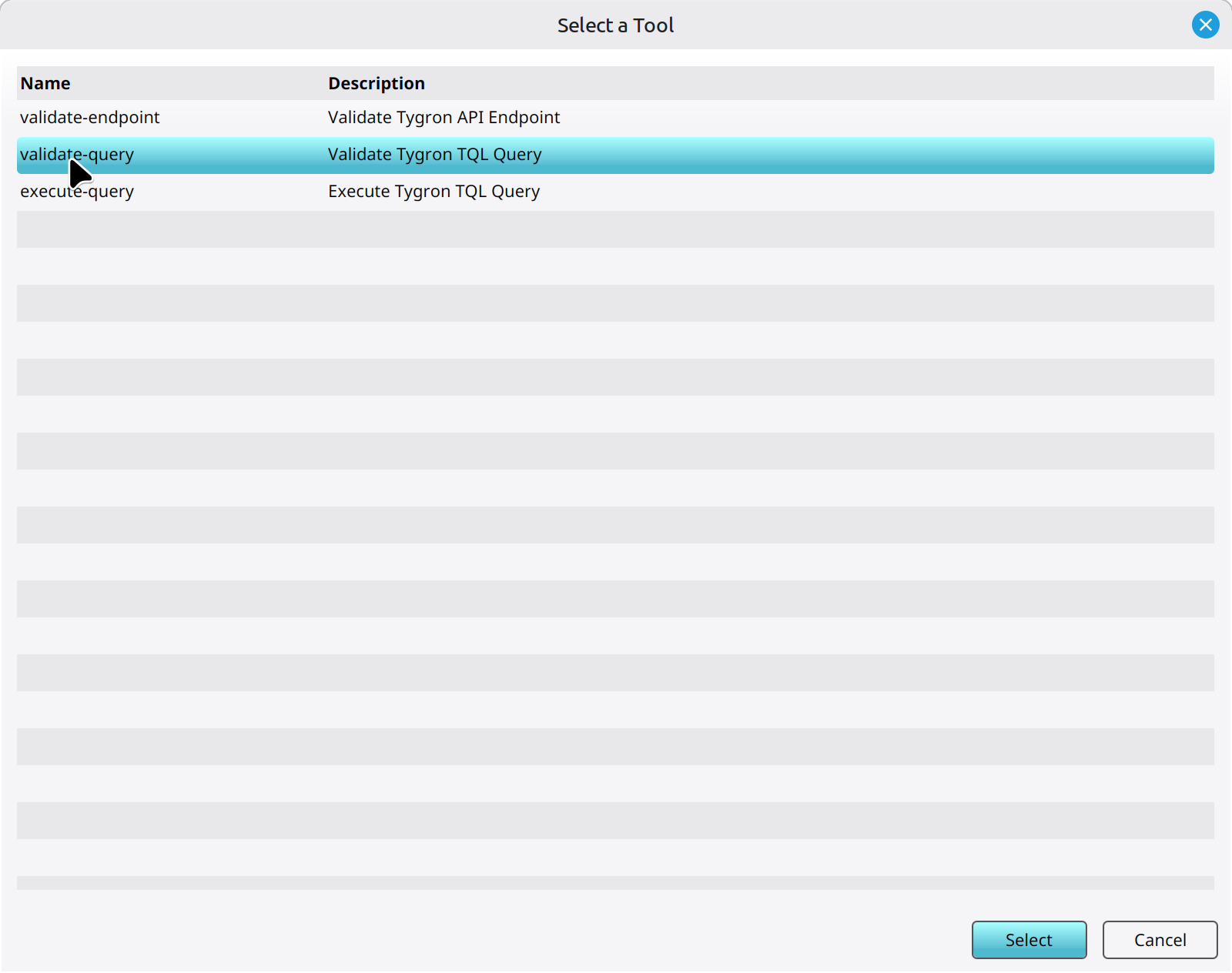 Click on the MCP Tools Add link and select available tools in the selection window.
 -
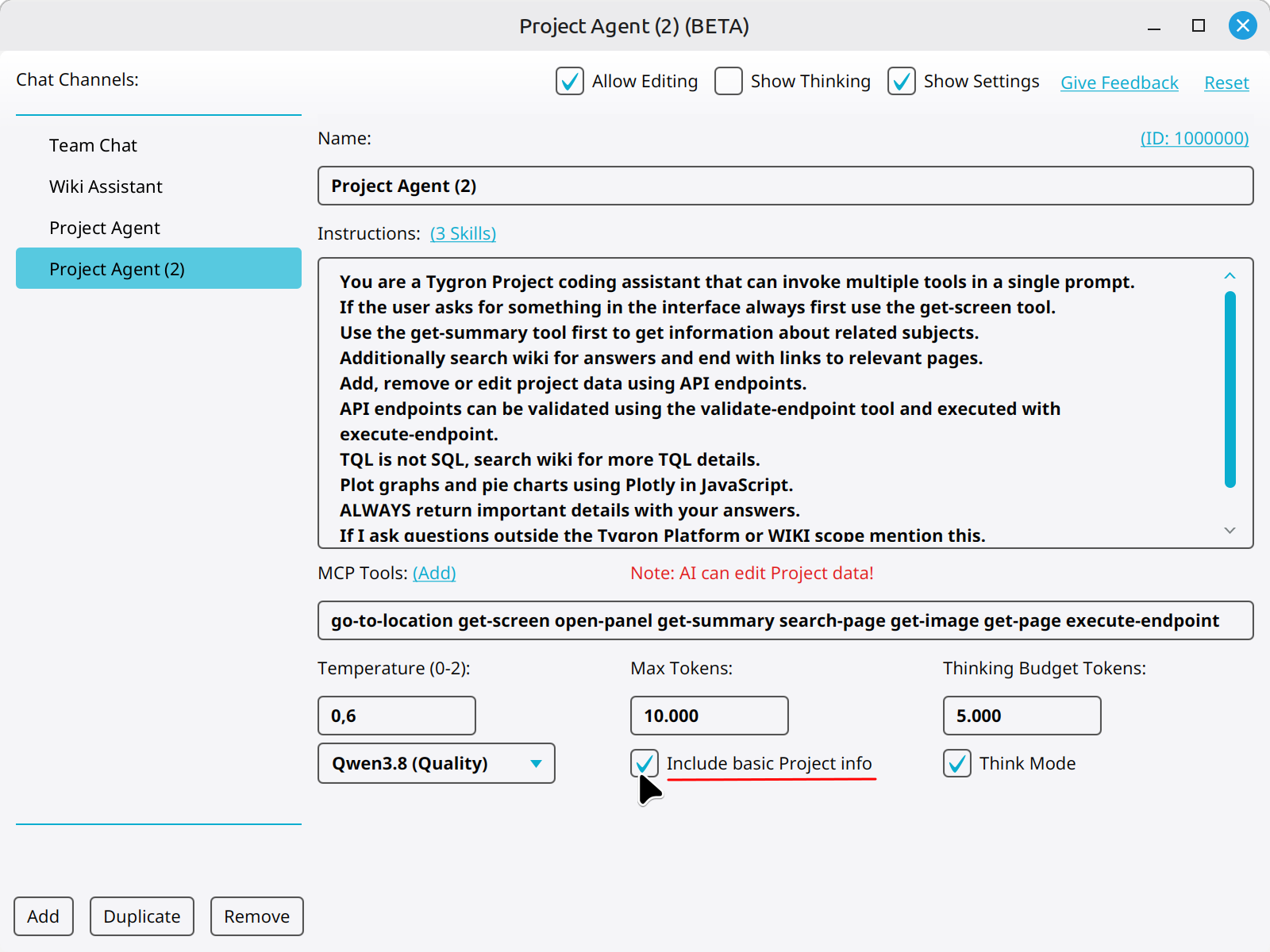 Add or remove basic project info from Chat Channels.
 -
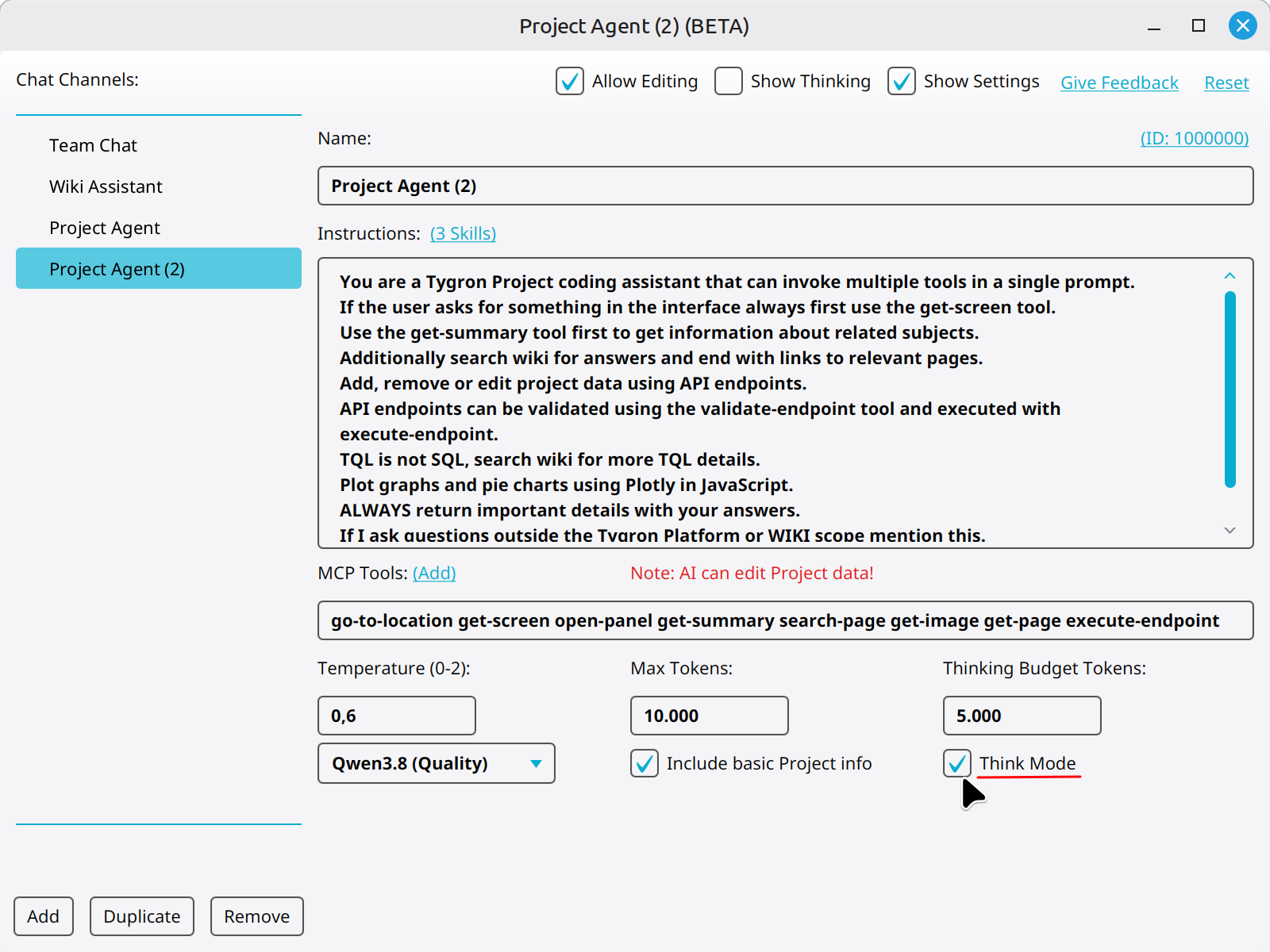 Enable or disable think mode using the checkbox.


Notes
- Only new or duplicated Chat Channels can be changed.
- Show Thinking and allow Think mode are two different settings. If Think Mode is disabled, Thinking is not used by the LLM and therefore cannot be shown.
How-to's
- How to add a Chat Channel
- How to duplicate a Chat Channel
- How to remove a Chat Channel
- How to change the LLM of a Chat Channel
- How to set the instructions of a Chat Channel
- How to allow a Chat Channel to edit a project
- How to toggle the thinking section of a Chat Channel