How to duplicate a Chat Channel: Difference between revisions
Jump to navigation
Jump to search
No edit summary |
No edit summary |
||
| (6 intermediate revisions by the same user not shown) | |||
| Line 3: | Line 3: | ||
|Select the [[Community]] tab in the [[ribbon]]. | |Select the [[Community]] tab in the [[ribbon]]. | ||
|Click on [[Chat]]s. This opens the [[Chat panel]]. | |Click on [[Chat]]s. This opens the [[Chat panel]]. | ||
|In the Chat | |In the Chat panel, select a Chat Channel in the left overview panel. | ||
|Click on the duplicate button. | |Click on the duplicate button. | ||
}} | }} | ||
<gallery> | |||
File:Community_chats.png|Hover over [[Chat]]s in the [[Community]] Tab of the [[ribbon]]. | |||
File:Community_chats_project_agent.png|Selecting the Project Agent in the Chats Popup. | |||
File:Chat_panel_duplicate.png|Clicking on the ''Duplicate'' button to duplicate a new [[Chat Channel]]. | |||
</gallery> | |||
{{article end | {{article end | ||
|seealso=*[[Chat Channel]] | |seealso=*[[Chat Channel]] | ||
|howtos=*[[How to add a Chat Channel]] | |howtos=*[[How to add a Chat Channel]] | ||
* [[How to configure a Chat Channel]] | *[[How to remove a Chat Channel]] | ||
*[[How to configure a Chat Channel]] | |||
*[[How to set the instructions of a Chat Channel]] | *[[How to set the instructions of a Chat Channel]] | ||
*[[How to change the LLM of a Chat Channel]] | *[[How to change the LLM of a Chat Channel]] | ||
*[[How to allow a Chat Channel to edit a project]] | |||
*[[How to toggle the thinking section of a Chat Channel]] | |||
|api= | |||
*[[Api session event editor chat duplicate]] | |||
}} | }} | ||
Latest revision as of 14:28, 9 October 2026
How to duplicate a Chat Channel:
-

-
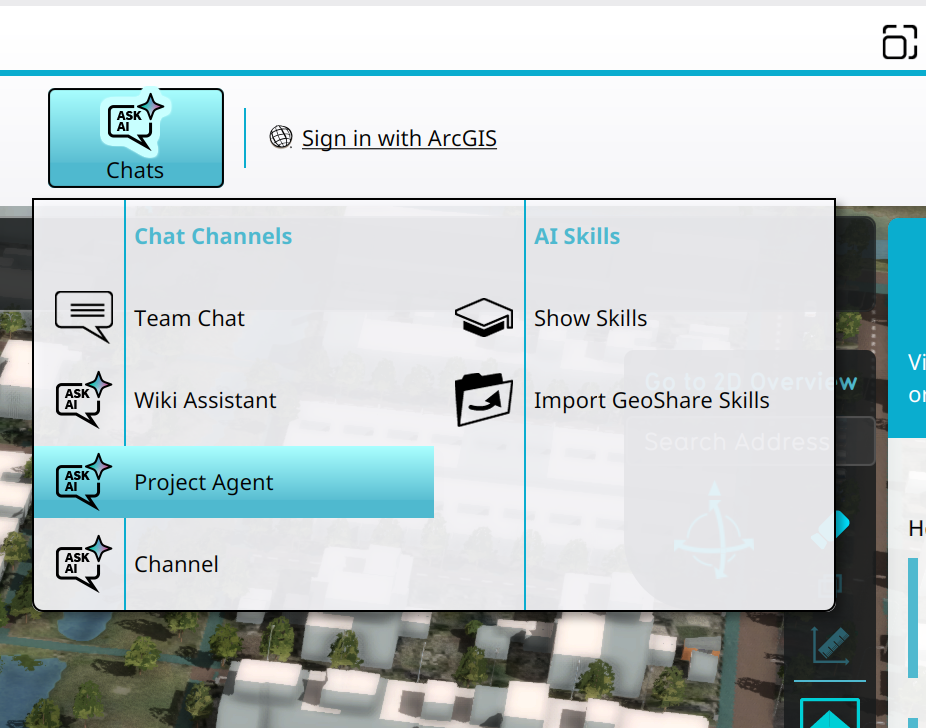 Selecting the Project Agent in the Chats Popup.
 -
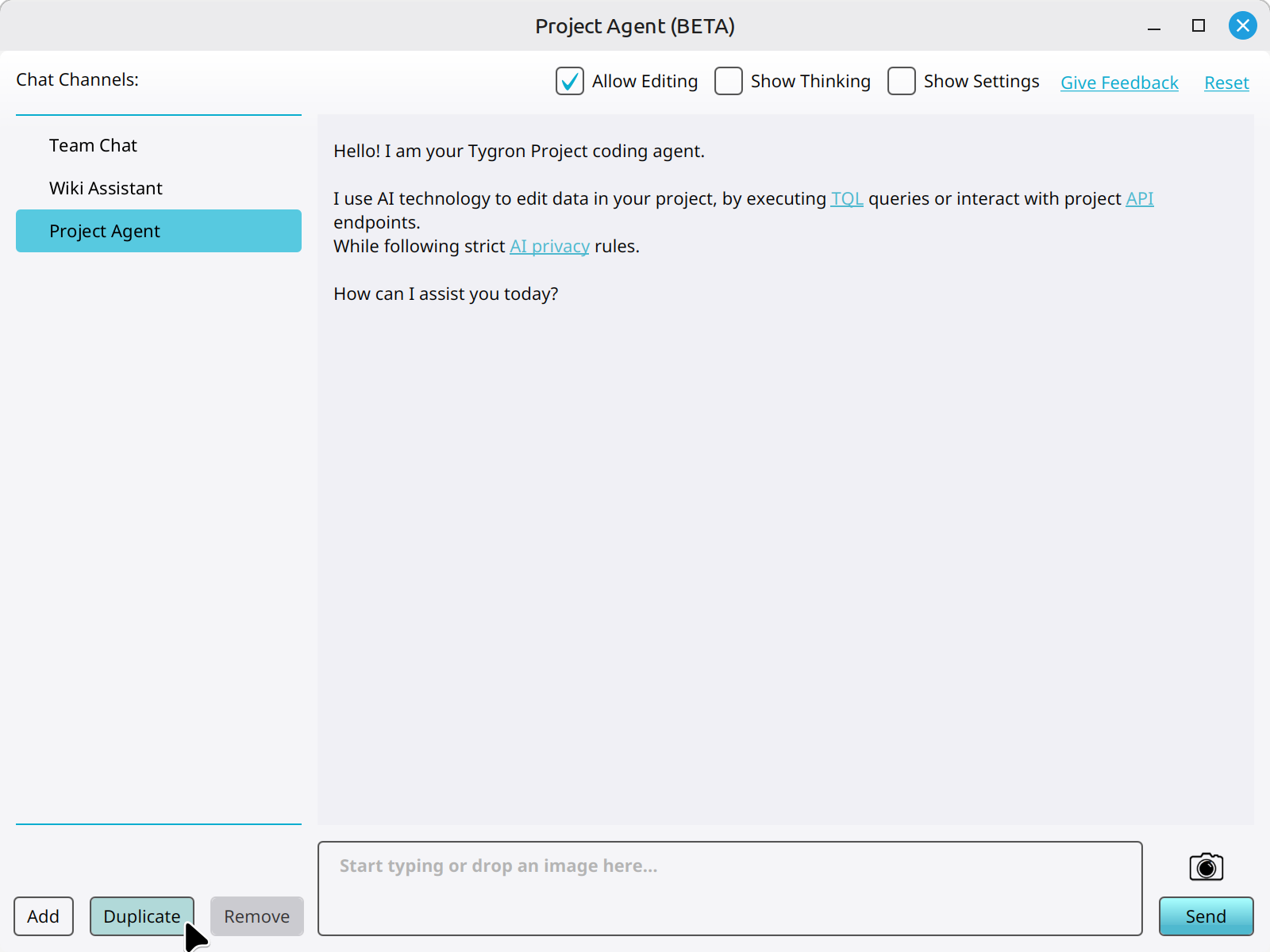 Clicking on the Duplicate button to duplicate a new Chat Channel.


How-to's
- How to add a Chat Channel
- How to remove a Chat Channel
- How to configure a Chat Channel
- How to set the instructions of a Chat Channel
- How to change the LLM of a Chat Channel
- How to allow a Chat Channel to edit a project
- How to toggle the thinking section of a Chat Channel