How to change Attributes for a Function: Difference between revisions
Jump to navigation
Jump to search
No edit summary |
No edit summary |
||
| Line 23: | Line 23: | ||
* [[How to add an Attribute to a Function]] | * [[How to add an Attribute to a Function]] | ||
* [[How to change the Category of a Function]] | * [[How to change the Category of a Function]] | ||
|api=*[[Api session items functionoverrides]] | |||
*[[Api session event editor functionoverride add]] | |||
*[[Api session event editor functionoverride set attribute]] | |||
}} | }} | ||
[[Category:How-to's]] | [[Category:How-to's]] | ||
Latest revision as of 12:58, 3 September 2026
When a Function is added to the list of Functions, and Attributes have been defined for it, its Attribute values can be modified.
How to change Attributes of a Function:
- If the desired Function is not yet present in the list, add the Function to the list.
- Set the group filter to Custom or Attributes.
- If the desired Attribute is not yet present in the list, add the Attribute to the list.
- Find the column with the Attribute you wish to change.
- Change the value in the row of the Function and the column of the Attribute.
-
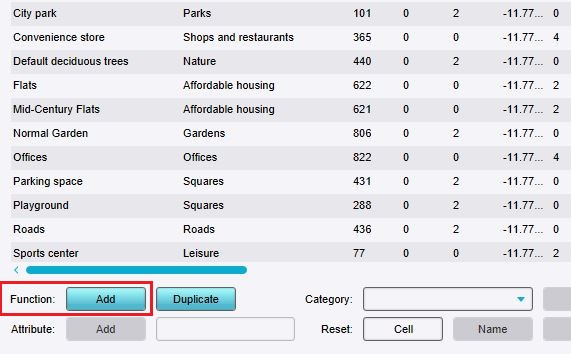 Click on "Add" to open the Function selector.
 -
 Set the group filter to Custom or Attributes.
 -
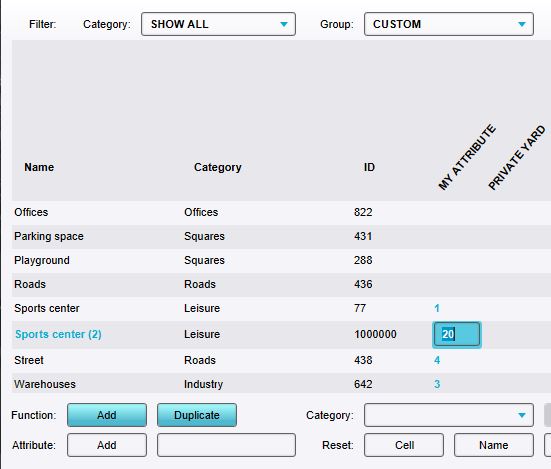 Editing an added Attribute by double-clicking on the field and typing a value.


How-to's
- How to add Functions for editing
- How to create Functions
- How to add an Attribute to a Function
- How to change the Category of a Function