How to add and remove buildings: Difference between revisions
Jump to navigation
Jump to search
No edit summary |
|||
| (20 intermediate revisions by 2 users not shown) | |||
| Line 1: | Line 1: | ||
''This section deals with adding [[ | ''This section deals with adding [[Building]]s to the [[project]]. For adding [[actions]] to a [[stakeholders|Stakeholder]] see [[Actions#Adding and removing categories and actions|Adding and removing Actions]].'' | ||
{{Editor location|buildings}} | {{Editor location|buildings}} | ||
[[File:constructionspanel_small-2019.jpg|frame|right|200px|Building panel]] | [[File:constructionspanel_small-2019.jpg|frame|right|200px|Building panel]] | ||
When a [[project]] is created in the {{software}}, [[Building]]s are automatically added by [[Geo Plugin]]s to initialize the current situation of your project. Buildings can also be added to or removed from the [[Current Situation]] of your project using the [[editor]]. To add or remove buildings to an existing project, [[How to start the Editor|start an editing session of your project]] and once loaded, select [[Current Situation]] in the [[ribbon bar]] and click on the [[Building]]s button: | |||
[[File:Editor_ribbon_header_currentsituation.jpg]] | |||
==Adding buildings== | ==Adding buildings== | ||
: '' | : ''Select a building type and click 'Add' at the bottom of the list to add a new building. The list is alphabetical per building type. The new building is not yet present in the [[project map]], since it has not been placed. For details on adding / changing a selection from a building: [[#How to change buildings|see below.]]'' | ||
{{Editor steps|title=add buildings|Select Current Situation|Select Buildings on the ribbon bar|Select the desired building type from the drop down list|Select 'Add' from the bottom of the list| Notice a new building has been added to the building list}} | {{Editor steps|title=add buildings|Select Current Situation|Select Buildings on the ribbon bar|Select the desired building type from the drop down list|Select 'Add' from the bottom of the list| Notice a new building has been added to the building list}} | ||
| Line 22: | Line 22: | ||
===Initial Building types to add=== | ===Initial Building types to add=== | ||
: In the [[Editor]], there are initially three types of man made buildings available to add: standard buildings, roads and underground. | : In the [[Editor]], there are initially three types of man made buildings available to add: standard buildings, roads and underground. | ||
*Standard Buildings. ''Standard buildings are generic | *'''Standard Buildings'''. ''Standard buildings are generic structures located on the surface. Most standard buildings are specific for one or more regions in the world. Currently, the defined regions are Africa, Asia, North America and Europe. Standard buildings are adjustable: they can be adjusted according to the available space and desired amount of floors. Note that a standard building does not necessarily represent an individual unit. It can represent a group of houses, or multiple warehouses as well.'' | ||
*Roads. '' | *'''Roads'''. ''Roads are paved or improved thoroughfares used for travel. In the {{software}}, roads range from African dirt roads to high tech Asian Rapid Transit Rails.'' | ||
*Underground. ''Underground buildings include metro lines, culverts | *'''Underground'''. ''Underground buildings include metro lines, culverts, cellars/ foundations, (dangerous materials) storage containers, parking garages and more.'' | ||
<gallery mode="nolines"> | <gallery mode="nolines"> | ||
| Line 43: | Line 43: | ||
</gallery> | </gallery> | ||
[[Category:How-to]][[Category:Building]] | ==Removing buildings with Measures== | ||
If removing buildings is part of a measure, use [[TerrainSpatial|Flatten spatial]]s of Measures to define regions for removal. | |||
{{article end | |||
|howtos= | |||
* [[How to edit building properties]] | |||
* [[How to edit building addresses]] | |||
* [[How to draw selections for buildings]] | |||
|seealso= | |||
* [[List of Functions]] | |||
|api= | |||
* [[Api session event editor building add]] | |||
* [[Api session event editor building add standard]] | |||
* [[Api session event editor building remove]] | |||
}} | |||
[[Category:How-to's]][[Category:Building]] | |||
Latest revision as of 11:49, 15 July 2026
This section deals with adding Buildings to the project. For adding actions to a Stakeholder see Adding and removing Actions.

When a project is created in the Tygron Platform, Buildings are automatically added by Geo Plugins to initialize the current situation of your project. Buildings can also be added to or removed from the Current Situation of your project using the editor. To add or remove buildings to an existing project, start an editing session of your project and once loaded, select Current Situation in the ribbon bar and click on the Buildings button:

Adding buildings
- Select a building type and click 'Add' at the bottom of the list to add a new building. The list is alphabetical per building type. The new building is not yet present in the project map, since it has not been placed. For details on adding / changing a selection from a building: see below.
How to add buildings:
- Select Current Situation
- Select Buildings on the ribbon bar
- Select the desired building type from the drop down list
- Select 'Add' from the bottom of the list
- Notice a new building has been added to the building list
-
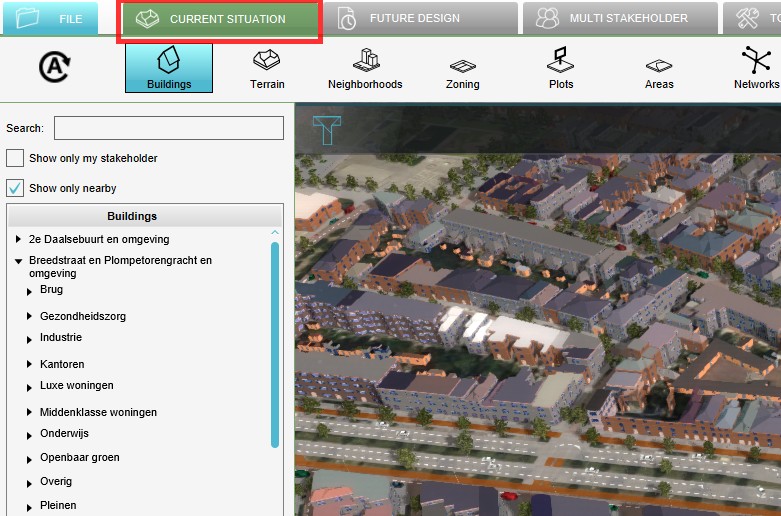 Select Current Situation
 -
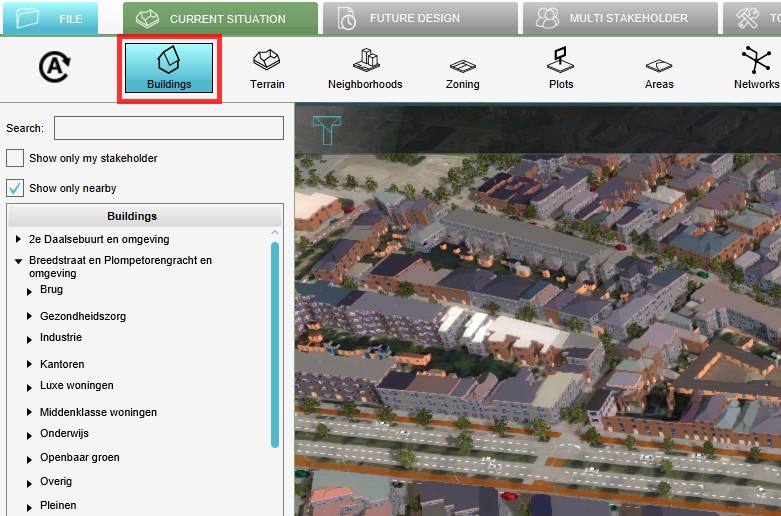 Select Buildings from ribbon bar
 -
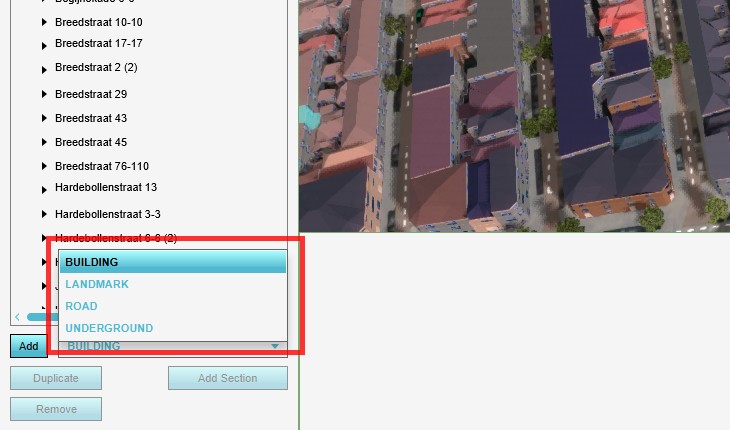 Select desired building type
 -
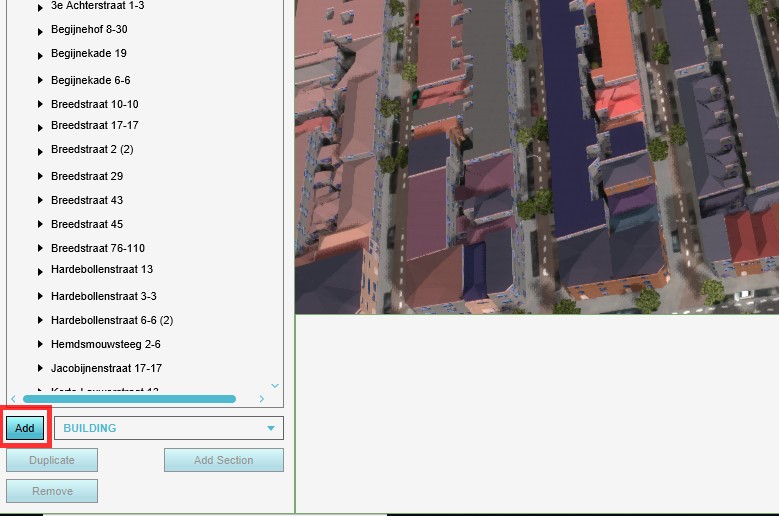 Select 'Add' from the bottom of the list
 -
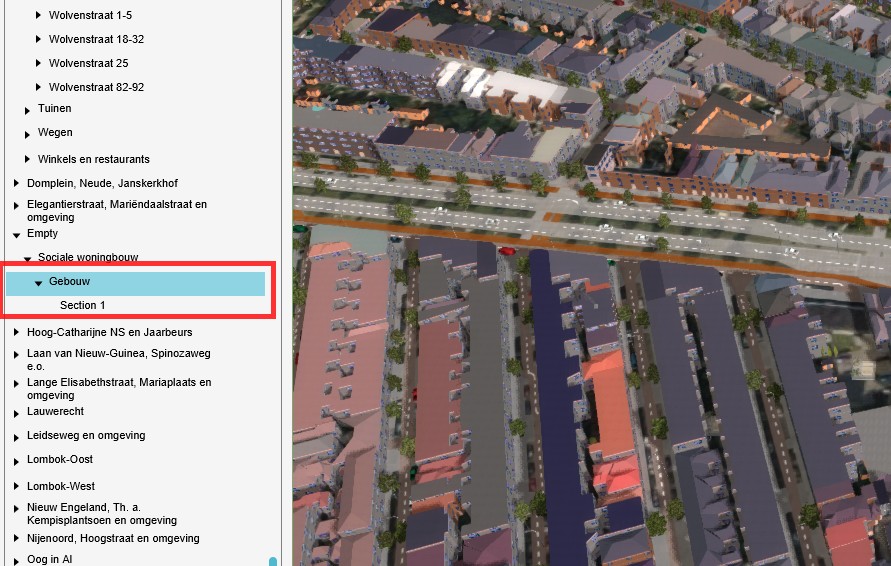 Newly added default building


Initial Building types to add
- In the Editor, there are initially three types of man made buildings available to add: standard buildings, roads and underground.
- Standard Buildings. Standard buildings are generic structures located on the surface. Most standard buildings are specific for one or more regions in the world. Currently, the defined regions are Africa, Asia, North America and Europe. Standard buildings are adjustable: they can be adjusted according to the available space and desired amount of floors. Note that a standard building does not necessarily represent an individual unit. It can represent a group of houses, or multiple warehouses as well.
- Roads. Roads are paved or improved thoroughfares used for travel. In the Tygron Platform, roads range from African dirt roads to high tech Asian Rapid Transit Rails.
- Underground. Underground buildings include metro lines, culverts, cellars/ foundations, (dangerous materials) storage containers, parking garages and more.
-
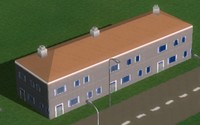 European housing
 -
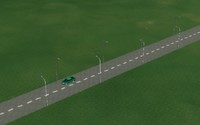 Dutch Asphalt Road
 -
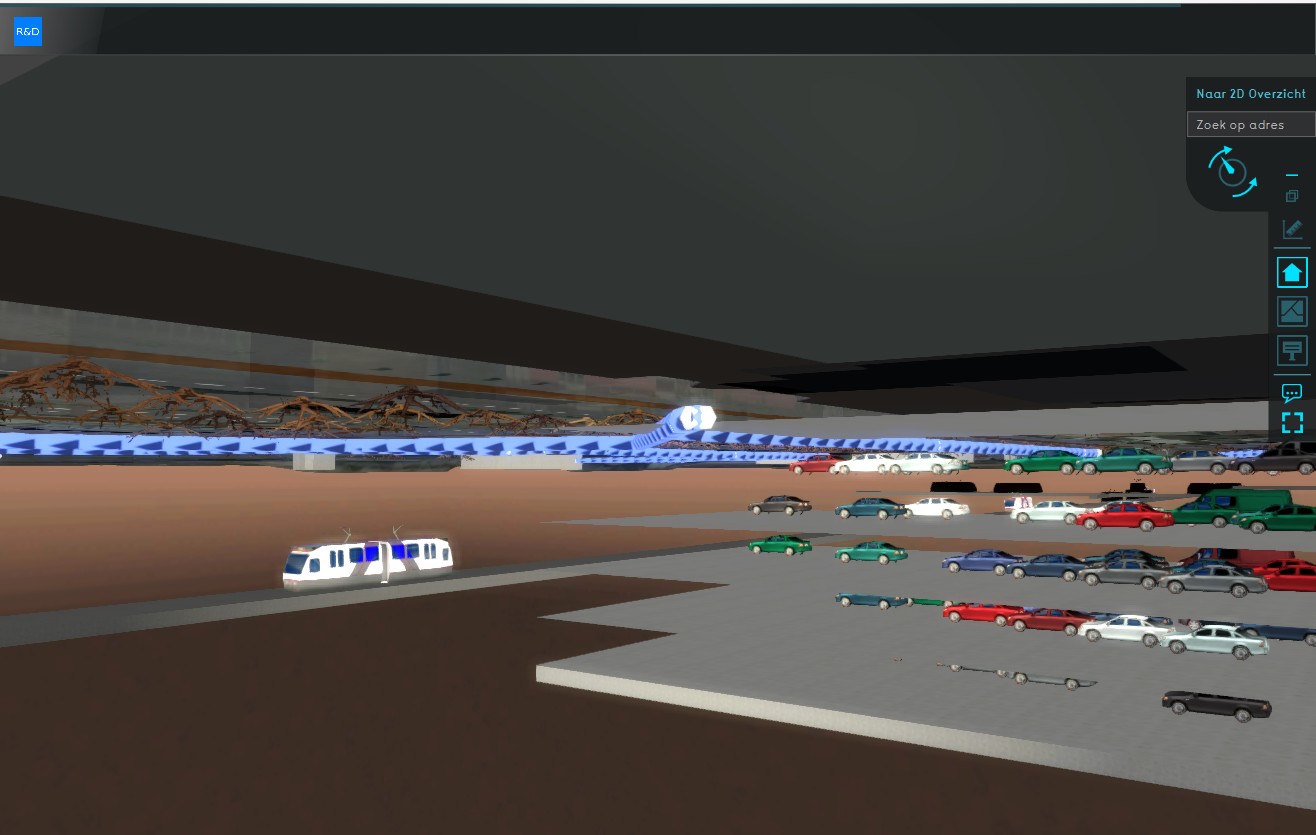 Underground buildings


Removing buildings
- To completely remove a building, including its slot from the building list, select Buildings, highlight the building to be removed and select 'Remove'. This will open a confirmation message to ensure no buildings are deleted by accident.
How to remove buildings:
- Open the Building Panel
- Highlight the building to be removed
- Select "Remove" on the bottom of the list
- Confirm the deletion on the popped up message panel
-
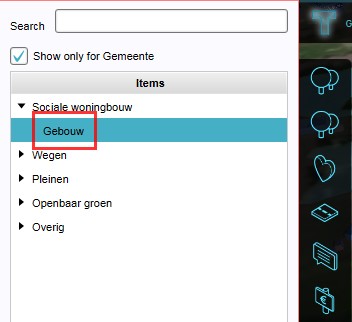 Select Building to be removed
 -
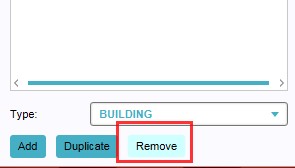 Select 'Remove'
 -
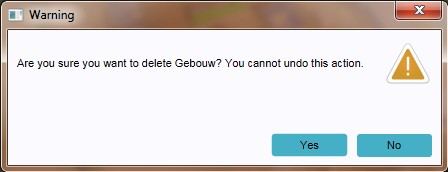 Confirmation Message


Removing buildings with Measures
If removing buildings is part of a measure, use Flatten spatials of Measures to define regions for removal.