How to remove areas with a filter
Jump to navigation
Jump to search
To remove multiple areas which share the same attribute:
How to remove multiple areas with a filter:
- Select "Areas" in the ribbon bar.
- Select "Group by Attribute" in the left panel.
- Type the name of the shared attribute and click "OK". (Attributes are managed in the properties panel's attributes tab.)
- The filter is added to the list and the areas with the attribute are grouped under it.
- Select the filter and click on "Remove".
- When prompted if you want to delete all children choose "yes".
-
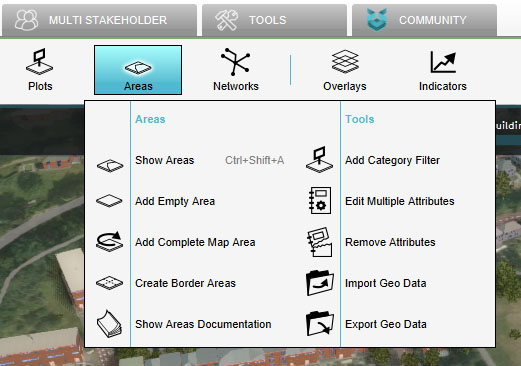 Select "Areas"
 -
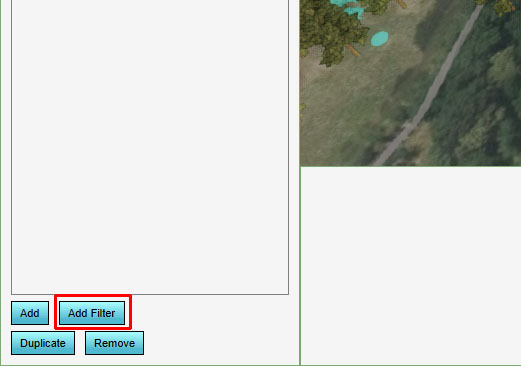 Select "Group by Attribute"
 -
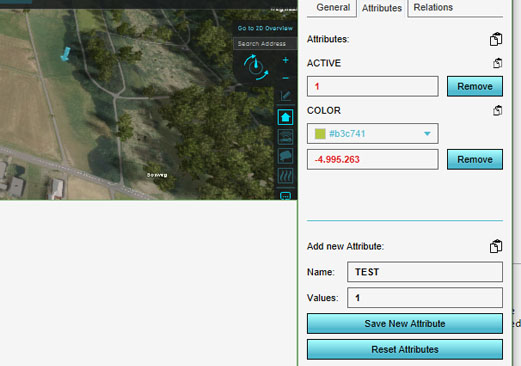 Go to the attributes tab on the right panel to see which attribute to use.
 -
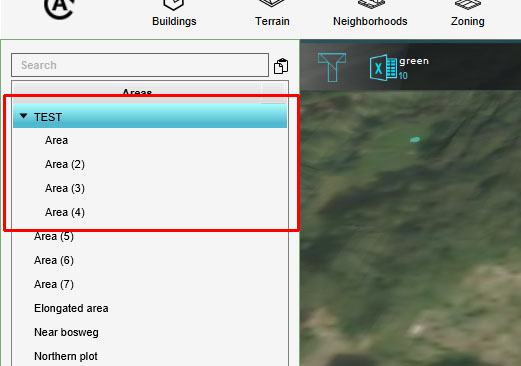 The Areas are grouped under the filter.
 -
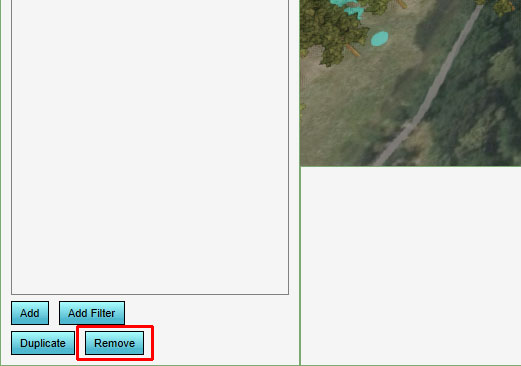 Click on Remove
 -
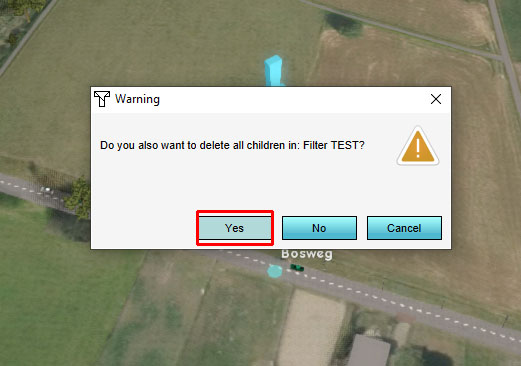 Click on yes to remove the entire filter group.


