How to add Functions for editing: Difference between revisions
Jump to navigation
Jump to search
No edit summary |
No edit summary |
||
| Line 3: | Line 3: | ||
{{editor location|function values}} | {{editor location|function values}} | ||
{{ | {{howto|title=add a Function for editing | ||
|Click "Add". | |Click "Add". | ||
|Select the desired [[Function]] in the Function selection window, and select "Apply". | |Select the desired [[Function]] in the Function selection window, and select "Apply". | ||
Latest revision as of 10:00, 18 November 2026
Because there are hundreds of Functions available in the Tygron Platform, the Function Values window does not display all Functions automatically. It is possible to add additional Functions to the overview of editable Functions. When they are added, their properties can be altered as desired.
How to add a Function for editing:
-
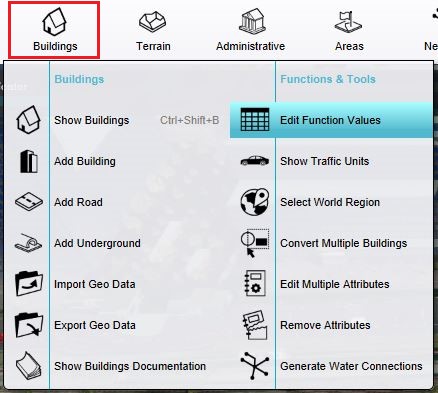 The Function Values Table can be opened here.
-
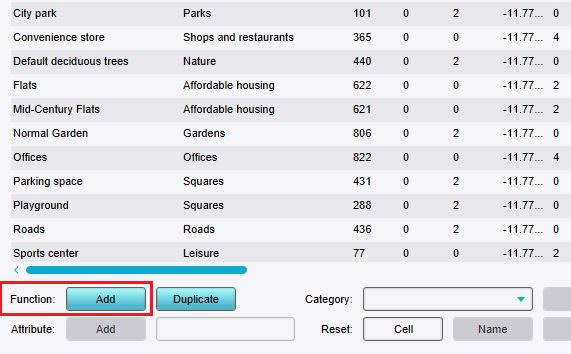 Click on "Add" to open the Function selector.
-
 Use the Function selector to select the desired Function.


Notes
- These steps only add an existing Function to the overview; they do not create a new one.