Text Panel: Difference between revisions
No edit summary |
|||
| Line 14: | Line 14: | ||
: '' Main article: [[Web interface]]'' | : '' Main article: [[Web interface]]'' | ||
The [[Web interface]] can be enriched by adding a Panel to it with [[HTML|HTML, CSS and/or javaScript code]]. The content of the Panel is directly injected into the [[Web interface]]. | The [[Web interface]] can be enriched by adding a Panel to it with [[HTML|HTML, CSS and/or javaScript code]]. The content of the Panel is directly injected into the [[Web interface]]. | ||
==Text Template Panel== | |||
{{main|Template Panel}} | {{main|Template Panel}} | ||
Text Panels can also be generated through the use of [[Template Panel]]s. These behave mostly like normal Text Panels but are not directly accessible to the end-user. Instead, based on a [[Template Panel]], Text Panels can be generated automatically, related to specific data in the [[Project]]. | Text Panels can also be generated through the use of [[Template Panel]]s. These behave mostly like normal Text Panels but are not directly accessible to the end-user. Instead, based on a [[Template Panel]], Text Panels can be generated automatically, related to specific data in the [[Project]]. | ||
Latest revision as of 15:46, 12 November 2026
A Text Panel is a Panel whose rendered content is dependent on a Text property. This text can contain Tags, including TQL, that will be queried and replaced by an associated Calculation Model. The final result should be HTML compliant, such that it can be rendered in a browser, either in the viewer or through the web panel endpoint.
-
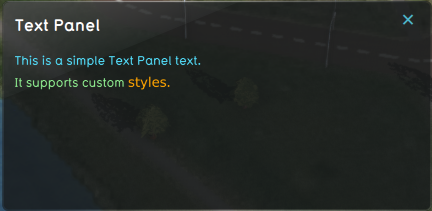 Web panel showing the content of a Text Panel item.

Calculation Model
The $TQL tags in the text content of a Text Panel are calculated and replaced by their resulting values. These tags must always be preceded by a dollar sign ($), followed by either a TQL Select statement, or one of the supported text panel tags. The TQL tags may also end with a dollar sign. TQL statements always require a performed project calculation.
Example: $SELECT_NAME_WHERE_NEIGHBORHOOD_IS_0 and $SELECT_NAME_WHERE_NEIGHBORHOOD_IS_0$ will both be identified and replaced.
Important: $TQL tags used in JavaScript that contain X or Y clauses should be put between brackets.
Web interface
- Main article: Web interface
The Web interface can be enriched by adding a Panel to it with HTML, CSS and/or javaScript code. The content of the Panel is directly injected into the Web interface.
Text Template Panel
- Main article: Template Panel
Text Panels can also be generated through the use of Template Panels. These behave mostly like normal Text Panels but are not directly accessible to the end-user. Instead, based on a Template Panel, Text Panels can be generated automatically, related to specific data in the Project.
General Properties
The general properties of a Panel represent the overall configuration, excluding the actual content which is specific to the type of Panel itself.

- Name
- When a panel is opened, the name of the Panel is displayed at the top, informing the end-user what the panel is about.

- Interface location
- The location of the Panel within the interface. The X-value represents the distance from the left-hand side of the Viewer interface. The Y-value represents the distance from the bottom of the Viewer interface.

- Size
- The size of the panel, so that it fits the content of the Panel. Ideally, a Panel should be large enough to fit the content without the need to scroll, but not so large as to leave space of the Panel empty.
- Default: 600 x 400
- Min: 30 x 30
- Max: 1000 x 4000

- Visibility
- When the Panel has a location in the project map, it is represented by a Popup in the 3D Visualization. That Popup is either visible or not, based on this setting. Visibility is also accessible as an Attribute, allowing it to be set or modified through queries.

- Attention
- When the Panel has a location in the project map, the resulting Popup can draw attention. If it does, arrows will appear in the Viewer interface of all Stakeholders who are allowed to see the Panel. Attention is also accessible as an Attribute, allowing it to be set or modified through queries.

- Stakeholder
- Either all Stakeholders are permitted to open a Panel, or only a single Stakeholder is permitted to open a Panel. If only a single Stakeholder is permitted to view the Panel, other Stakeholders will not see the Panel's Popup in the 3D Visualization, even if it is set to be visible. If a Stakeholder does open the Panel through another route, but does not have permission to view it, the user will see a notice that they are not allowed to view the Panel.

- Popup model
- The model of the Panel's Popup, which consists of both a 3D model and a 2D icon. The latter is used instead of the former for high Zoom Levels and the web interface. A selection of models is available in the drop-down menu.

- Overlay
- A panel, in itself, may not provide all the information the user wishes to show. If its content is related to specific geographic information that belongs to a certain overlay, the panel can be coupled to that overlay. Whenever the panel is opened in the future, the coupled overlay will be applied simultaneously.

- Location in the project map
- A Panel's Popup can be given a location in the project map. This can be done by selecting the button Set Point and using the brush to select its position. To remove it again from the project map, select the button Remove Point.