How to add Functions for editing: Difference between revisions
Jump to navigation
Jump to search
No edit summary |
No edit summary |
||
| Line 17: | Line 17: | ||
{{article end | {{article end | ||
|notes= | |notes= | ||
* These steps | * These steps only add an existing [[Function]] to the overview; they do not create a new one. | ||
|seealso=* [[Function]] | |seealso=* [[Function]] | ||
* [[Function Values Table]] | * [[Function Values Table]] | ||
Revision as of 09:44, 8 July 2026
Because there are hundreds of Functions available in the Tygron Platform, the Function Values window does not display all Functions automatically. It is possible to add additional Functions to the overview of editable Functions. When they are added, their properties can be altered as desired.
How to add a Function for editing:
-
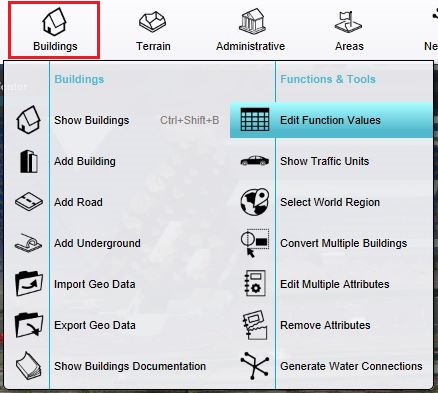 The Function Values Table can be opened here.
 -
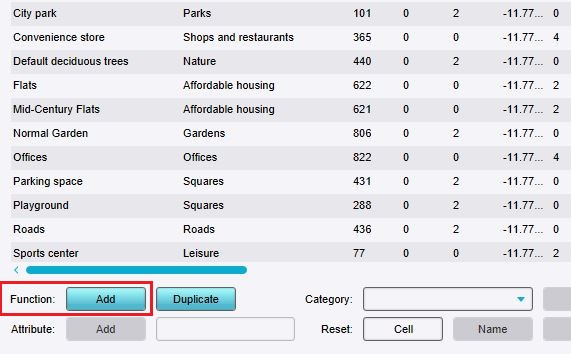 Click on "Add" to open the Function selector.
 -
 Use the Function selector to select the desired Function.


Notes
- These steps only add an existing Function to the overview; they do not create a new one.