How to edit a Combo Overlay formula: Difference between revisions
Jump to navigation
Jump to search
No edit summary |
No edit summary |
||
| Line 10: | Line 10: | ||
}} | }} | ||
| In the [[right panel]], on the "General" tab, find the formula field, and click on "Enlarge". This will show the formula editing window. | | In the [[right panel]], on the "General" tab, find the formula field, and click on "Enlarge". This will show the formula editing window. | ||
| Clear | | Clear unwanted formulas from the text field. | ||
| At the bottom of the screen, click on the desired function. The function will appear in the text field. | | At the bottom of the screen, click on the desired function. The function will appear in the text field. | ||
| {{howtoblock | If the function requires parameters, remove the placeholder value for that parameter, and: | | {{howtoblock | If the function requires parameters, remove the placeholder value for that parameter, and: | ||
| Line 18: | Line 18: | ||
| If the parameter needs to be ''another function'', select it from the options in the bottom, and fill in its parameters. | | If the parameter needs to be ''another function'', select it from the options in the bottom, and fill in its parameters. | ||
}} | }} | ||
| | | Click "Save" to save the formula and close the editing window. | ||
| Recalculate the overlay to see the results. | | Recalculate the overlay to see the results. | ||
}} | }} | ||
Latest revision as of 14:46, 6 July 2026
Editor → Current Situation (Ribbon tab) → Overlays (Ribbon bar) → the Combo Overlay to edit (Left panel)
How to edit the Formula of the Combo Overlay:
- In the right panel, in the input dropdowns, add the desired inputs for the calculation.
Additional inputs can be configured on the "Input" tab. - In the right panel, on the "General" tab, find the formula field, and click on "Enlarge". This will show the formula editing window.
- Clear unwanted formulas from the text field.
- At the bottom of the screen, click on the desired function. The function will appear in the text field.
- If the function requires parameters, remove the placeholder value for that parameter, and:
If the parameter needs to be a number, simply type the desired number.
If the parameter needs to be a variable, select it from the options in the bottom.
If the parameter needs to be one of the grid inputs, select it from the options in the bottom.
If the parameter needs to be another function, select it from the options in the bottom, and fill in its parameters. - Click "Save" to save the formula and close the editing window.
- Recalculate the overlay to see the results.
- In the right panel, in the input dropdowns, add the desired inputs for the calculation.
-
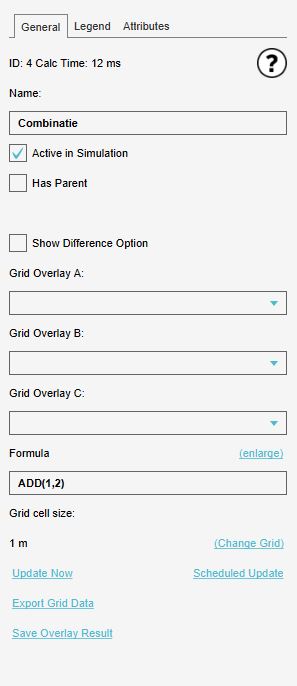 The menu of the Combo Overlay in the right side panel.
 -
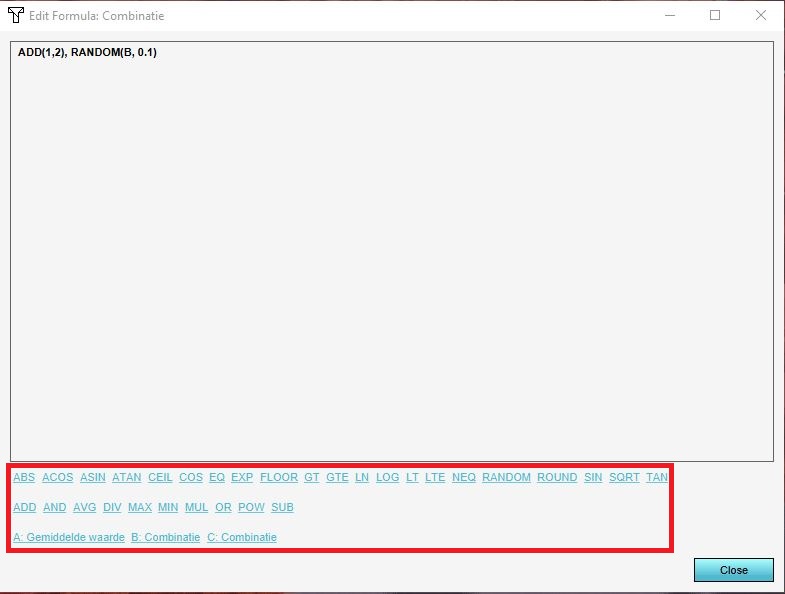 The enlarged formula window of the Combo Overlay.

