How to remove a Chat Channel: Difference between revisions
Jump to navigation
Jump to search
No edit summary |
No edit summary |
||
| Line 20: | Line 20: | ||
*[[How to set the instructions of a Chat Channel]] | *[[How to set the instructions of a Chat Channel]] | ||
*[[How to change the LLM of a Chat Channel]] | *[[How to change the LLM of a Chat Channel]] | ||
*[[How to allow a Chat Channel to edit a project]] | |||
|api= | |api= | ||
*[[Api session event editor chat remove]] | *[[Api session event editor chat remove]] | ||
}} | }} | ||
Revision as of 13:12, 9 October 2026
How to remove a Chat Channel:
-

-
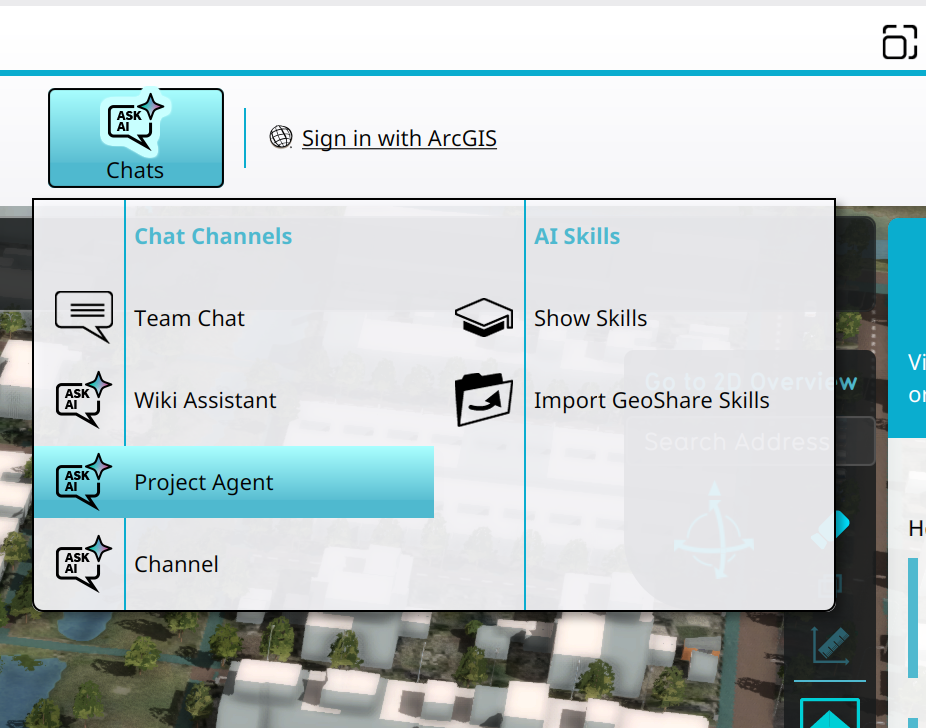 Selecting the Project Agent in the Chats Popup.
 -
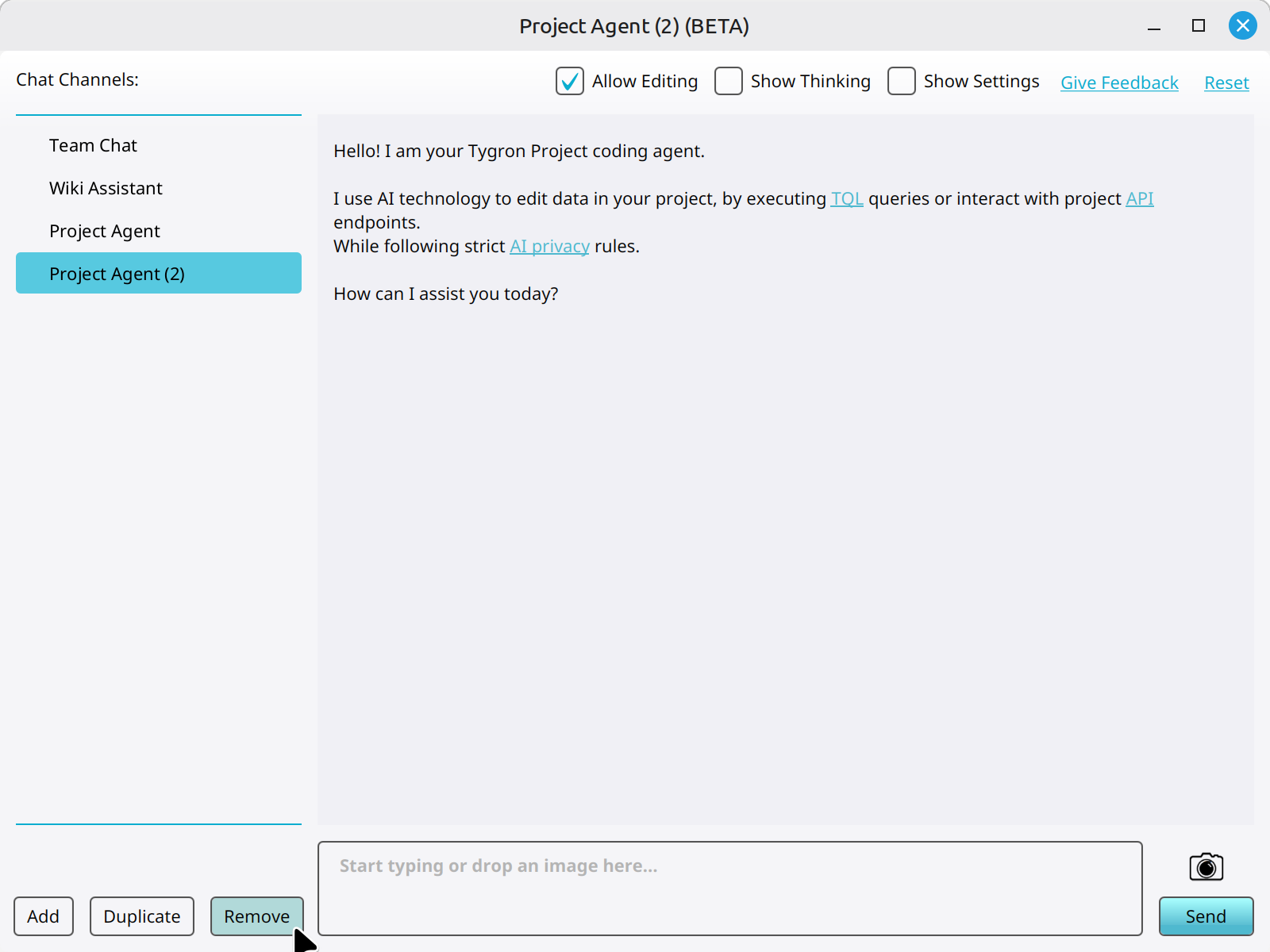 Clicking on the Remove button to remove a new Chat Channel.


Notes
- Default Chat Channels cannot be removed or edited.
How-to's
- How to add a Chat Channel
- How to duplicate a Chat Channel
- How to configure a Chat Channel
- How to set the instructions of a Chat Channel
- How to change the LLM of a Chat Channel
- How to allow a Chat Channel to edit a project