How to export AI Training Data: Difference between revisions
Jump to navigation
Jump to search
No edit summary |
No edit summary |
||
| Line 4: | Line 4: | ||
{{editor steps|title= | {{editor steps|title= | ||
| Open a project in editor mode using the | | Open a project in editor mode using the {{software client}} | ||
| Optionally add a [[Satellite Overlay]]. This overlay will be used to export train images for the dataset. | | Optionally add a [[Satellite Overlay]]. This overlay will be used to export train images for the dataset. | ||
| Determine what [item] type will be used to export a dataset for. For example Foliage [[area]]s drawn on top of the satellite overlay. | | Determine what [item] type will be used to export a dataset for. For example Foliage [[area]]s drawn on top of the satellite overlay. | ||
Revision as of 07:48, 9 June 2026
This how-to explains how to generate an AI Training Data using the Tygron Platform. This data can be used to train your own AI model.
-
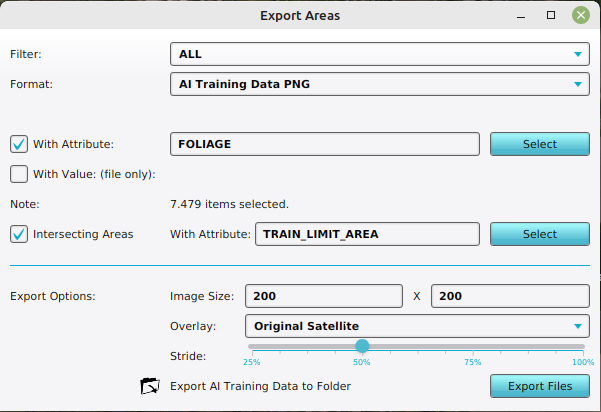 Configuration of the Export AI Training Data as PNG's for Foliage Areas on a Satellite Overlay, with an intersecting area.

Notes
- In case the export folder is not empty, a confirmation popup will appear on overriding the existing image, label, mask and bounding box files.
- In case a region intersects the limit area, but does not contain any features, it is still exported as a dataset-entry (image-, label-, mask- and bbox-file) but without labels, mask pixels or bounding box entries.
- In case the feature density is low, the image size can be increased.
- In case the feature sizes are small compared to the image size, the stride can be increased.
- A dataset can also be generated as AI Training Data CSV, which allows users to directly train on float matrices instead of color images.
- When the intended background image is not the satellite image provided by default but some other image or set of data, it is also possible to select a WMS Overlay referencing an external map service, or a Combo Overlay, the
COLORfunction of which can be used to compute a custom image with.