How to insert a Plotly Graph: Difference between revisions
Jump to navigation
Jump to search
No edit summary |
No edit summary |
||
| Line 22: | Line 22: | ||
|notes= | |notes= | ||
* In case a Template Panel is used, apply the template to generated the panel instances which you can inspect. | * In case a Template Panel is used, apply the template to generated the panel instances which you can inspect. | ||
* The generated content for a Text Panel depends on the Template Panel configuration ([[ | * The generated content for a Text Panel depends on the Template Panel configuration ([[Maplink]], [[Attribute]]) | ||
|seealso= | |seealso= | ||
* [[TQL]] | * [[TQL]] | ||
Latest revision as of 13:48, 5 March 2026
This How-to contains the steps on how to create a Template Text Panel, containing a Line chart of a particular Grid Overlay, with calculated Area averages per timeframe using TQL. Plotly will be used to calculate the Line chart in javascript.
How to insert a Plotly Graph:
- Open a project in the Editor with the Grid Overlay and Areas that can be identified by an attribute.
- Hover over Panels in the ribbon bar and either choose either Add Text Panel or Add Text Template.
- Select the general tab.
- Click on the enlarge button to open the text edit panel.
- Click on the link named Insert TQL Plotly Graph.
- Select the Grid Overlay you want to measure.
- With the panel text content generated, click on close.
-
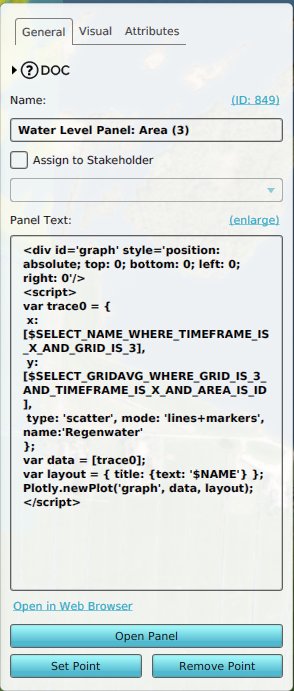 Example content of a Template Text Panel
 -
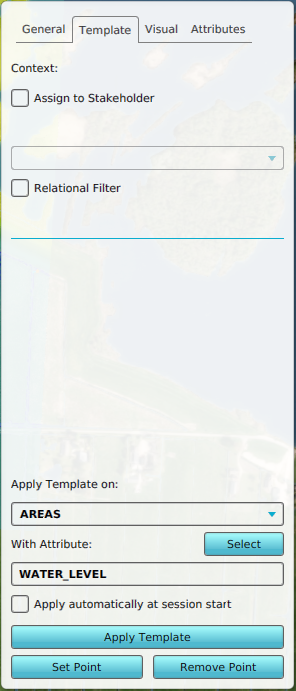
-
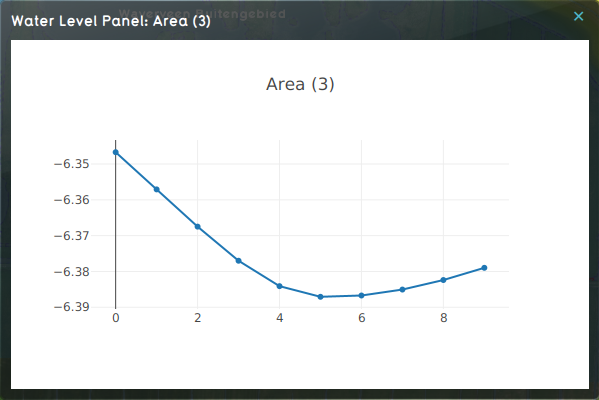 Panel content of a Water Level Area named Area (3).


