How to calculate Shadows: Difference between revisions
Jump to navigation
Jump to search
No edit summary |
No edit summary |
||
| (2 intermediate revisions by the same user not shown) | |||
| Line 1: | Line 1: | ||
<youtube>LhBTMepbi38</youtube> | <youtube>LhBTMepbi38</youtube> | ||
[[Shade result type (Shadow Overlay)|Shadows]] can be calculated by either the [[Shadow Overlay]] or the [[Heat Stress Overlay]]. In case only Shadows are of importance, follow this how-to to add and | [[Shade result type (Shadow Overlay)|Shadows]] can be calculated by either the [[Shadow Overlay]] or the [[Heat Stress Overlay]]. In case only Shadows are of importance, follow this how-to to add and set up a Shadow Overlay. More configuration options are provided at the end. | ||
{{howto|title= | {{howto|title= | ||
| Line 14: | Line 14: | ||
|In the Foliage Step, select the default option Tree Function's height and click next. | |In the Foliage Step, select the default option Tree Function's height and click next. | ||
|In the Foliage Function Step, optionally inspect Function values and click next. | |In the Foliage Function Step, optionally inspect Function values and click next. | ||
|In the Visualize Crown Factor, optionally select the Foliage Crown Factor option and click next. | |In the Visualize Crown Factor Step, optionally select the Foliage Crown Factor option and click next. | ||
| | |Continue to the Output Overlays Step and finish the wizard. | ||
|With the wizard closed, click on the Update link in the Shadow Overlay Detail Panel. | |With the wizard closed, click on the Update link in the Shadow Overlay Detail Panel. | ||
|Inspect the Overlay by clicking on the play button in the [[Overlay legend panel]]. | |Inspect the Overlay by clicking on the play button in the [[Overlay legend panel]]. | ||
| Line 32: | Line 32: | ||
*[[Shade result type (Shadow Overlay)]] | *[[Shade result type (Shadow Overlay)]] | ||
|howtos= | |howtos= | ||
|api=*[[Api session event editor overlay add]] | |||
*[[Api session event editor overlay set attribute]] | |||
*[[Api session event editor overlay add result child]] | |||
}} | }} | ||
{{ShadowOverlay nav}} | {{ShadowOverlay nav}} | ||
Latest revision as of 09:01, 3 July 2026
Shadows can be calculated by either the Shadow Overlay or the Heat Stress Overlay. In case only Shadows are of importance, follow this how-to to add and set up a Shadow Overlay. More configuration options are provided at the end.
How to calculate Shadows:
- Select Current Situation in the ribbon bar
- Hover over Overlays and under Environmental, select Shadow.
- With the Shadow Overlay selected, click on the Configuration Wizard button to open the Shadow Wizard.
- Once the Shadow Wizard has initialized, click next to begin.
- In the Select Days step, click on the edit button and select a start and optional end date and select which hours of the day should be calculated.
- Click next to confirm.
- In the Hour Values step, inspect the chosen dates and hours of day and continue.
- In the Elevation step, select the default option: use Digital Terrain and Surface Model for elevation and click next.
- In the Foliage Step, select the default option Tree Function's height and click next.
- In the Foliage Function Step, optionally inspect Function values and click next.
- In the Visualize Crown Factor Step, optionally select the Foliage Crown Factor option and click next.
- Continue to the Output Overlays Step and finish the wizard.
- With the wizard closed, click on the Update link in the Shadow Overlay Detail Panel.
- Inspect the Overlay by clicking on the play button in the Overlay legend panel.
-
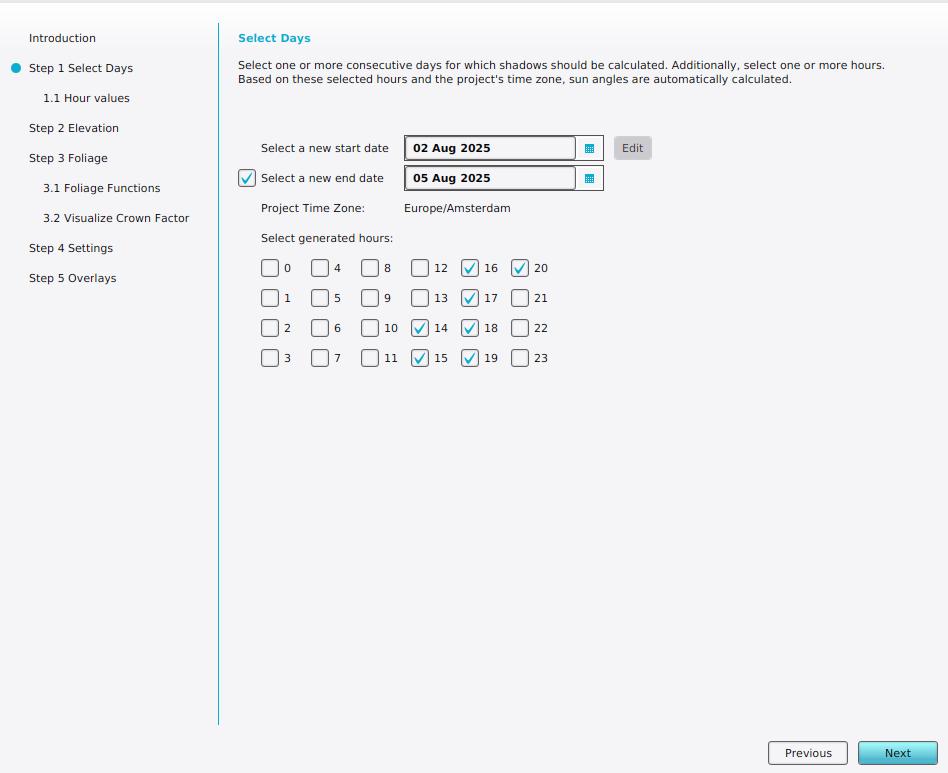 Select a start and end date.
 -
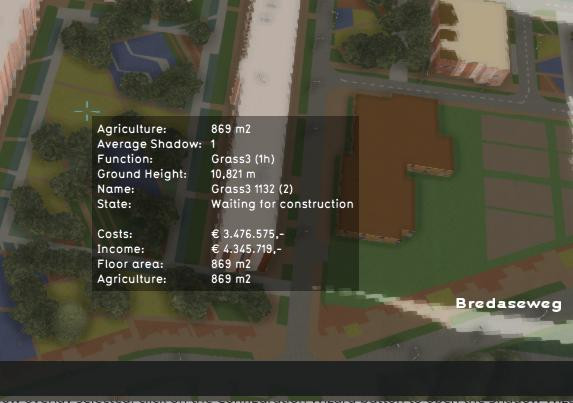 Tooltip of calculated shadow overlay.


Notes
- Grid Overlays can be used to provide an alternative Building and/or Terrain Elevation prequels, as well as Foliage Height.
See also
API Endpoints