How to save and load a measurement: Difference between revisions
Jump to navigation
Jump to search
No edit summary |
No edit summary |
||
| (2 intermediate revisions by 2 users not shown) | |||
| Line 1: | Line 1: | ||
{{howto|title=|Create a [[How to make a point measurement|point]] or [[How to make a line measurement|line]] measurement.|Select the save icon (signified by a plus symbol).|The measurement is now stored.|To load a saved measurement, click on the dropdown button at the bottom of the measuring tool window and choose the saved measurement.}} | |||
{{howto|title=|Create a | |||
| Line 8: | Line 7: | ||
</gallery> | </gallery> | ||
{{article end | |||
* Another way to load a saved measurement, is by going to the | |notes= | ||
* Another way to load a saved measurement, is by going to the [[Current Situation]] tab, hovering over the ''TQL Queries'' button and click on ''Show Measurements''. In the menu on the left, select the saved measurement. Notice that only the Point measurements are listed and can be loaded from this left menu. | |||
|seealso= | |||
* [[Measuring tool]] | |||
|api= | |||
* [[Api session event logic measurement save]] | |||
* [[Api session event logic measurement point add]] | |||
* [[Api session event logic measurement line add]] | |||
}} | |||
[[Category:How-to's]] | |||
Latest revision as of 14:45, 15 July 2026
How to save and load a measurement:
-
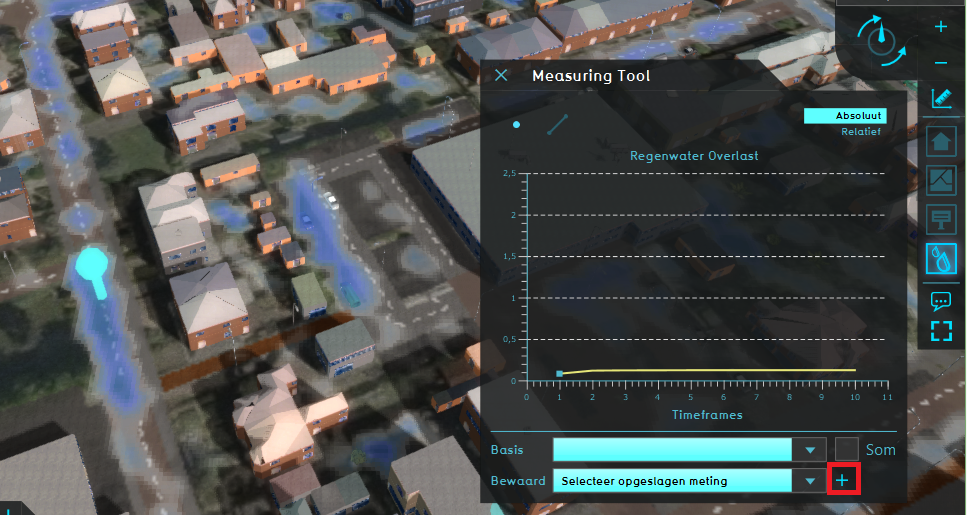 Save a measurement by clicking on the plus sign.
 -
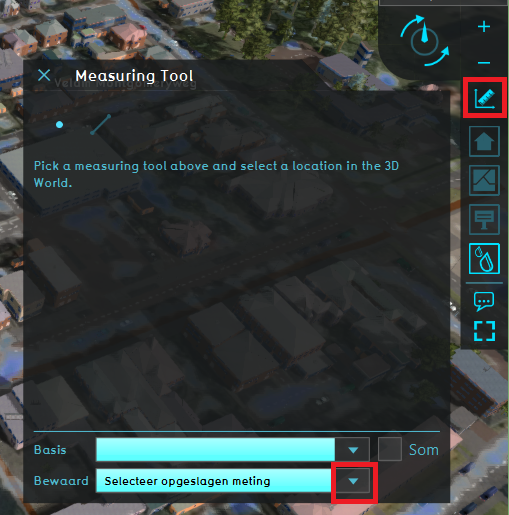 Choose a saved measurement from the dropdown menu.


Notes
- Another way to load a saved measurement, is by going to the Current Situation tab, hovering over the TQL Queries button and click on Show Measurements. In the menu on the left, select the saved measurement. Notice that only the Point measurements are listed and can be loaded from this left menu.