How to import trees based on an Inference Overlay
First, complete How to detect foliage using an Inference Overlay to configure an Inference Overlay using the foliage RCNN and a Satellite Overlay.
This guide explains how to use an Inference Overlay to import results as trees (Buildings) using the 'Grid Overlay Legend' option.
How to import trees based on Inference Overlay results:
- Follow the steps of How to detect foliage using an Inference Overlay,
- Select Current Situation in the ribbon bar,
- Hover over Buildings, and select the option Import Geo data,
- Once the Geo Data Wizard is ready, click next,
- In the Import method step, select the option 'A Grid Overlay Legend' and click next
- In the Select Grid Overlay step, for Overlay, select the Inference Overlay added in the previous How-to.
- Click on the select all button for the included legend entries and click next.
- Inspect the identified legend polygons in the View Features step.
- To import the data as trees, select the Convert geometry to buffered centerpoint option.
- In the Filter Features step, click on the Select button to open the neural network selection panel.
- In the Add or Update step, select the option import as new Building with attributes and click next.
- Select a naming scheme suitable to your needs and click next.
- Import all attributes and click next.
- Either import the features using one function, or use a custom mapping based on the VALUE attribute.
- In the Assign Stakeholders step, select any option and click next.
- In the finalize step, click next to import the features as tree trunks using the chosen centerpoint option.
-
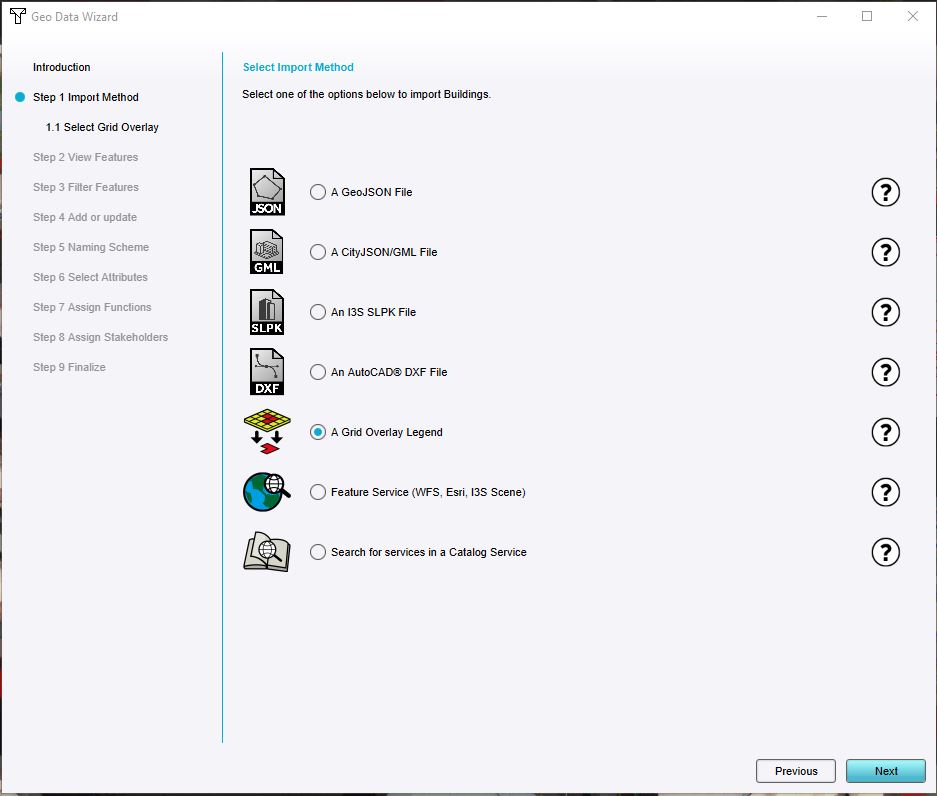 Select the option Grid Overlay Legend.
 -
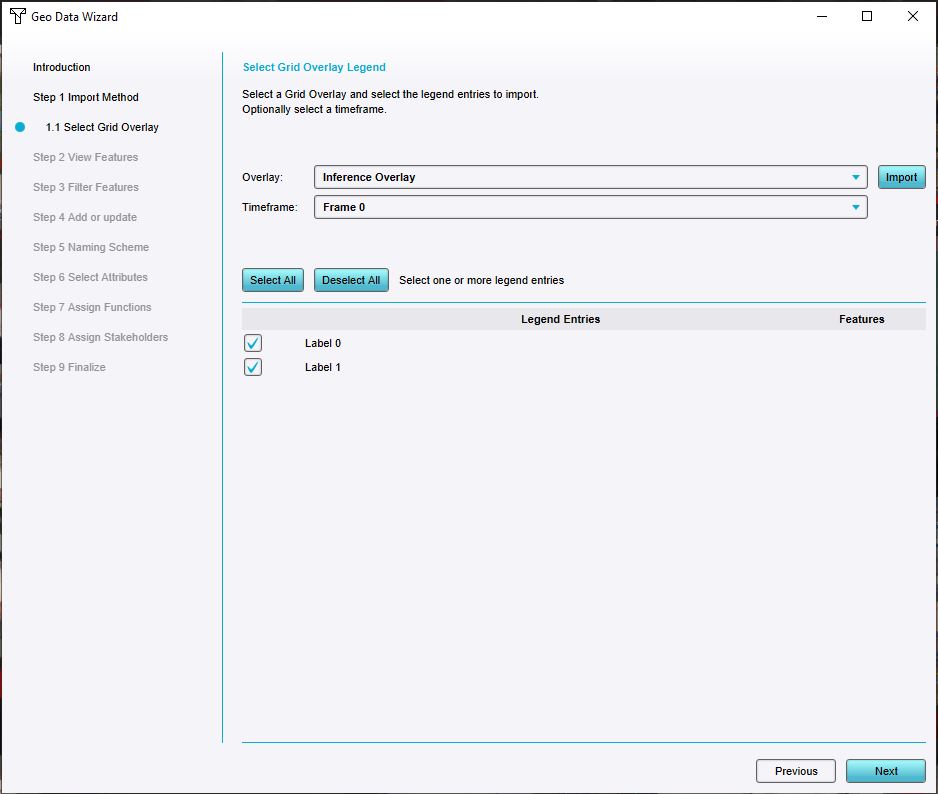 Select the Inference Overlay and all legend entries.
 -
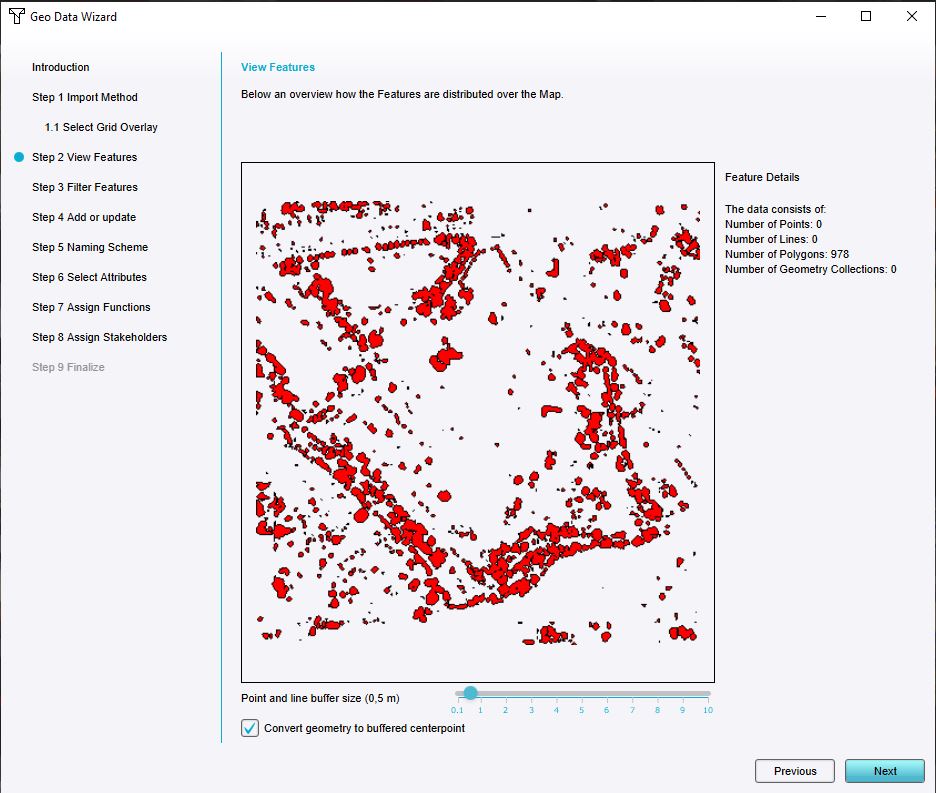 Select the option Convert geometry to buffered centerpoint.
 -
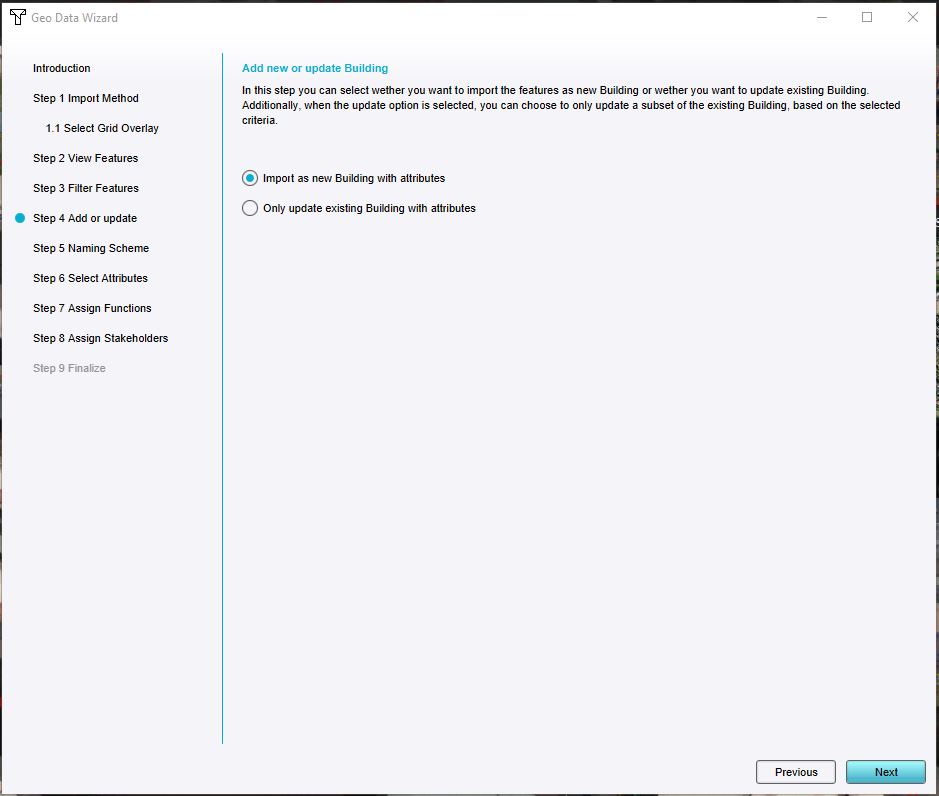 Import as new Buildings with attributes.


