How to draw selections for buildings
- Now the building can be drawn into the 3D Visualization by selecting the 'Draw Area' button on the bottom of the panel. A new panel - the Brush Panel - becomes available under the editor main view port:
-
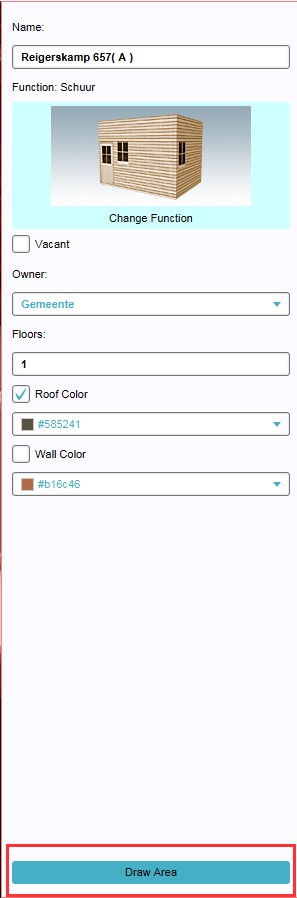 Draw Area Button
-
 Brush Panel
-
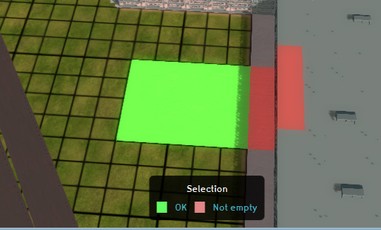 Brush Panel Area Selection


- Left-click and drag in the 3D Visualization's main view to draw the building's ground plan. Colors indicate if the area is available for the selected building. Different Selection Types can be selected; rectangles for buildings, lines for roads, etc. By selecting 'Apply Selection', the building is confirmed. 'Clear Selection' removes the selection from the 3D Visualization. Use 'Remove Building' to delete existing buildings from the project; the building slot remains as an empty entry.