How to remove an Area: Difference between revisions
Jump to navigation
Jump to search
No edit summary |
No edit summary |
||
| Line 3: | Line 3: | ||
To remove an [[area]], select an area in the left panel, and select "Remove" at the bottom of the panel. | To remove an [[area]], select an area in the left panel, and select "Remove" at the bottom of the panel. | ||
{{ | {{howto|title=remove an area|Select "Areas" in the ribbon bar.|Select the area you wish to remove.|Select "Remove" in the [[Editor#Left_Panel|left panel]].}} | ||
<gallery> | <gallery> | ||
Latest revision as of 09:52, 18 November 2026
To remove an area, select an area in the left panel, and select "Remove" at the bottom of the panel.
How to remove an area:
- Select "Areas" in the ribbon bar.
- Select the area you wish to remove.
- Select "Remove" in the left panel.
-
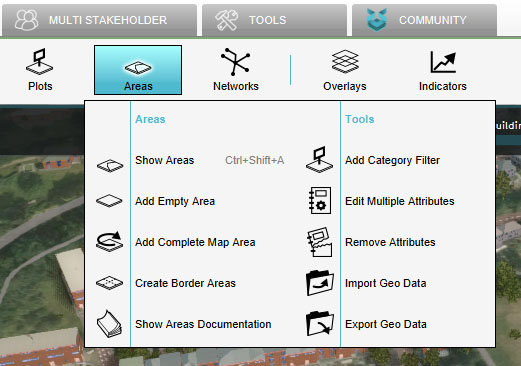 Select "Areas"
-
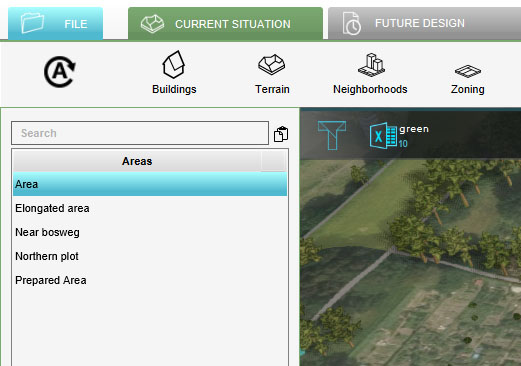 Select Area to Remove
-
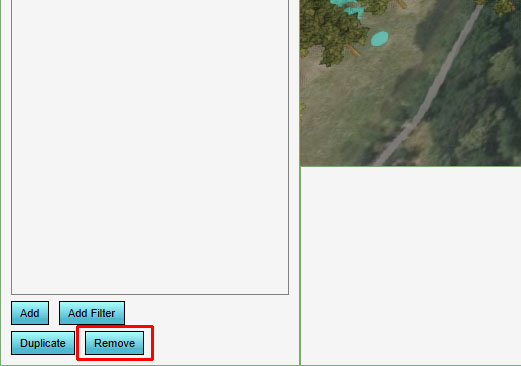 Click on Remove


