Keep Alive: Difference between revisions
Jump to navigation
Jump to search
No edit summary |
No edit summary |
||
| Line 1: | Line 1: | ||
The Keep Alive option | The Keep Alive option, located in the [[File Menu]] of a [[project]] in the [[editor]], keeps a [[session]] running on the {{software server}} even after the [[Tygron Client]] is closed. The keep alive mode delays an automatic shut-down of your project session. | ||
There are a couple of scenarios where keeping a session alive in the {{software}} is desirable. This option is commonly used in the following use cases: | There are a couple of scenarios where keeping a session alive in the {{software}} is desirable. This option is commonly used in the following use cases: | ||
| Line 5: | Line 5: | ||
* For other users to be able to join. The Keep Alive option enables the project to be accessed by users with 'join only' [[Account Management|access rights]]. This can be implemented in a (multi user) stakeholder [[session]], where an organization has a session running, and is inviting external stakeholders (civilians, companies, municipalities, etc) to join the session on the {{software}}. | * For other users to be able to join. The Keep Alive option enables the project to be accessed by users with 'join only' [[Account Management|access rights]]. This can be implemented in a (multi user) stakeholder [[session]], where an organization has a session running, and is inviting external stakeholders (civilians, companies, municipalities, etc) to join the session on the {{software}}. | ||
* To complete the process of uploading data from a service. Some services contain a large amount of (3D) data. Having the session continue to process this data in the background will free up a user's time and system. | * To complete the process of uploading data from a service. Some services contain a large amount of (3D) data. Having the session continue to process this data in the background will free up a user's time and system. Note that this option does not work for local data, as the session must remain open on the source system. | ||
* To finalize a long [[calculation]]. Some calculations can take a long time. It is possible to schedule such calculations with a long scheduled update. When this is selected, the session is automatically set to Keep Alive, and the user can exit while the calculation continues on the server, at the designated times. | * To finalize a long [[calculation]]. Some calculations can take a long time. It is possible to schedule such calculations with a long scheduled update. When this is selected, the session is automatically set to Keep Alive, and the user can exit while the calculation continues on the server, at the designated times. | ||
Revision as of 12:46, 8 July 2026
The Keep Alive option, located in the File Menu of a project in the editor, keeps a session running on the Tygron Engine even after the Tygron Client is closed. The keep alive mode delays an automatic shut-down of your project session.
There are a couple of scenarios where keeping a session alive in the Tygron Platform is desirable. This option is commonly used in the following use cases:
- For other users to be able to join. The Keep Alive option enables the project to be accessed by users with 'join only' access rights. This can be implemented in a (multi user) stakeholder session, where an organization has a session running, and is inviting external stakeholders (civilians, companies, municipalities, etc) to join the session on the Tygron Platform.
- To complete the process of uploading data from a service. Some services contain a large amount of (3D) data. Having the session continue to process this data in the background will free up a user's time and system. Note that this option does not work for local data, as the session must remain open on the source system.
- To finalize a long calculation. Some calculations can take a long time. It is possible to schedule such calculations with a long scheduled update. When this is selected, the session is automatically set to Keep Alive, and the user can exit while the calculation continues on the server, at the designated times.
After 14 days of inactivity, the Keep Alive option is ended automatically. If you would like to use this option for a longer period, please contact us with our contact form.
How to use the Keep Alive option
How to use the Keep Alive option:
-
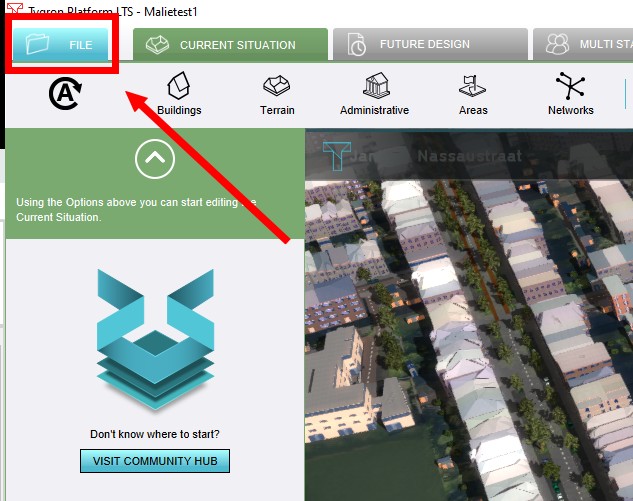 Click on the File tab in the Editor.
 -
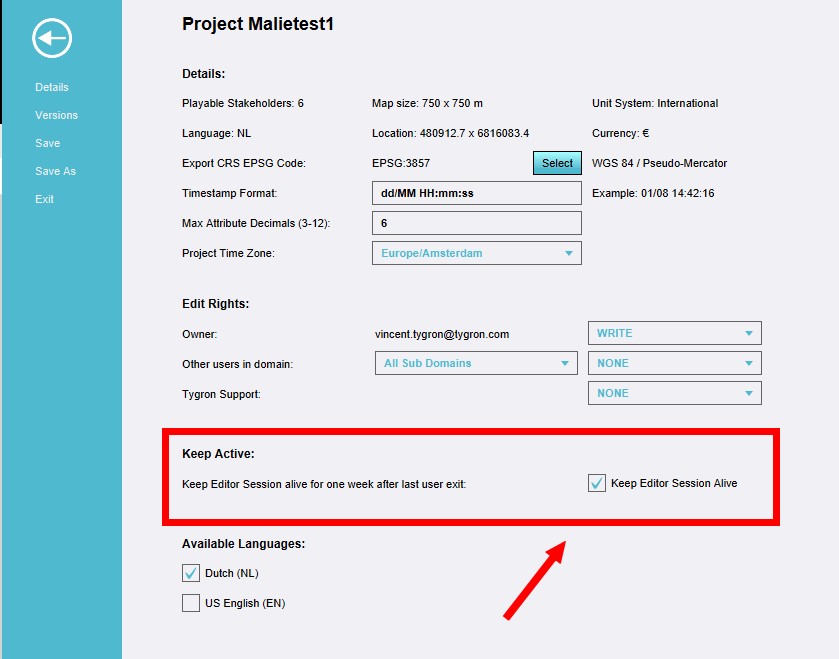 On the Details page, select the checkbox in the Keep Alive part.


How to join a Keep Alive session
How to join a Keep Alive session:
- Select the Join option from the main menu.
- Select the project to join from the list of available projects that are running.
-
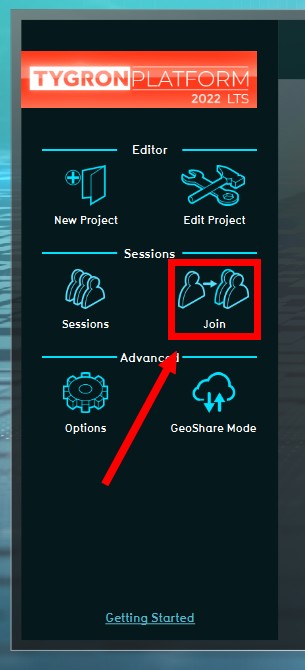 Select the Join option from the main menu.
 -
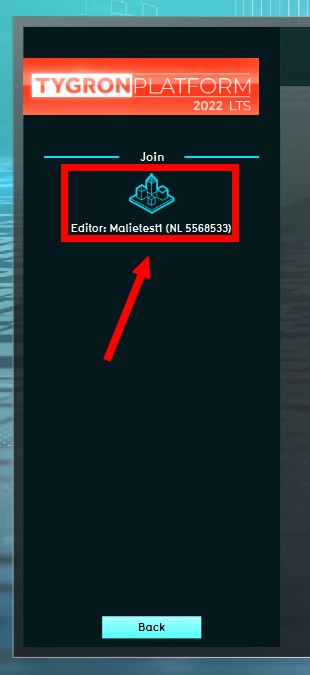 Select the project to join from the list of available projects that are running.


How to end a Keep Alive session
How to end a Keep Alive session:
- Click on the File tab in the Editor.
- On the Details page, deselect the checkbox in the Keep Alive part.
- Exit the project as usual.
-
Click on the File tab in the Editor.
-
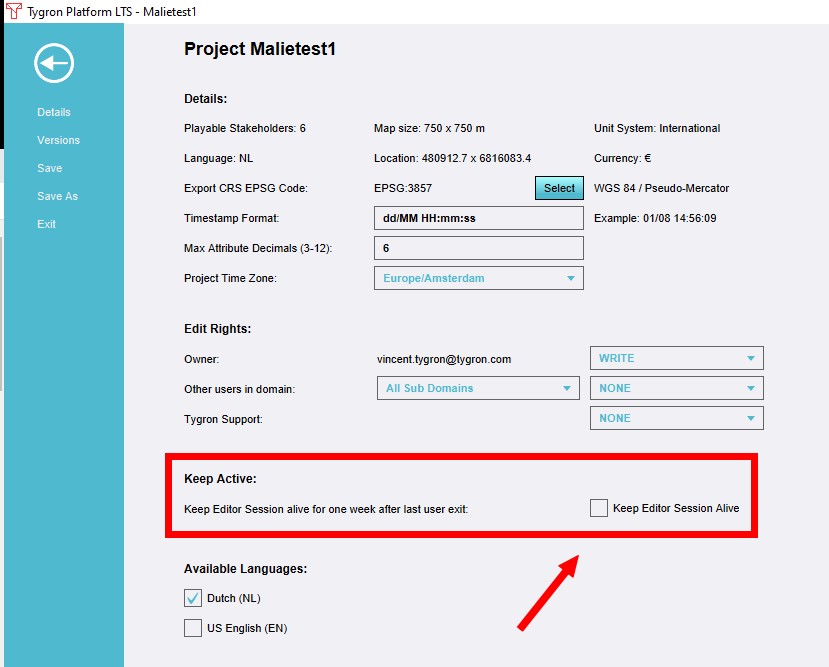 On the Details page, deselect the checkbox in the Keep Alive part.
 -
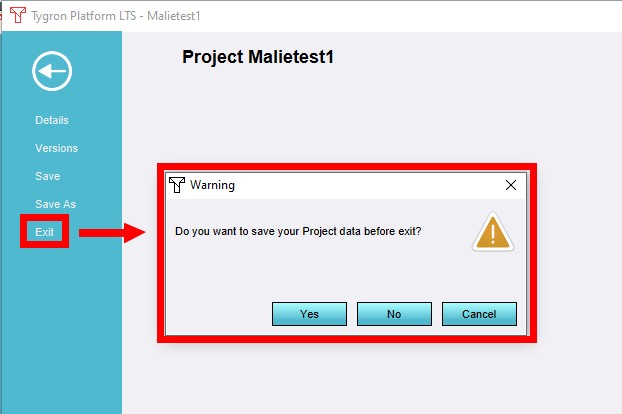 Exit the project as usual.

