Community: Difference between revisions
Jump to navigation
Jump to search
No edit summary |
No edit summary |
||
| (8 intermediate revisions by 2 users not shown) | |||
| Line 9: | Line 9: | ||
*[[Main Page|Wiki]] | *[[Main Page|Wiki]] | ||
*[[How-to]]'s | *[[How-to]]'s | ||
*[https://www.tygron.com/en/ | *[https://www.tygron.com/en/blog/ Blog] | ||
*[https://tygronsupport.freshdesk.com/support/tickets/ Tickets] | *[https://tygronsupport.freshdesk.com/support/tickets/ Tickets] | ||
*[[Chat]] | *[[#Chat panel|Chats]] | ||
*Sign in with ArcGIS | *Sign in with ArcGIS | ||
:It is also possible to [[How to log in an ArcGIS Online account in the Tygron Client Application|log into ArcGIS]] to access ArcGIS sources. | :It is also possible to [[How to log in an ArcGIS Online account in the Tygron Client Application|log into ArcGIS]] to access ArcGIS sources. | ||
== | ==Chat panel== | ||
* AI | * [[Generative AI (GenAI)]]: Click on ''Chats'' in the [[ribbon]] to open the [[Chat Panel]]. Use the [[Chat Channel]] overview in the Chat Panel to switch between channels. | ||
*Team Chat Box: Select the Team Chat option in the Chats popup to communicate with teammates. | *Team Chat Box: Select the Team Chat option in the Chats popup to communicate with teammates. | ||
*[[Skill]]s: Select the option ''Show Skills'' to open the Skills available to [[AI Agent]]s in your project. | |||
<gallery>File:chat_popup_agents.png|Selecting the Wiki Assistant in the Chats popup | <gallery>File:chat_popup_agents.png|Selecting the Wiki Assistant in the Chats popup | ||
File:chat_popup_team_chat.png|Accessing Team Chat in the Chats popup | File:chat_popup_team_chat.png|Accessing Team Chat in the Chats popup | ||
Latest revision as of 14:55, 7 October 2026
The Tygron Platform has an online community for users to engage and learn about the software.

Check out the following links:
- It is also possible to log into ArcGIS to access ArcGIS sources.
Chat panel
- Generative AI (GenAI): Click on Chats in the ribbon to open the Chat Panel. Use the Chat Channel overview in the Chat Panel to switch between channels.
- Team Chat Box: Select the Team Chat option in the Chats popup to communicate with teammates.
- Skills: Select the option Show Skills to open the Skills available to AI Agents in your project.
-
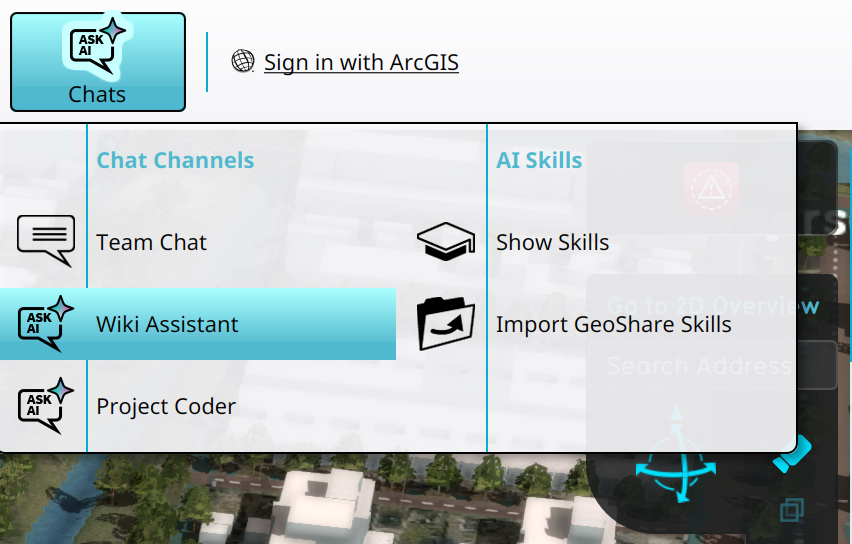 Selecting the Wiki Assistant in the Chats popup
 -
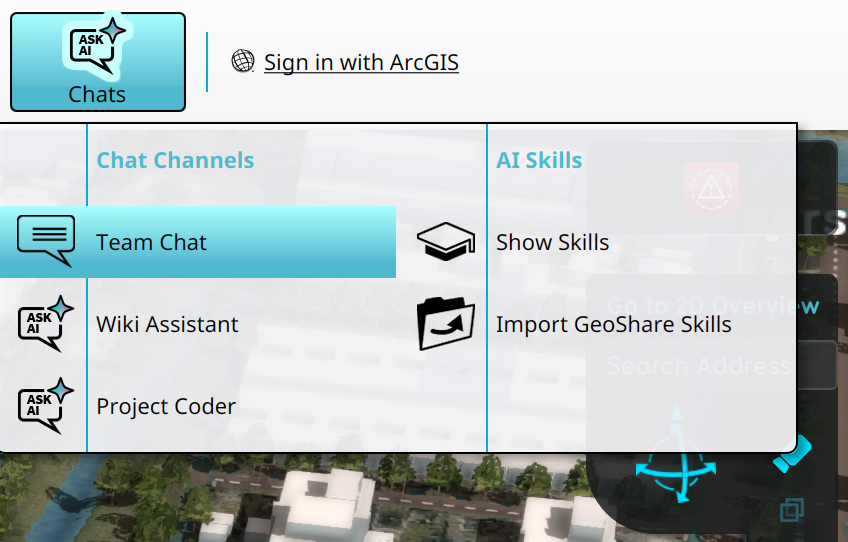 Accessing Team Chat in the Chats popup
 -
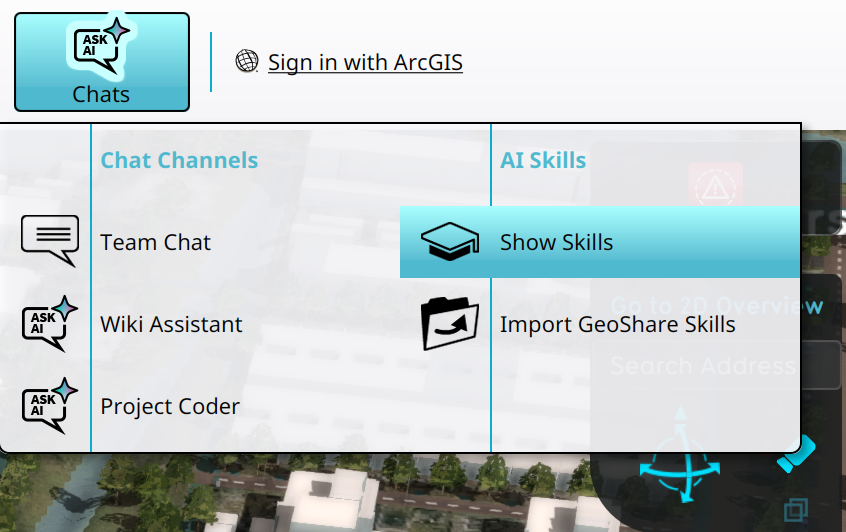 Opening the Skills overview using the Chats popup


