How to export Revit models to IFC: Difference between revisions
Jump to navigation
Jump to search
Created page with "Follow manual at: https://help.autodesk.com/view/RVT/2023/ENU/?guid=GUID-6EB68CEC-6C17-4B16-A509-30537F666C1F" |
No edit summary |
||
| (8 intermediate revisions by 3 users not shown) | |||
| Line 1: | Line 1: | ||
<youtube>zZ4DdC0j7Oc</youtube> | |||
{{editor steps|title= | |||
| Open Revit and open the model that you wish to export. | |||
| To export go to file -> Export -> IFC. | |||
| In the export dialog specify the location where the file should be exported. | |||
| In the Export setup dropdown list choose IFC4 Reference view as option. | |||
| Click on export. | |||
| [[How to import an IFC file|Import the IFC file in the Tygron Platform]]. | |||
}} | |||
<gallery mode="nolines"> | |||
File:Revit export dialog.png|thumb|Revit export dialog | |||
</gallery> | |||
{{article end | |||
|notes=*Avoid unnecessary detail in the model to reduce import time in the Tygron Platform. | |||
|seealso= | |||
* [[IFC]] | |||
|howtos=*[[How to export Blender models to IFC]] | |||
*[[How to export Sketchup models to IFC]] | |||
|external= | |||
* https://www.autodesk.com/products/revit/overview - The official Autodesk Revit website | |||
}} | |||
Latest revision as of 09:46, 8 October 2026
How to export Revit models to IFC:
- Open Revit and open the model that you wish to export.
- To export go to file -> Export -> IFC.
- In the export dialog specify the location where the file should be exported.
- In the Export setup dropdown list choose IFC4 Reference view as option.
- Click on export.
- Import the IFC file in the Tygron Platform.
-
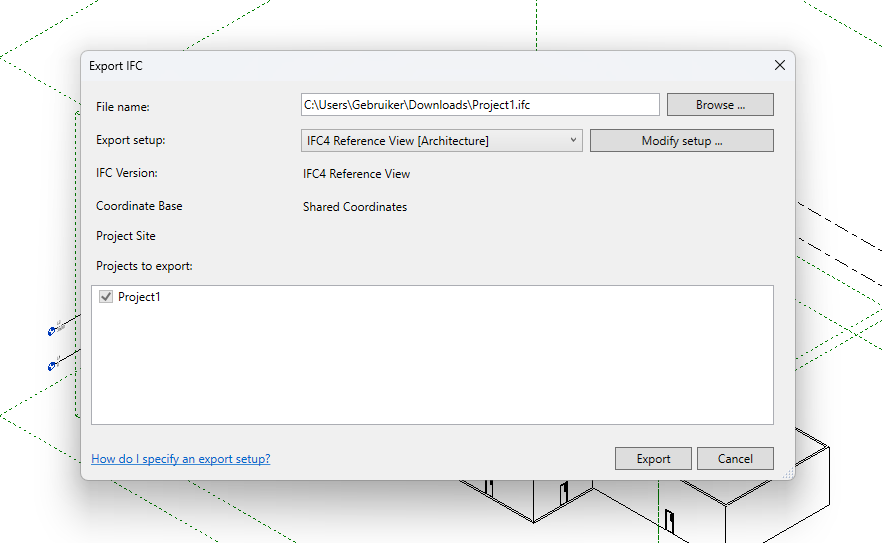 Revit export dialog

Notes
- Avoid unnecessary detail in the model to reduce import time in the Tygron Platform.
How-to's
See also
External links
- https://www.autodesk.com/products/revit/overview - The official Autodesk Revit website