How to import data from ArcGIS Online: Difference between revisions
Jump to navigation
Jump to search
No edit summary |
No edit summary |
||
| (12 intermediate revisions by 2 users not shown) | |||
| Line 1: | Line 1: | ||
{{editor steps|title= | <youtube>9YQghdGnAPQ</youtube> | ||
{{:How to log in an ArcGIS Online account in the Tygron Client Application}} | |||
{{editor steps|title= | |||
|Make sure you are logged in to either [[How to log in an ArcGIS Online account in the Tygron Client Application|ArcGIS Online]] or [[How to log in an ArcGIS Enterprise account in the Tygron Client Application|ArcGIS Enterprise portal]]. See above for the steps. | |||
|Select [[Current Situation]] in the [[ribbon bar]] | |||
|Open the [[Geo_Data_Wizard|Geo Data Wizard]] and select the [[Geo_Data_Wizard#Import_type|type of data]] you want to import. | |||
|Select [[CSW|Catalogue service]] as the [[Geo_Data_Wizard#Import_method|import method]]. | |||
|Select Catalogue service ArcGIS Online (also to access the Enterprise portal data). | |||
|In step 1.2 you can browse through your Esri content, Esri organization content and Esri open data. Select the data you want to import and click Next. In step 1.3 you can choose the layer you want to import. Proceed with the [[Geo_Data_Wizard#View|wizard]].}} | |||
<gallery mode="nolines"> | <gallery mode="nolines"> | ||
| Line 9: | Line 19: | ||
{{article end | {{article end | ||
|seealso=*[[ArcGIS | |seealso=*[[ArcGIS Pro]] | ||
*[[ArcGIS Online]] | |||
|howtos= | |||
*[[How to log in an ArcGIS Online account in the Tygron Client Application]] | |||
*[[How to log in an ArcGIS Enterprise account in the Tygron Client Application]] | |||
*[[How to log out an ArcGIS account in the Tygron Client Application]] | |||
*[[How to import 3D Models from ArcGIS Online]] | |||
|notes= | |notes= | ||
* In step | * In ''Select Catalog'' step of the [[Geo Data Wizard]], datasets that are listed in [[How to log in an ArcGIS Online account in the Tygron Client Application|ArcGIS Online]] or in the [[How to log in an ArcGIS Enterprise account in the Tygron Client Application|ArcGIS Enterprise portal]] with an extent which is not in your project location are not visible. | ||
* In step | * In the ''Select Service'' step of the [[Geo Data Wizard]], if the dataset you want to import is not in the same location as your project, the data cannot be imported. | ||
}} | }} | ||
[[Category:How-to's]] | |||
Latest revision as of 14:14, 10 July 2026
How to log in an ArcGIS Online account in the Tygron Client Application:
- Click on the Community tab and click on Sign in with ArcGIS
- In the new panel that pops up, choose Default ArcGIS Online and click on Continue to login
- Fill in your username and password
- Upon success, a confirmation message appears and the panel closes automatically.
- To add private or organizational data, see the instructions below.
-
 Sign in with ArcGIS link in Community Tab of the ribbon bar.
 -
 Arcgis default Login panel
 -
 Arcgis Sign in panel.
 -
 Link changed when logged in with Arcgis.


How to import data from ArcGIS Online:
- Make sure you are logged in to either ArcGIS Online or ArcGIS Enterprise portal. See above for the steps.
- Select Current Situation in the ribbon bar
- Open the Geo Data Wizard and select the type of data you want to import.
- Select Catalogue service as the import method.
- Select Catalogue service ArcGIS Online (also to access the Enterprise portal data).
- In step 1.2 you can browse through your Esri content, Esri organization content and Esri open data. Select the data you want to import and click Next. In step 1.3 you can choose the layer you want to import. Proceed with the wizard.
-
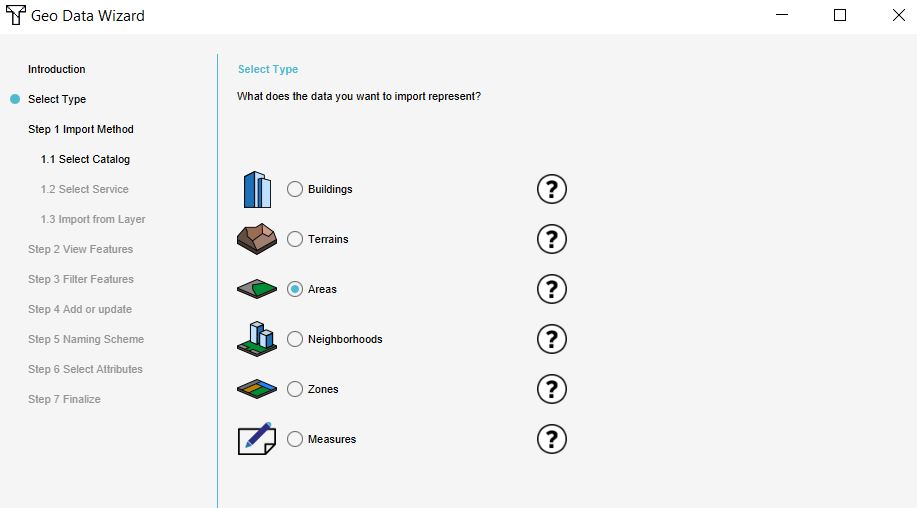 Choose how you want the imported data to be visualized in the Tygron Platform
 -
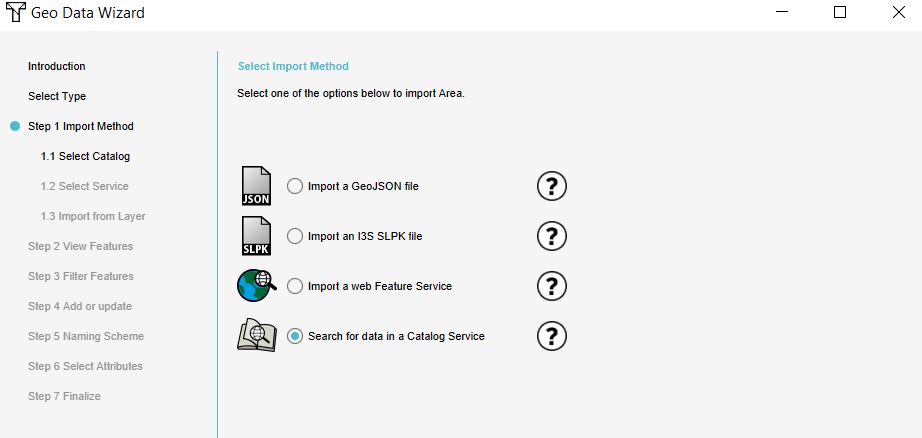 Select Catalogue service
 -
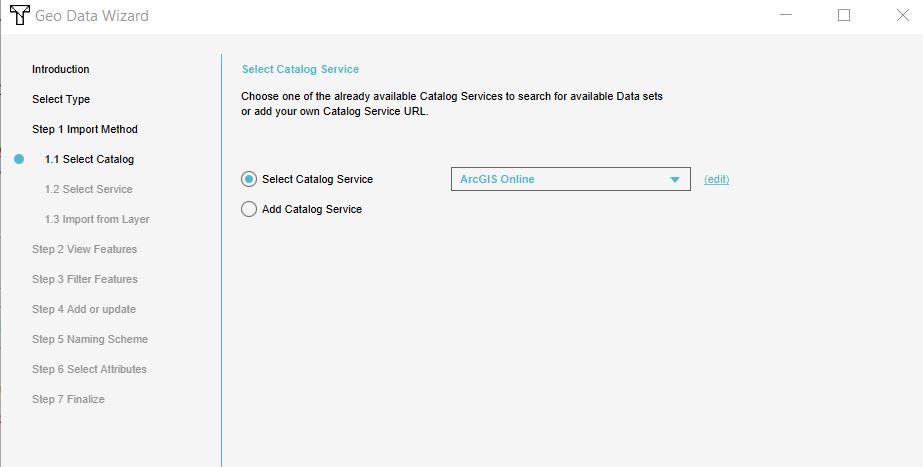 Select ArcGIS Online
 -
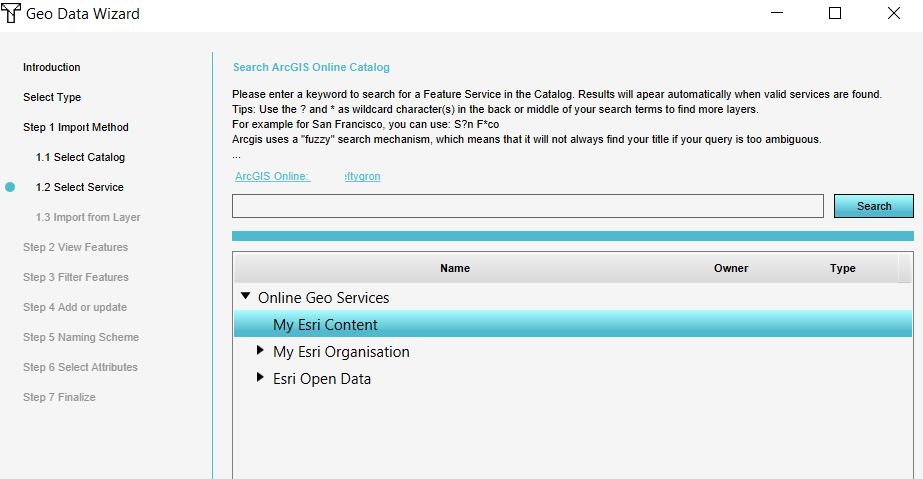 Choose your private data by expanding the menus


Notes
- In Select Catalog step of the Geo Data Wizard, datasets that are listed in ArcGIS Online or in the ArcGIS Enterprise portal with an extent which is not in your project location are not visible.
- In the Select Service step of the Geo Data Wizard, if the dataset you want to import is not in the same location as your project, the data cannot be imported.
How-to's
- How to log in an ArcGIS Online account in the Tygron Client Application
- How to log in an ArcGIS Enterprise account in the Tygron Client Application
- How to log out an ArcGIS account in the Tygron Client Application
- How to import 3D Models from ArcGIS Online