How to configure a Weather: Difference between revisions
Jump to navigation
Jump to search
Created page with "{{Editor location|Weather}} {{Editor steps|title=configure weather in a project|Select Animations > Weather > Edit Weather|Select 'Add' from the bottom of the left panel|Highlight the newly created weather entry on the left panel|Adjust the properties of the highlighted weather type}} <gallery> File:EditWeather.jpg|1. Select Animations > Weather > Edit Weather File:AddWeather.jpg|2. Select 'Add' from the bottom of the left panel File:HighlightWeather.jpg|3. Highlight t..." |
No edit summary |
||
| (7 intermediate revisions by 2 users not shown) | |||
| Line 1: | Line 1: | ||
{{Editor location|Weather}} | {{Editor location|Weather}} | ||
{{ | {{howto|title=configure [[weather]] in a project | ||
|Select Tools > Environment > Show Weather | |||
|Select 'Add' from the bottom of the left panel | |||
|Highlight the newly created weather entry on the left panel | |||
|Adjust the properties of the highlighted [[Weather]] | |||
}} | |||
<gallery> | <gallery> | ||
File:EditWeather.jpg|1. Select | File:EditWeather.jpg|1. Select Tools > Environment > Show Weather | ||
File:AddWeather.jpg|2. Select 'Add' from the bottom of the left panel | File:AddWeather.jpg|2. Select 'Add' from the bottom of the left panel | ||
File:HighlightWeather.jpg|3. Highlight the newly created | File:HighlightWeather.jpg|3. Highlight the newly created [[Weather]] | ||
File:SetupWeatherProperties.jpg|4. Adjust properties of highlighted | File:SetupWeatherProperties.jpg|4. Adjust properties of highlighted [[Weather]] | ||
</gallery> | </gallery> | ||
==Weather properties== | |||
[[File:Weather_properties_2021.jpg|right|frame|Right panel with Weather properties]] | |||
===Name=== | |||
[[File:WeatherName.jpg|left|frame|Weather name field]] | |||
<br clear=left> | |||
===Visual effect=== | |||
[[File:Vfx_weather_2021.jpg|left|frame|Weather Visual Effect field]] | |||
<br clear=left> | |||
===Auto trigger=== | |||
[[File:WeatherAutoTrigger.jpg|frame|left|Weather Auto Trigger check box]] | |||
<br clear=left> | |||
===Visual effect period in seconds=== | |||
[[File:Vfx_weather_seconds_2021.jpg|frame|left|Weather Duration (in seconds)]] | |||
<br clear=left> | |||
===Amount of rain in total duration of rainfall=== | |||
[[File:Rainfall_mm.jpg|frame|left|Amount of rain field]] | |||
<br clear=left> | |||
===Duration of rainfall in minutes=== | |||
[[File:Rain_for_x_minutes.jpg|frame|left|Duration of rainfall]] | |||
<br clear=left> | |||
<br clear=all> | |||
{{article end | |||
|api=*[[Api session items weathers]] | |||
|seealso= | |||
* [[Weather]] | |||
}} | |||
[[Category:How-to's]][[Category:Weather]] | [[Category:How-to's]][[Category:Weather]] | ||
Latest revision as of 09:52, 18 November 2026
Editor → Tools (Ribbon tab) → Weather (Ribbon bar) → Show Weather (Dropdown) → The Weather to edit (Left panel)
How to configure weather in a project:
- Select Tools > Environment > Show Weather
- Select 'Add' from the bottom of the left panel
- Highlight the newly created weather entry on the left panel
- Adjust the properties of the highlighted Weather
-
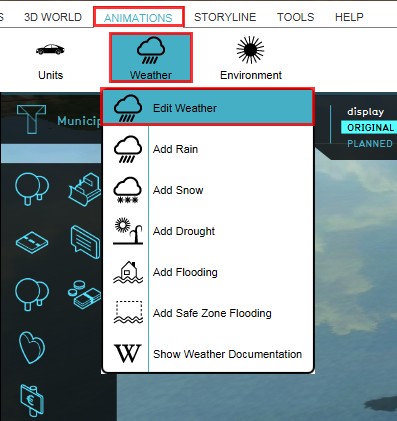 1. Select Tools > Environment > Show Weather
-
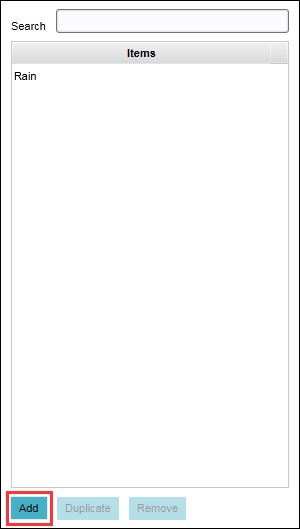 2. Select 'Add' from the bottom of the left panel
-
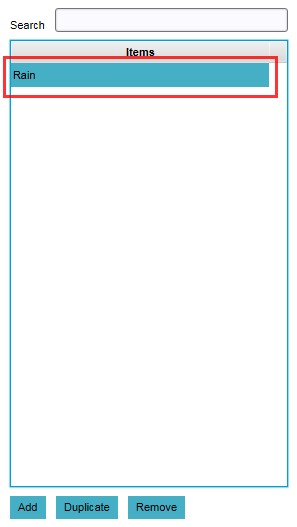 3. Highlight the newly created Weather
-
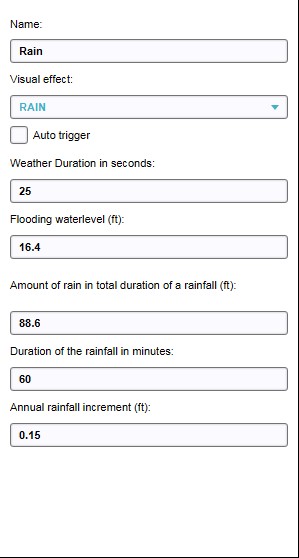 4. Adjust properties of highlighted Weather


Weather properties

Name

Visual effect

Auto trigger

Visual effect period in seconds

Amount of rain in total duration of rainfall

Duration of rainfall in minutes
