How to draw selections for buildings: Difference between revisions
Jump to navigation
Jump to search
No edit summary |
No edit summary |
||
| Line 1: | Line 1: | ||
{{Editor steps | {{Editor steps | ||
|title= | |title=Change buildings | ||
|Select [[Buildings]] from [[Current Situation]] | |Select [[Buildings]] from [[Current Situation]] | ||
|Search in the list or the [[3D Visualization]] for the building to be changed. | |Search in the list or the [[3D Visualization]] for the building to be changed. | ||
| Line 7: | Line 7: | ||
{{clear|left}} | {{clear|left}} | ||
: '' | : ''Click the 'Draw Area' button at the bottom of the panel to draw the building in the 3D Visualization. A new panel - the [[Brush]] Panel - becomes available under the editor main view port:'' | ||
<gallery mode="nolines"> | <gallery mode="nolines"> | ||
| Line 15: | Line 15: | ||
</gallery> | </gallery> | ||
: ''Left-click and drag in the 3D Visualization's main view to draw the building's ground plan. Colors indicate if the area is available for the selected building. | : ''Left-click and drag in the 3D Visualization's main view to draw the building's ground plan. Colors indicate if the area is available for the selected building. Choose a selection type, such as rectangles for buildings or lines for roads. Click 'Apply Selection' to confirm the building. 'Clear Selection' removes the selection from the 3D Visualization. Use 'Remove Building' to delete existing buildings from the [[project]]; the building slot remains as an empty entry.'' | ||
{{article end | {{article end | ||
Latest revision as of 07:12, 10 July 2026
How to Change buildings:
- Select Buildings from Current Situation
- Search in the list or the 3D Visualization for the building to be changed.
- Select the name or building.
- In the right detail panel, click the "Draw" button to select the building in the 3D Visualization.
- Click the 'Draw Area' button at the bottom of the panel to draw the building in the 3D Visualization. A new panel - the Brush Panel - becomes available under the editor main view port:
-
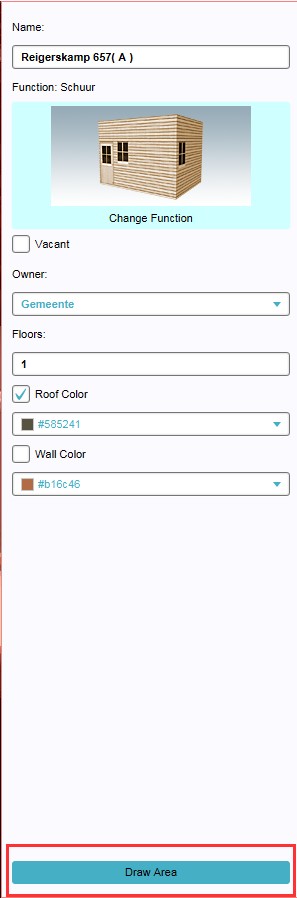 Draw Area Button
 -
 Brush Panel
 -
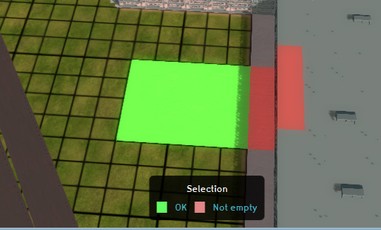 Brush Panel Area Selection


- Left-click and drag in the 3D Visualization's main view to draw the building's ground plan. Colors indicate if the area is available for the selected building. Choose a selection type, such as rectangles for buildings or lines for roads. Click 'Apply Selection' to confirm the building. 'Clear Selection' removes the selection from the 3D Visualization. Use 'Remove Building' to delete existing buildings from the project; the building slot remains as an empty entry.