How to duplicate an Area: Difference between revisions
Jump to navigation
Jump to search
No edit summary |
No edit summary |
||
| (5 intermediate revisions by 2 users not shown) | |||
| Line 1: | Line 1: | ||
{{Editor location|Areas}} | {{Editor location|Areas}} | ||
{{Editor steps|title= | {{Editor steps|title= | ||
|Select "Areas" in the ribbon bar. | |||
|Select the area you wish to duplicate. | |||
|Select "Duplicate" in the [[Editor#Left_Panel|left panel]]. | |||
}} | |||
<gallery> | <gallery> | ||
| Line 9: | Line 12: | ||
File:Duplicate_area_002.jpg|Click on Duplicate | File:Duplicate_area_002.jpg|Click on Duplicate | ||
</gallery> | </gallery> | ||
[[Category:How-to]][[Category:Area]] | {{article end | ||
|seealso=*[[Area]] | |||
|api=*[[Api session event editor area duplicate]] | |||
}} | |||
[[Category:How-to's]][[Category:Area]] | |||
Latest revision as of 14:45, 29 May 2026
How to duplicate an Area:
- Select "Areas" in the ribbon bar.
- Select the area you wish to duplicate.
- Select "Duplicate" in the left panel.
-
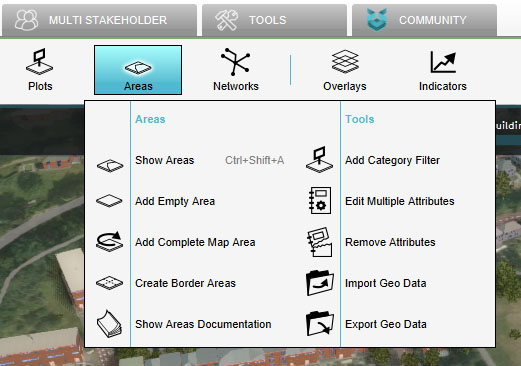 Select "Areas"
 -
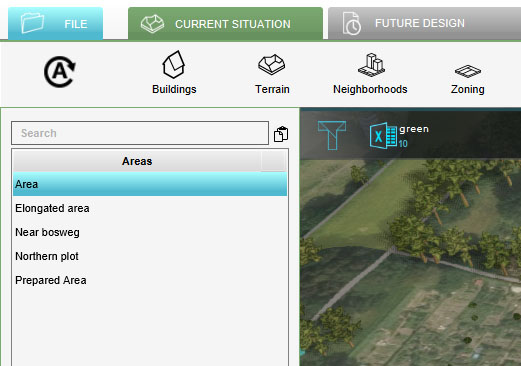 Select Area to duplicate
 -
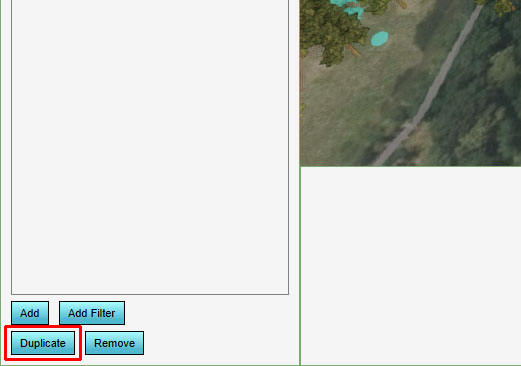 Click on Duplicate


