How to import KNMI weather data into Microsoft Excel
To process KNMI Weather data in the Tygron Platform, import the text file into Microsoft Excel following the steps for your Office version. Reason: Repetitive phrasing and wordy sentence structure.
Activate the text import wizard in Office 2019
In the newest versions of Excel, the import from text/csv route is simplified and will probably not properly interpret the data as numbers. It is better to use the legacy method, for which the legacy Text Import Wizard needs to be activated first.

- Select File > Options
- Select Data from the Excel options
- Under Show legacy data import wizards, select From Text (Legacy)
- Select OK
When the legacy Text Import Wizard is activated, it can be found under: Data > Get Data > Legacy Wizards > From Text (Legacy). When prompted, in the import File dialog, select the KNMI file you need.
Text Import Wizard
- As the data in the KNMI files is separated by commas, select Delimited. It can also be convenient to enter '32' as the line number to Start import at row, to skip the header texts from the file and start at the top of the table of actual values.
- On this panel, select the comma as separator.
- Select Finish to proceed
When the import is done, the KNMI data should appear on the workbook. Successful conversion is indicated by numbers being right-aligned; text aligns to the left by default.
-
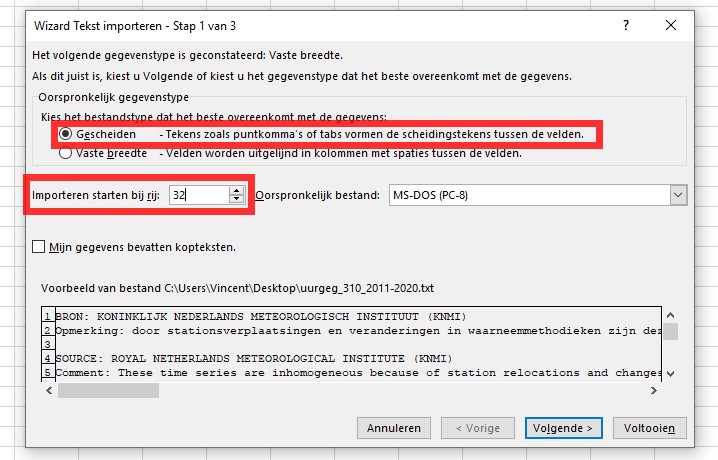 Step 1
 -
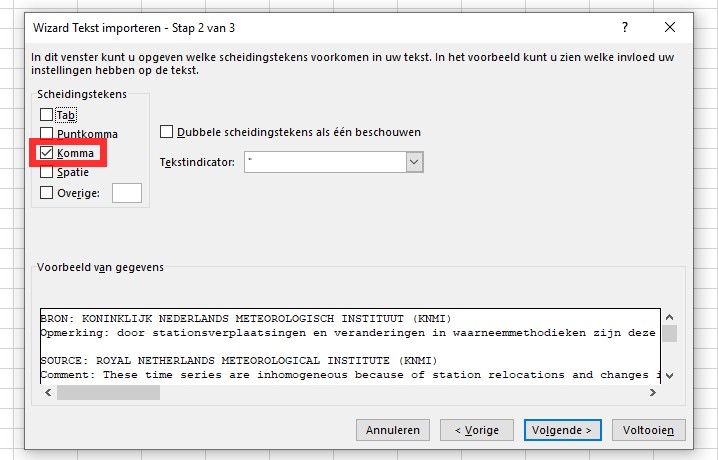 Step 2
 -
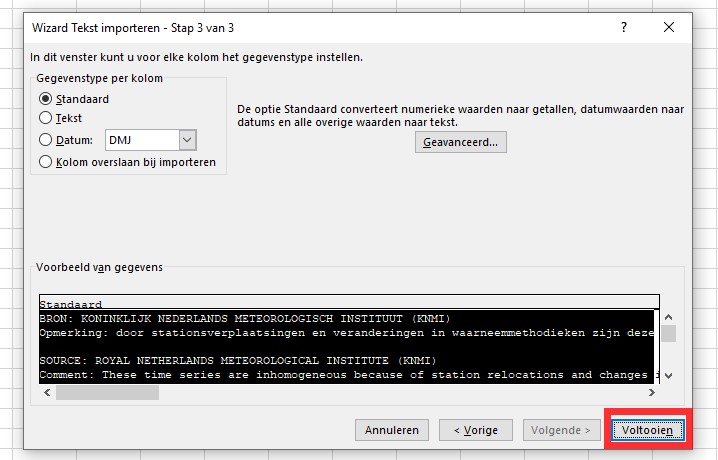 Step 3
 -
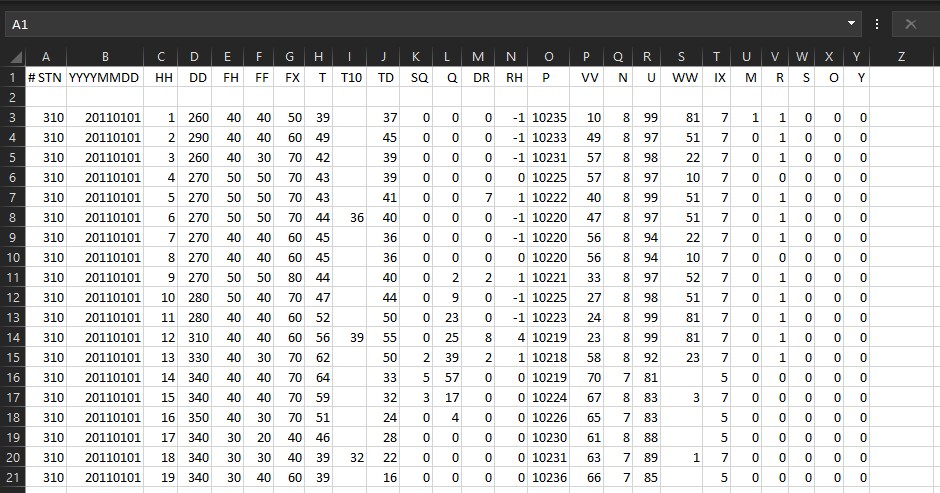 Step 4


Activate the text import wizard in older Office versions
Select Data > Get External Data > From Text. In the import File dialog, select the KNMI file you need.
- Reference to Microsoft support about text import in other Office versions: Text Import Wizard