How to hide an Overlay in the user interface
By default, Overlays are always shown in the Overlay panel of the viewer. In case a project is setup up with a multitude of linked Overlays, it might be useful to only show Overlays that represent final results and hide intermediate Overlays that do not convey useful information to Stakeholders. This page described how to adjust the visibility of an Overlay to Stakeholders in the viewer.
How to hide an Overlay in the user interface:
- Open a project in the editor
- Select an Overlay that you want to adjust
- Inspect the option named 'Show in Sidebar' in the Detail Panel of the Overlay
- To hide an Overlay, uncheck this option
- Notice the Overlay is no longer visible in the Overlay bar of the Navigation Panel
-
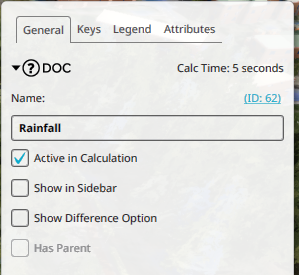 Hiding an Overlay in the editor

Notes
- Hiding an Overlay also hides its children; meaning Overlays that reference this Overlay as its parent.