Revision as of 13:09, 9 October 2026 by Frank@tygron.nl(talk | contribs)(Created page with "{{howto|title= |Open a project in the editor. |Select the Community tab in the ribbon. |Click on Chats. This opens the Chat panel. |In the Chat panel, select a Chat Channel in the left overview panel. |Click on the remove button. }} <gallery> File:Community_chats.png|Hover over Chats in the Community Tab of the ribbon. File:Community_chats_project_agent.png|Selecting the Project Agent in the Chats Popup. File:Chat_panel_duplicate.png|C...")

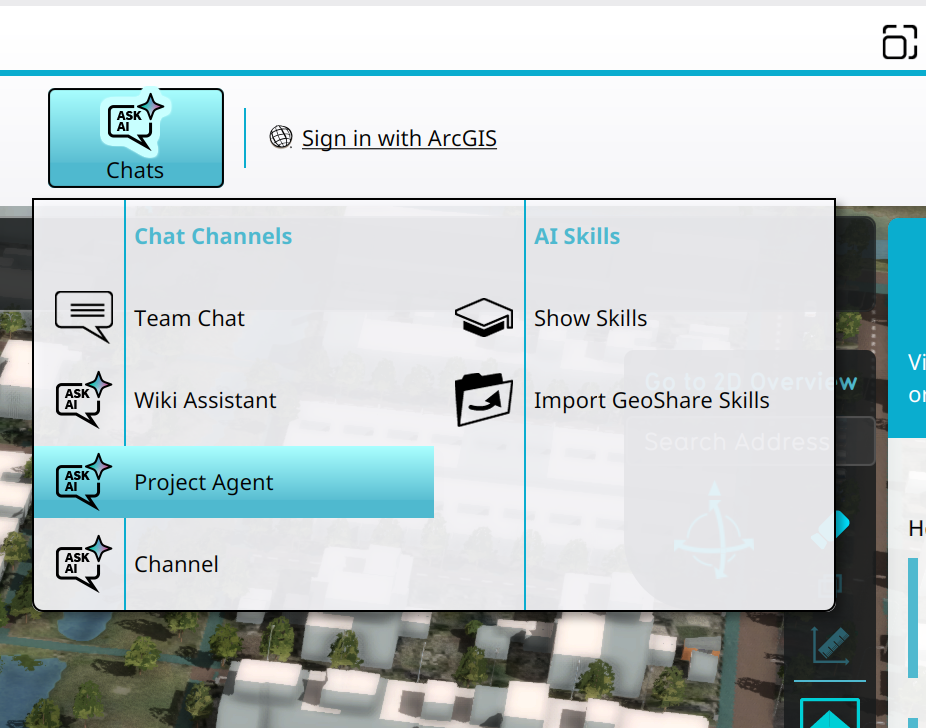 Selecting the Project Agent in the Chats Popup.
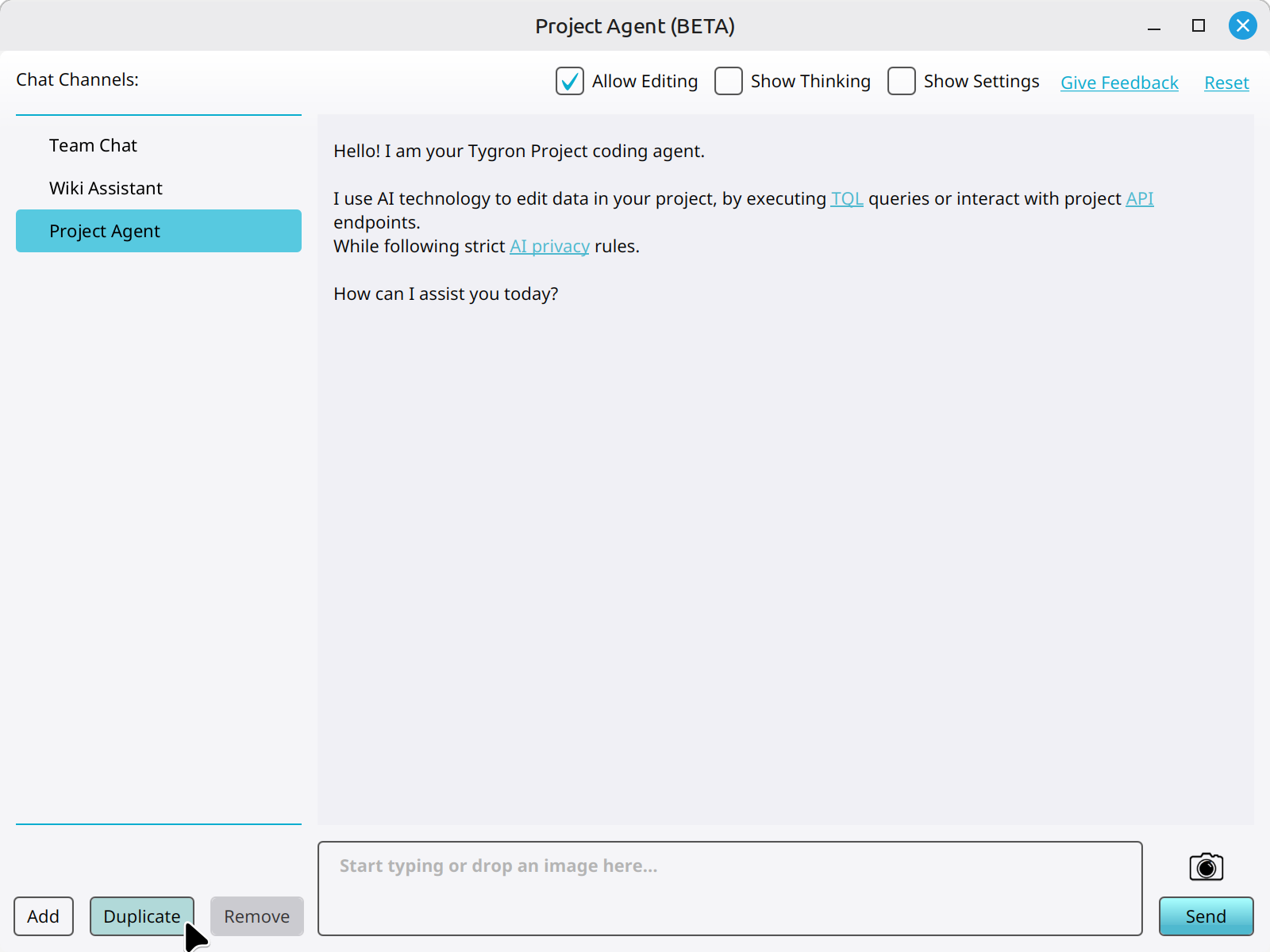 Clicking on the Duplicate button to duplicate a new Chat Channel.

