How to create a GIF Overlay Animation: Difference between revisions
Jump to navigation
Jump to search
No edit summary |
No edit summary |
||
| Line 2: | Line 2: | ||
<youtube>BGazFwVjNME</youtube> | <youtube>BGazFwVjNME</youtube> | ||
{{Editor location|Screenshot}} | {{Editor location|Screenshot}} | ||
{{ | {{howto|title= | ||
|Select the [[Overlay]] from which you want to create a GIF | |Select the [[Overlay]] from which you want to create a GIF | ||
Latest revision as of 09:53, 18 November 2026

How to create a GIF Overlay Animation:
- Select the Overlay from which you want to create a GIF
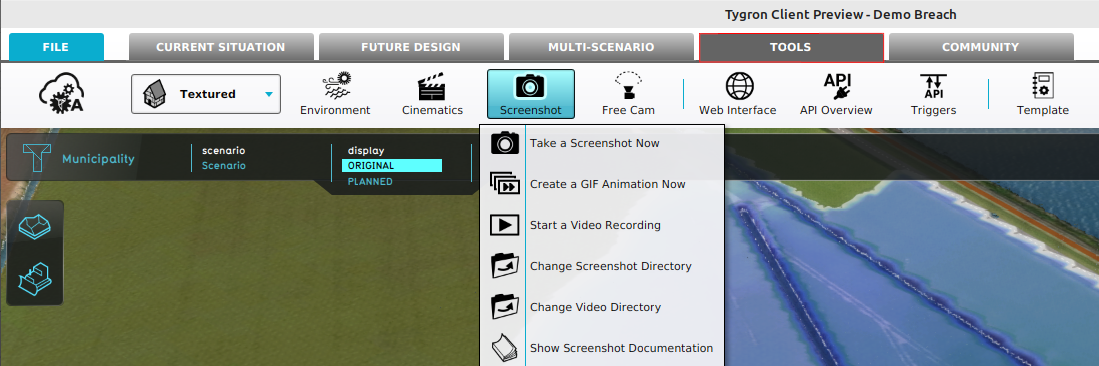
- Select in the editor Tools from the ribbon
- Click on the Screenshot button to open the Screenshot panel.
- Select the option Overlay Animation (GIF) for the type option.
- Select HD Overlay when taking a screenshot of an overlay and you want a higher resolution (less gritty) overlay.
- Optionally adjust the duration of the animation with the GIF (sec) option.
- Make the animation file smaller by adjusting the Scale option.
- Make the animation faster by adjusting the frame step size. This causes frames to skip.
- Adjust the starting or ending frame to zoom in on a part of the overlay's animation.
- Finally, select the loop options to continuously repeat the resulting animation.
-
-
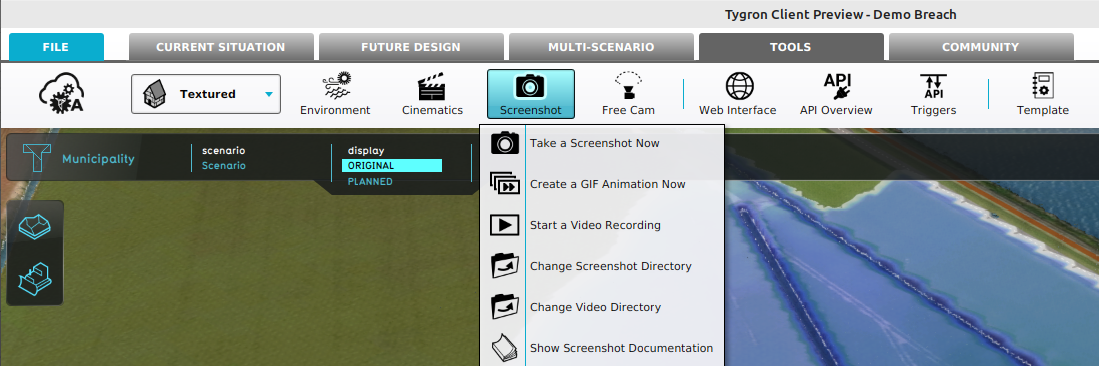 Click on the Screenshot button in the ribbon
-
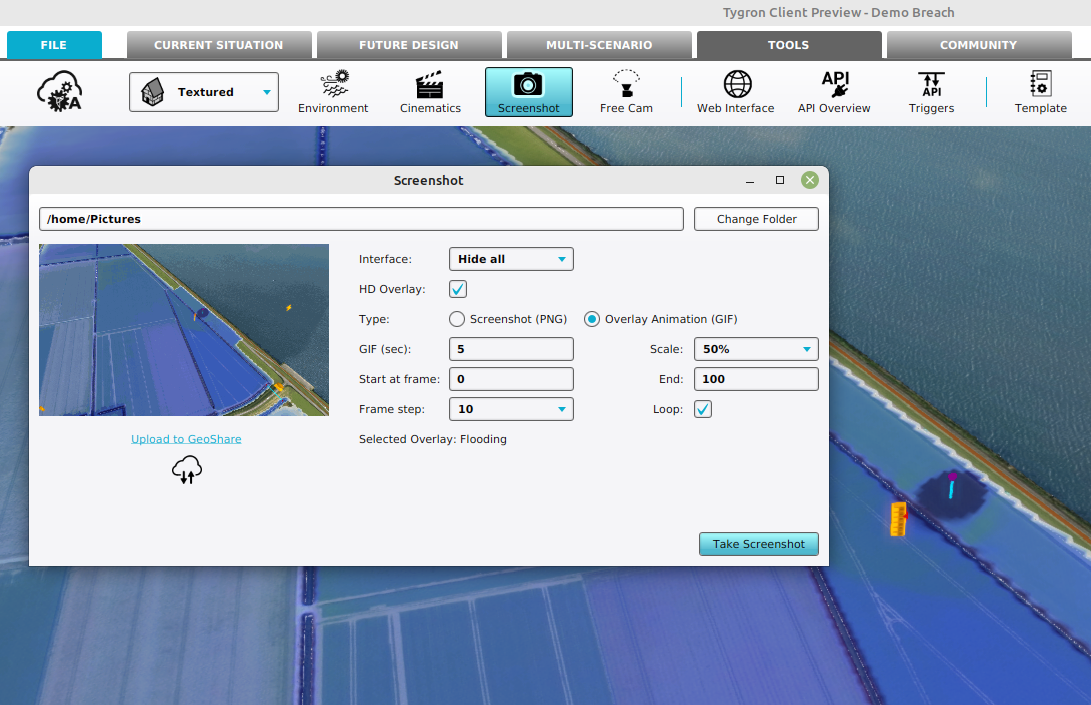 Click on the 'Take Screenshot' option to create the animation


