How to create a GIF Overlay Animation: Difference between revisions
Jump to navigation
Jump to search
Created page with "{{Editor location|Screenshot}} {{Editor steps|title= |Select the Overlay from which you want to create a GIF |Select in the editor ''Tools'' from the ribbon |Click on the ''Screenshot'' button to open the Screenshot panel. |Select the option ''Overlay Animation (GIF)'' for the type option. |Select HD Overlay when taking a screenshot of an overlay and you want a higher resolution (less gritty) overlay. |Optionally adjust the duration of the animation with the GIF (sec..." |
No edit summary |
||
| Line 1: | Line 1: | ||
{{Editor location|Screenshot}} | {{Editor location|Screenshot}} | ||
[[File:gif_animation_example.gif|frame|right|Animation of a 100 timeframe flooding with a duration of 5 seconds, a frame step of 10 and a scale of 12.5%]] | |||
{{Editor steps|title= | {{Editor steps|title= | ||
|Select the [[Overlay]] from which you want to create a GIF | |Select the [[Overlay]] from which you want to create a GIF | ||
Revision as of 16:25, 6 November 2023

-
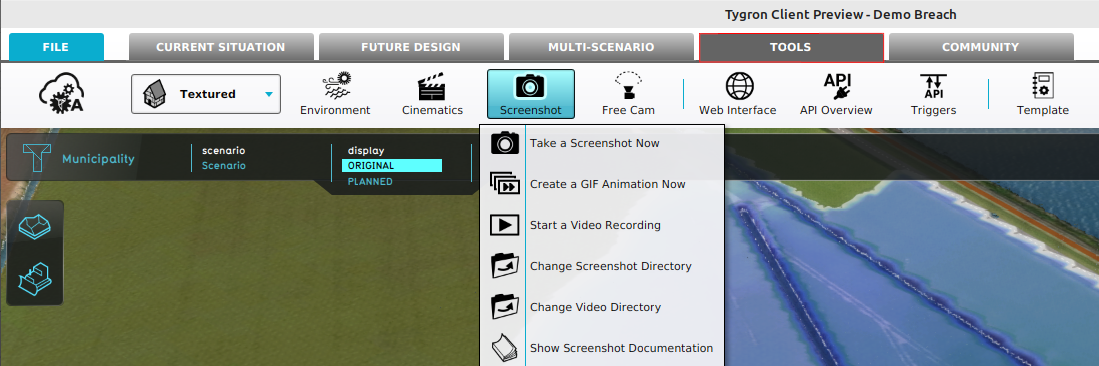 Select the Tools header in the Editor
-
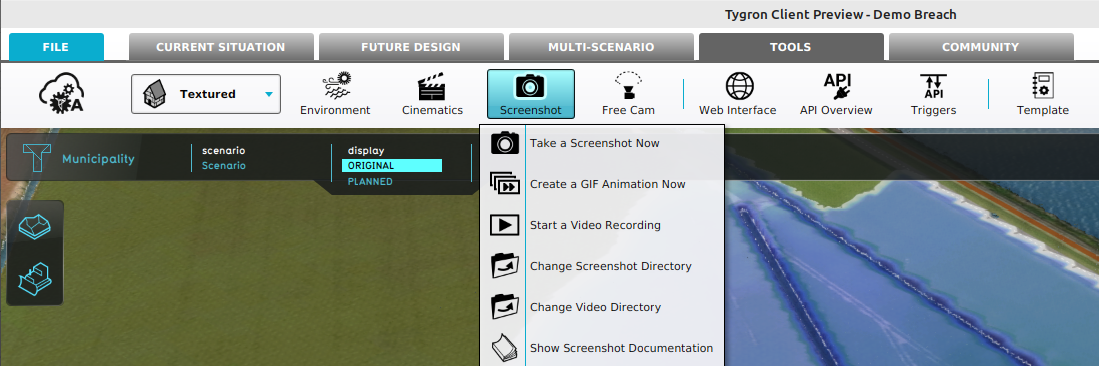 Select the Screenshot ribbon bar
-
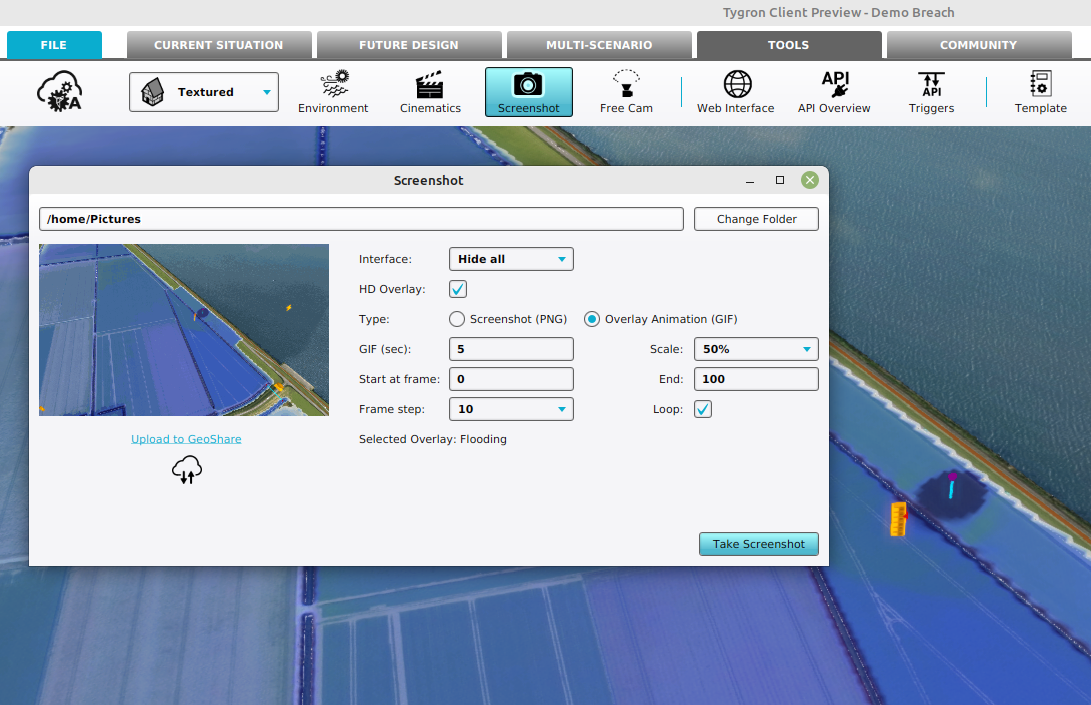 Click on the 'Take Screenshot' option to create the animation


