How to edit Neighborhood properties: Difference between revisions
Jump to navigation
Jump to search
m Frank@tygron.nl moved page How to edit a Neighborhood to How to edit Neighborhood properties without leaving a redirect |
No edit summary |
||
| Line 1: | Line 1: | ||
{{Editor location|neighborhood}} | |||
When a [[Neighborhood]] is present in a Project area, when selected, it can be edited on the Right Panel of the Editor. On this panel two tabs are available when a Neighborhood is selected - the general tab and a custom attributes tab. On the general tab two standard attributes can be adjusted; the name of the Neighborhood, and its [[Overlay]] color. On the Attributes tab custom pairs of an attribute name and its value can be added to the Neighborhood. | When a [[Neighborhood]] is present in a Project area, when selected, it can be edited on the Right Panel of the Editor. On this panel two tabs are available when a Neighborhood is selected - the general tab and a custom attributes tab. On the general tab two standard attributes can be adjusted; the name of the Neighborhood, and its [[Overlay]] color. On the Attributes tab custom pairs of an attribute name and its value can be added to the Neighborhood. | ||
Revision as of 12:46, 7 October 2022
Editor → Current Situation (Ribbon tab) → Administrative (Ribbon bar) → Show Neighborhoods (Dropdown) → The Neighborhood to edit (Left panel)
When a Neighborhood is present in a Project area, when selected, it can be edited on the Right Panel of the Editor. On this panel two tabs are available when a Neighborhood is selected - the general tab and a custom attributes tab. On the general tab two standard attributes can be adjusted; the name of the Neighborhood, and its Overlay color. On the Attributes tab custom pairs of an attribute name and its value can be added to the Neighborhood.
-
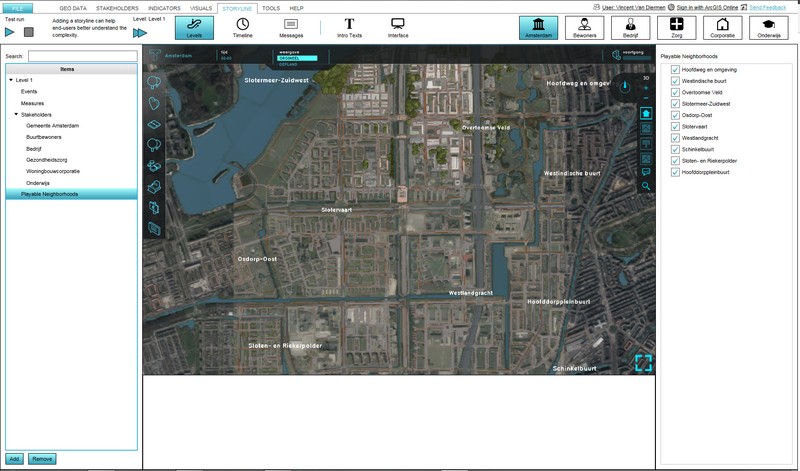 1. Load or create a project in the Editor
-
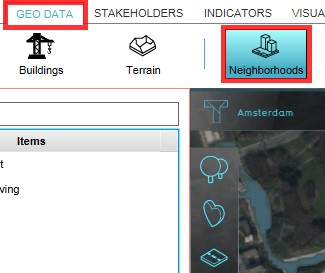 2. Select Geodata > Neighborhoods on the Ribbon of the Editor
-
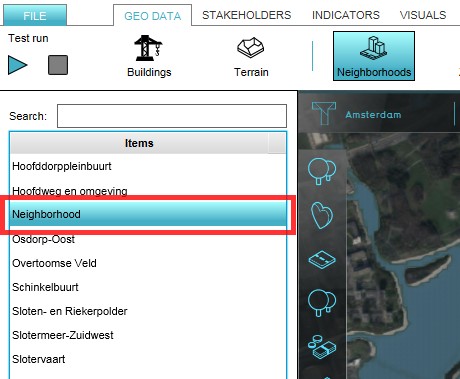 3. Highlight the Neighborhood to be edited
-
 4. Adjust name or overlay color on the General tab
-
 5. Add or adjust a custom attribute on the Attributes tab


