How to configure Functions for Pedestrian traffic: Difference between revisions
Jump to navigation
Jump to search
Created page with "{{howto|title=How to configure pedestrian traffic |Select Current Situation in the ribbon |Hover over Buildings and select ''Edit Function Values'' |Set Category to Road |Set Group to ''OTHER_TRAFFIC'' |At the bottom, click on the ''Add'' button next to Function. |For the selected Category, (shift)-select all Roads and click on the Select button to add all to the Table View. |Select the cells in the Pedestrians/hour column and set the value to 1 (or more) whe..." |
No edit summary |
||
| Line 19: | Line 19: | ||
*[[Travel Distance Overlay]] | *[[Travel Distance Overlay]] | ||
*[[Function]] | *[[Function]] | ||
|howtos=* | |howtos=*[[How to configure the Travel Distance Overlay for Pedestrians]] | ||
}} | }} | ||
Revision as of 09:46, 5 November 2026
How to How to configure pedestrian traffic:
- Select Current Situation in the ribbon
- Hover over Buildings and select Edit Function Values
- Set Category to Road
- Set Group to OTHER_TRAFFIC
- At the bottom, click on the Add button next to Function.
- For the selected Category, (shift)-select all Roads and click on the Select button to add all to the Table View.
- Select the cells in the Pedestrians/hour column and set the value to 1 (or more) when this Function allows Pedestrians.
- Close the window and recalculate the project.
-
 Edit function values in the Building popup under Current Situation
-
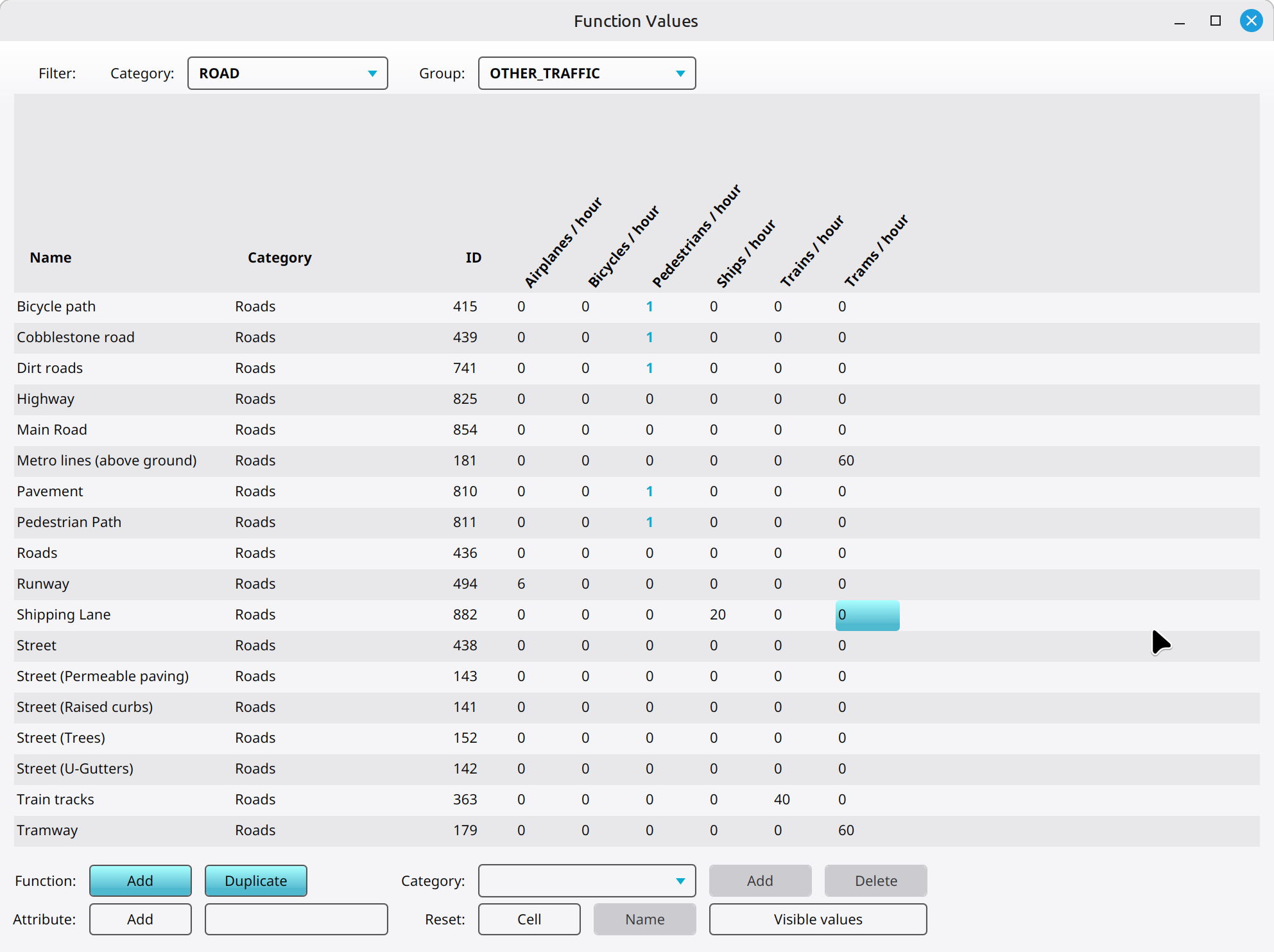 Roads configured for pedestrians.

