How to create a Destination area: Difference between revisions
No edit summary |
|||
| Line 2: | Line 2: | ||
===Creating a routing area=== | ===Creating a routing area=== | ||
{| | {{howto|title= | ||
|Have a project loaded in the editor and decide the area of interest of the Travel Distance overlay, a school in our case. | |||
|Add an area and select to Adjust the area. Draw in the area around the school. '''Important''': Ensure that the area overlaps the adjacent roads. In our example the area overlaps with roads east, west and south of the school. Apply the selection. | |||
|Select the newly added area and select its attribute tab on the right side. Add on the bottom a new attribute, for example ROUTING_AREA, with a value of 1. Save the new attribute. The Area color will be used for the overlay, so pick an appropriate color here too. | |||
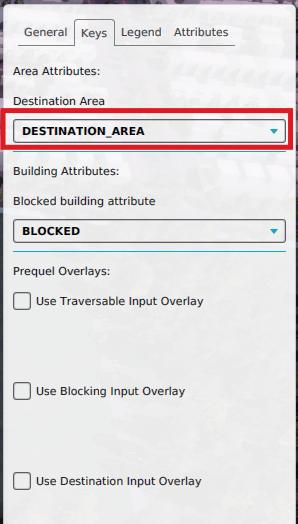
|Open the Travel Distance Overlay and select the keys tab. Under the key [[Destination area (Travel Distance Overlay)|Destination Area]], select the attribute chosen attribute in step 3, in the example ROUTING_AREA. This ensures that the destination areas are identified using this attribute. | |||
|} | |} | ||
<gallery> | |||
File:Select_School1.jpg|School selected as example, the blue arrow is added for clarity | |||
File:Routing_Area1.jpg|Please note that the area overlaps all adjacent roads east, west and south of the school | |||
File:Routing_Area_Attr1.jpg| | |||
File:Destination_area_key.jpg| | |||
</gallery> | |||
{{article end | {{article end | ||
| Line 26: | Line 22: | ||
* [[Destination_area_(Travel_Distance_Overlay)|Destination area]] | * [[Destination_area_(Travel_Distance_Overlay)|Destination area]] | ||
* [[Travel_Distance_Overlay|Travel distance overlay]] | * [[Travel_Distance_Overlay|Travel distance overlay]] | ||
|api=*[[]] | |api=*[[]] | ||
}} | }} | ||
[[Category:How-to's]] | [[Category:How-to's]] | ||
Revision as of 14:09, 29 May 2026
Below an example with the Travel distance overlay based on a school and pedestrian traffic.
Creating a routing area
{{howto|title= |Have a project loaded in the editor and decide the area of interest of the Travel Distance overlay, a school in our case. |Add an area and select to Adjust the area. Draw in the area around the school. Important: Ensure that the area overlaps the adjacent roads. In our example the area overlaps with roads east, west and south of the school. Apply the selection. |Select the newly added area and select its attribute tab on the right side. Add on the bottom a new attribute, for example ROUTING_AREA, with a value of 1. Save the new attribute. The Area color will be used for the overlay, so pick an appropriate color here too. |Open the Travel Distance Overlay and select the keys tab. Under the key Destination Area, select the attribute chosen attribute in step 3, in the example ROUTING_AREA. This ensures that the destination areas are identified using this attribute. |}
-
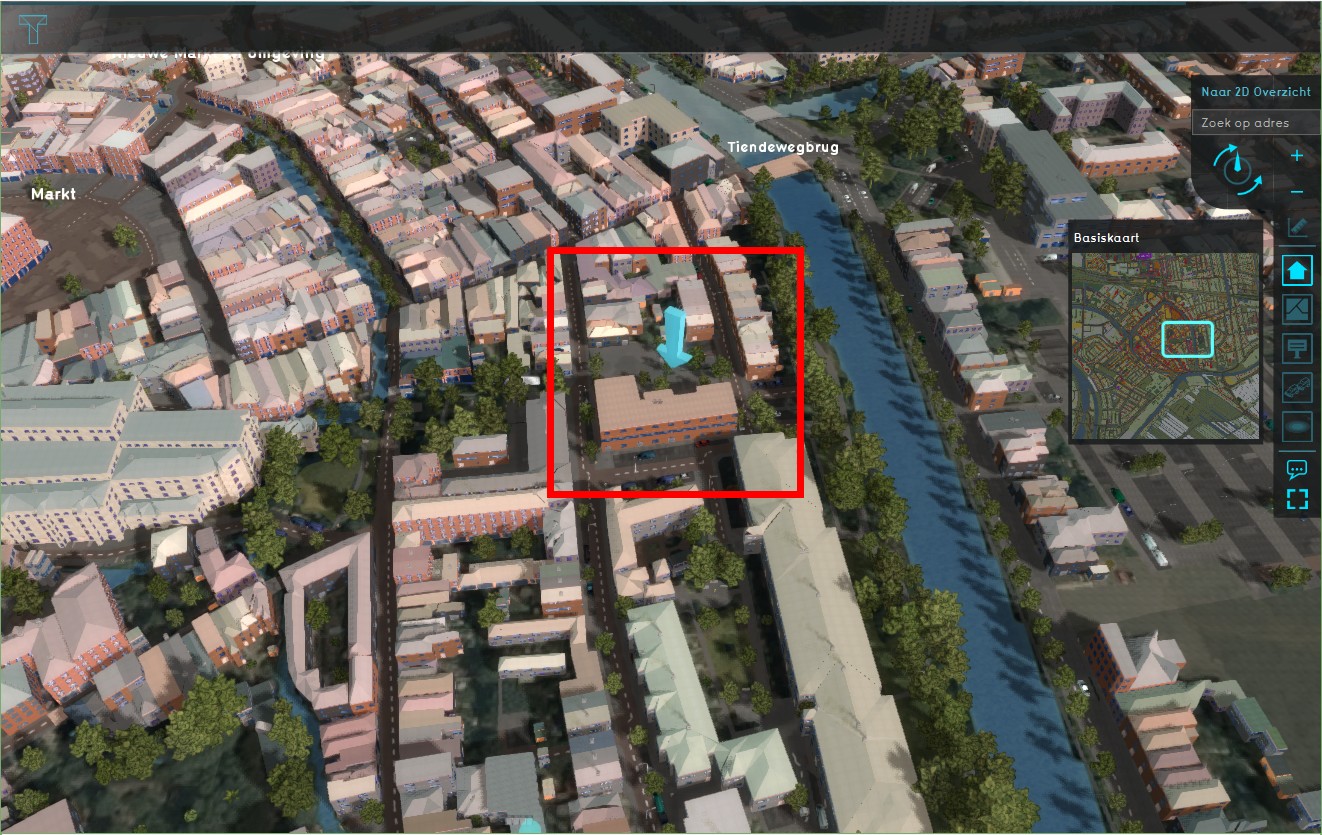 School selected as example, the blue arrow is added for clarity
 -
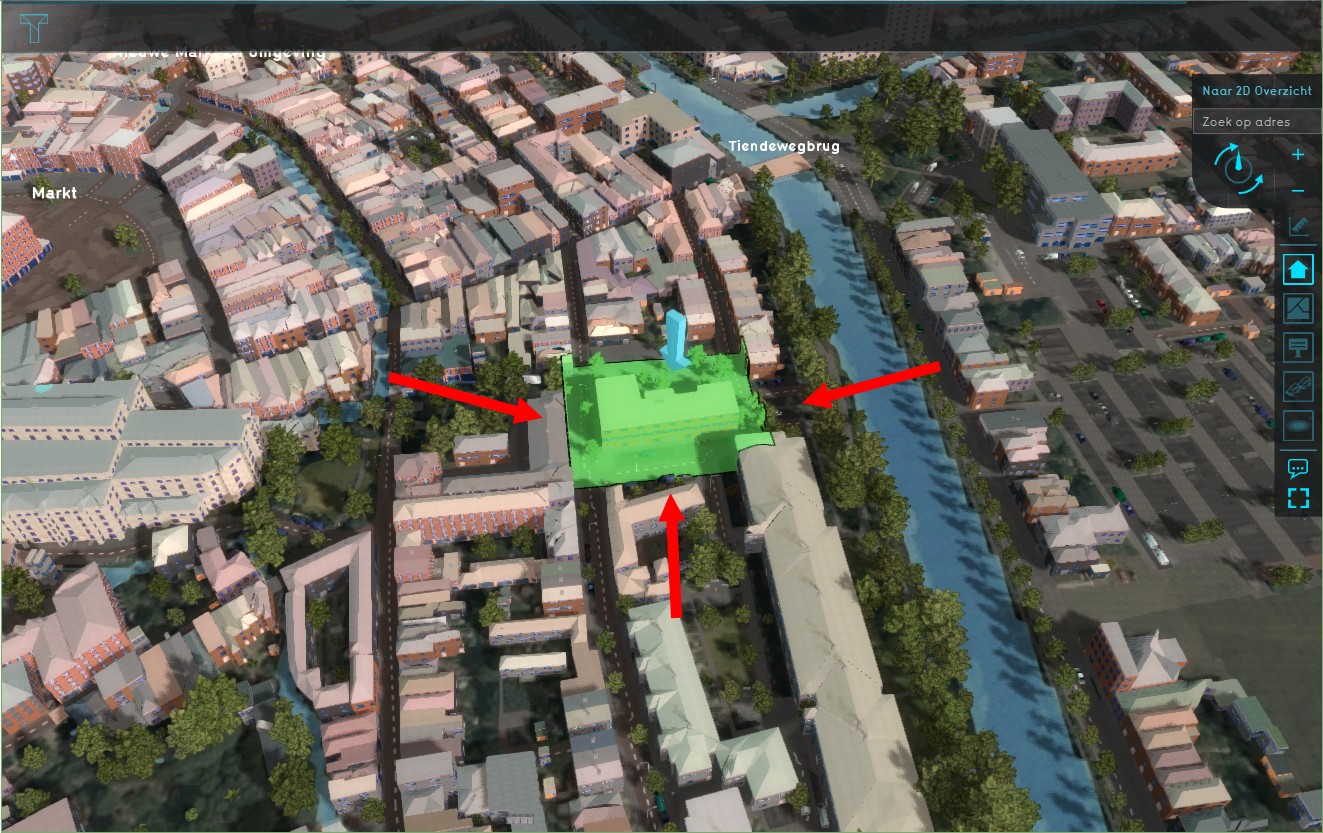 Please note that the area overlaps all adjacent roads east, west and south of the school
 -
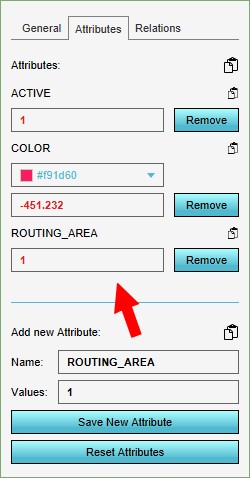
-


Notes
- In case a grid is used to identify traversable cells, make sure that the destination areas overlap a traversable cell.
See also
API Endpoints
- [[]]