How to export Revit models to IFC: Difference between revisions
Jump to navigation
Jump to search
No edit summary |
No edit summary |
||
| Line 3: | Line 3: | ||
{{editor steps|title= | {{editor steps|title= | ||
| Open Revit and open the model that you wish to export. | | Open Revit and open the model that you wish to export. | ||
| | | To export go to file -> Export -> IFC. | ||
| In the export dialog choose specifiy the location where the file should be exported. | | In the export dialog choose specifiy the location where the file should be exported. | ||
| In the Export setup dropdown list choose IFC4 Reference view as option. | | In the Export setup dropdown list choose IFC4 Reference view as option. | ||
| Line 16: | Line 15: | ||
{{article end | {{article end | ||
|notes=*Avoid unnecessary detail in the model to reduce import time in the Tygron Platform. | |||
|seealso= | |seealso= | ||
* [[IFC]] | * [[IFC]] | ||
|external= | |external= | ||
* https:// | * https://www.autodesk.com/products/revit/overview - The official Autodesk Revit website | ||
}} | }} | ||
Revision as of 09:25, 10 July 2026
-
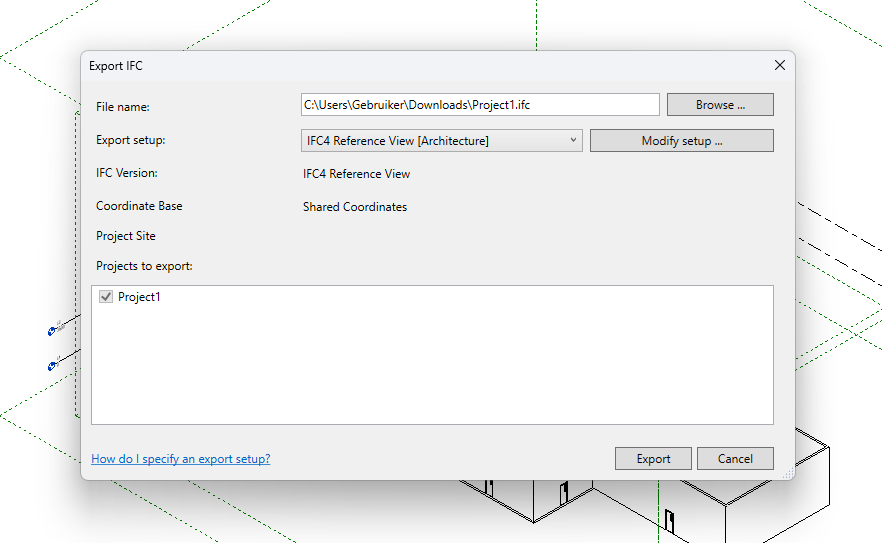 Revit export dialog

Notes
- Avoid unnecessary detail in the model to reduce import time in the Tygron Platform.
See also
External links
- https://www.autodesk.com/products/revit/overview - The official Autodesk Revit website