How to take a Screenshot: Difference between revisions
Jump to navigation
Jump to search
No edit summary |
No edit summary |
||
| Line 1: | Line 1: | ||
This how-to described how you can make a screenshot of the 3D visualization without a visual interface. | This how-to described how you can make a screenshot of the 3D visualization without a visual interface. | ||
<youtube>D-CLZ28q_5k</youtube> | |||
{{Editor location|Screenshot}} | {{Editor location|Screenshot}} | ||
{{Editor steps|title=take a Screenshot | {{Editor steps|title=take a Screenshot | ||
| Select in the editor 'Tools' from the ribbon | | Select in the editor 'Tools' from the ribbon | ||
| Click on the 'Screenshot' button in the ribbon bar. | | Click on the 'Screenshot' button in the ribbon bar. | ||
Revision as of 12:42, 24 November 2023
This how-to described how you can make a screenshot of the 3D visualization without a visual interface.
-
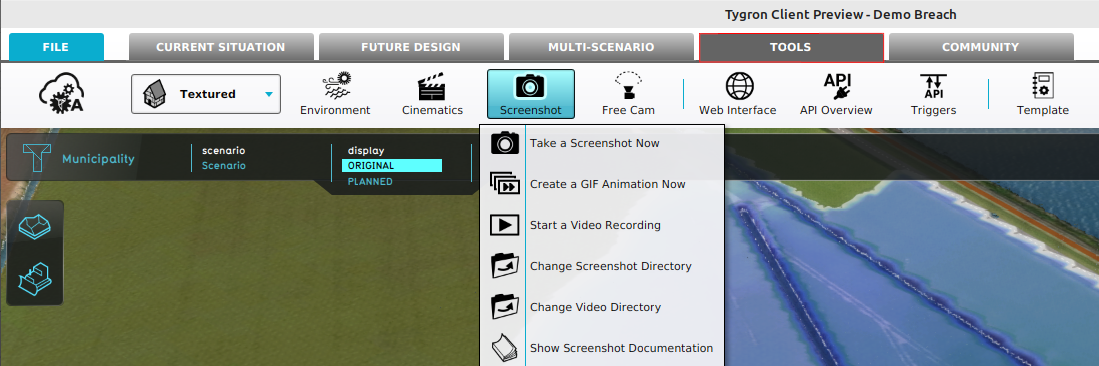 Select the Tools header in the Editor
-
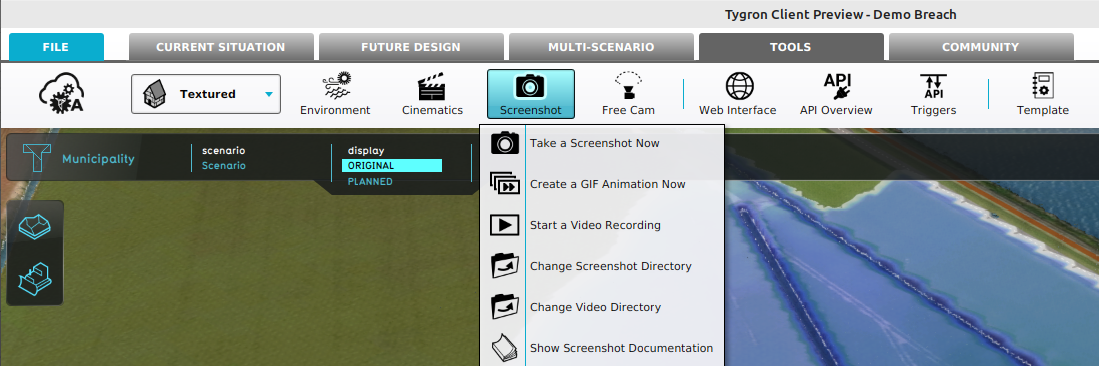 Select the Screenshot ribbon bar
-
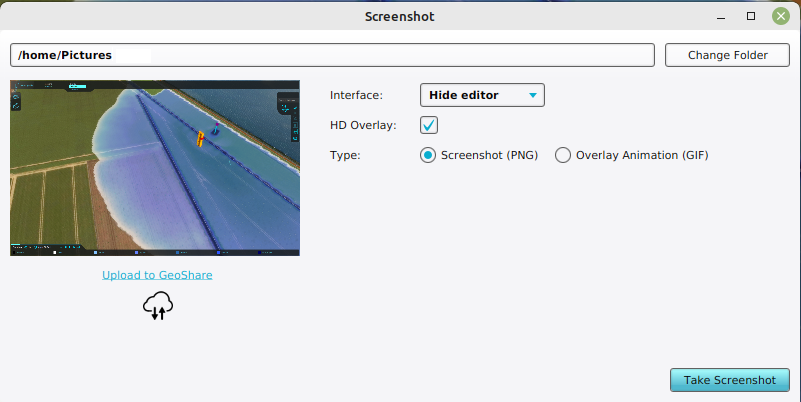 Click on the 'Take Screenshot' button to take the screenshot.


