Combo Overlay with masking: Difference between revisions
Jump to navigation
Jump to search
| (15 intermediate revisions by 2 users not shown) | |||
| Line 2: | Line 2: | ||
==Use Case Description== | ==Use Case Description== | ||
How can I 'mask' (filter out) all values of a rainfall overlay that is not of the highest range? In this case we use the default highest range of 50 cm or more. | How can I 'mask' (filter out) all values of a rainfall overlay that is not of the highest range? In this case we use the default highest range of 50 cm or more. | ||
| Line 9: | Line 8: | ||
<gallery> | <gallery> | ||
Image:Rainfall_Overlay1.jpg|Rainfall overlay | Image:Rainfall_Overlay1.jpg|Rainfall overlay | ||
Image: | Image:Combo_Overlay_with_masking1a.jpg|Combo Overlay with masking | ||
</gallery> | </gallery> | ||
==Formula== | ==Formula== | ||
We want to only show the highest rainfall values, so we want to use all values that are greater than 49 cm (0.049m), and only of the last timeframe (index 24 in this case). Using the [[Combo Overlay#Operators|operators table]], this gives us the following formula: | |||
<code> | <code>MULT(GTE(A24, 0.049), A24)</code> | ||
Where | Where <code>A24</code> is the last time frame of the rainfall overlay (timeframes are 0-indexed). | ||
==How to== | ==How to== | ||
{{Editor steps|title=add a Combo Overlay with | {{Editor steps|title=add a Combo Overlay with masking | ||
|Add a [[Rainfall Overlay]] (give it a significant rain event). | |||
|Add a Combo Overlay and select the rainfall overlays in [[A prequel (Combo Overlay)|Prequel A]]. | |||
|Enter the formula in the Formula field. | |||
|Enable and adjust a custom legend as desired. | |||
|Select 'Update Now'}} | |||
<gallery> | <gallery> | ||
Image: | Image:Rainfall_Overlay1.jpg|Add a [[Rainfall Overlay]] | ||
Image: | Image:Select_Rainfall_overlays_in_slot1.jpg|Select the Rainfall Overlay for [[A prequel (Combo Overlay)|Prequel A]]. | ||
Image: | Image:Enter_formula_in_field2.jpg|Enter the formula in the Formula field | ||
image:Custom_legend_combo_with_features2.jpg|Adjust a custom legend | |||
Image: | Image:Select_Update_Now2.jpg|Select 'Update Now' | ||
</gallery> | </gallery> | ||
{{ | |||
{{article end | |||
|seealso=*[[Combo Overlay]] | |||
}} | |||
Latest revision as of 08:38, 14 October 2026
This page describes a use case for implementing a combo overlay.
Use Case Description
How can I 'mask' (filter out) all values of a rainfall overlay that is not of the highest range? In this case we use the default highest range of 50 cm or more.
For this we need to add a rainfall overlay and a formula we can use to mask the values that are too low.
-
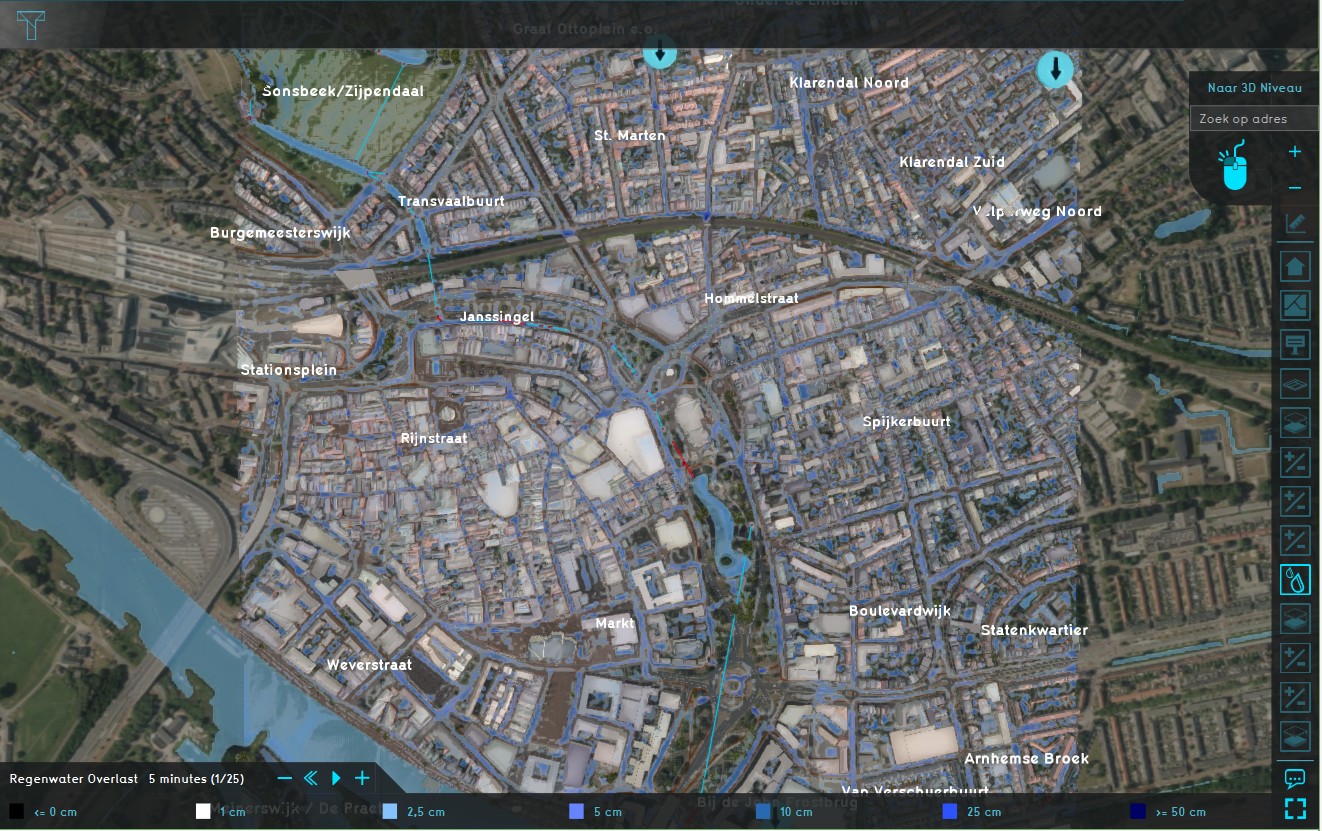 Rainfall overlay
-
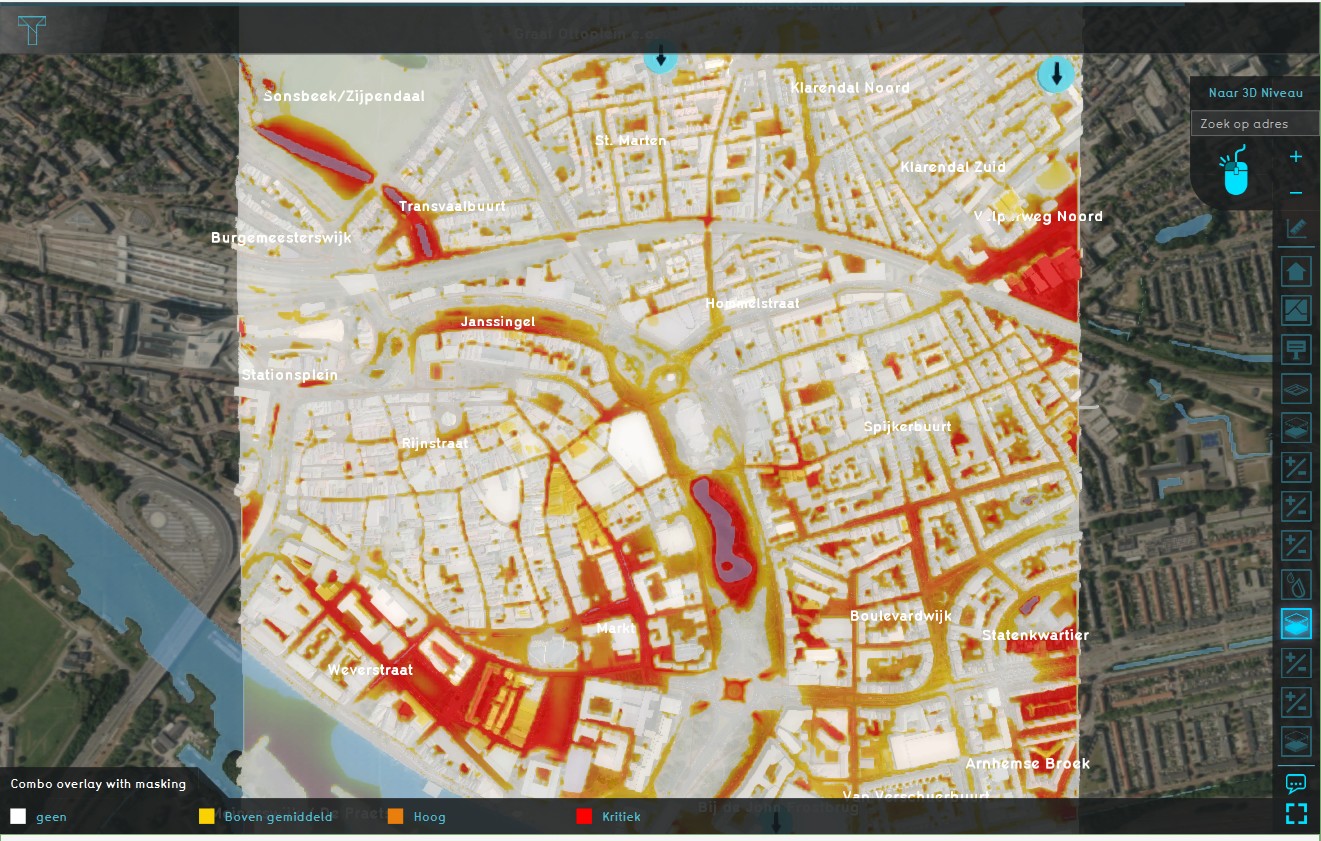 Combo Overlay with masking


Formula
We want to only show the highest rainfall values, so we want to use all values that are greater than 49 cm (0.049m), and only of the last timeframe (index 24 in this case). Using the operators table, this gives us the following formula:
MULT(GTE(A24, 0.049), A24)
Where A24 is the last time frame of the rainfall overlay (timeframes are 0-indexed).
How to
How to add a Combo Overlay with masking:
- Add a Rainfall Overlay (give it a significant rain event).
- Add a Combo Overlay and select the rainfall overlays in Prequel A.
- Enter the formula in the Formula field.
- Enable and adjust a custom legend as desired.
- Select 'Update Now'
-
Add a Rainfall Overlay
-
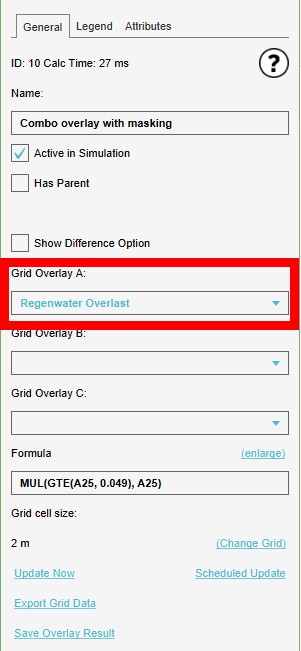 Select the Rainfall Overlay for Prequel A.
-
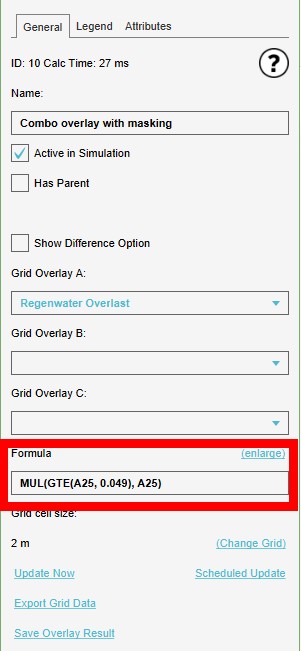 Enter the formula in the Formula field
-
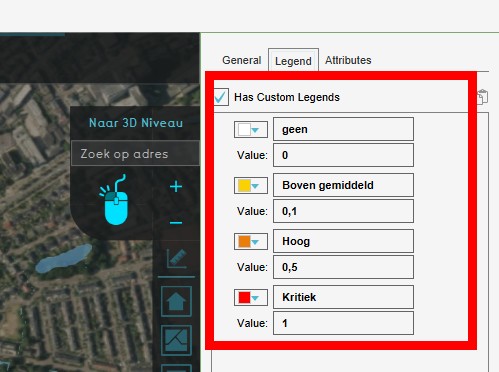 Adjust a custom legend
-
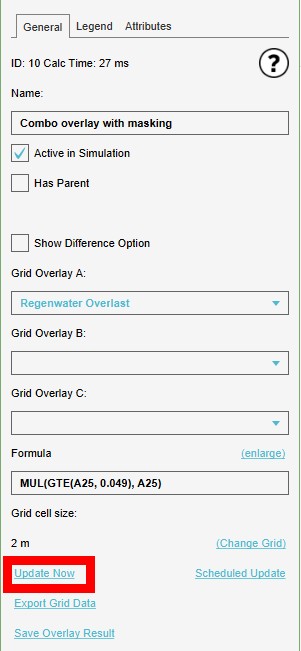 Select 'Update Now'


