How to edit Excel named Cells: Difference between revisions
No edit summary |
No edit summary |
||
| (One intermediate revision by the same user not shown) | |||
| Line 1: | Line 1: | ||
The naming of [[Excel]] cells should be done carefully, because any mistake here will result in an error during the calculation of the | The naming of [[Excel]] cells should be done carefully, because any mistake here will result in an error during the calculation of the [[Indicator]]. Once a cell has been labelled with a name, the Microsoft Excel Name Manager must be used to edit or remove the name of the cell. The Name Manager can be opened as follows; select Formulas → Defined Names → Name Manager. | ||
<gallery> | <gallery> | ||
| Line 23: | Line 23: | ||
[[File:Excel_quick_start_6a.jpg|thumb|left|600px|Errors in cell naming]] | [[File:Excel_quick_start_6a.jpg|thumb|left|600px|Errors in cell naming]] | ||
{{article end | |||
|seealso= | |||
* [[Indicator]] | |||
* [[Indicators Tutorial]] | |||
* [[TQL]] | |||
* [[Plotly]] | |||
|howtos= | |||
* [[How to upload an Indicator Excel]] | |||
|api=*[[Api session items indicators]] | |||
*[[Api session event editor indicator]] | |||
}} | |||
Latest revision as of 11:25, 13 July 2026
The naming of Excel cells should be done carefully, because any mistake here will result in an error during the calculation of the Indicator. Once a cell has been labelled with a name, the Microsoft Excel Name Manager must be used to edit or remove the name of the cell. The Name Manager can be opened as follows; select Formulas → Defined Names → Name Manager.
-
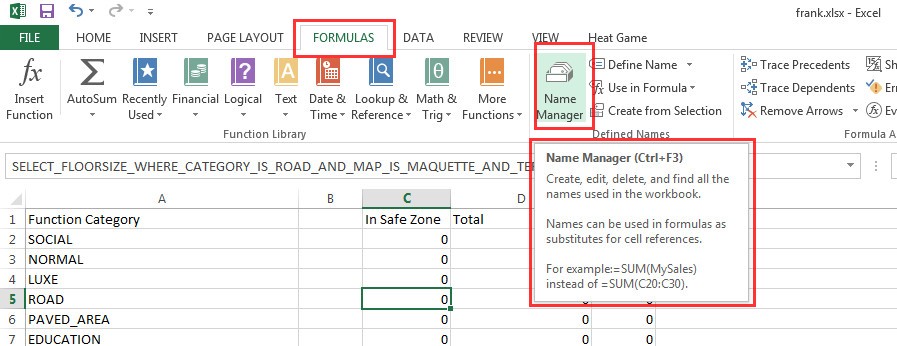 How to open the Excel Name Manager
 -
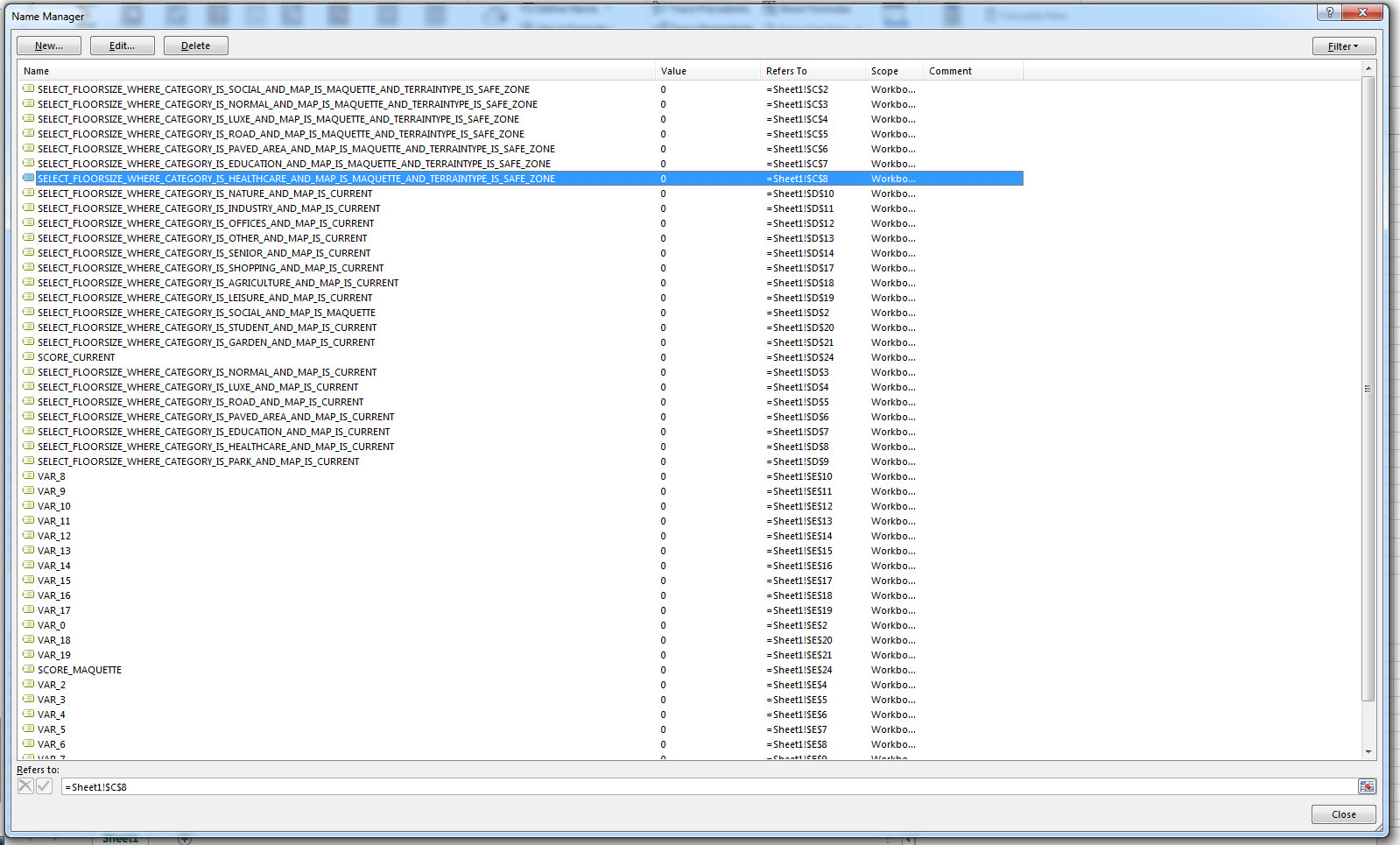 Excel Name Manager panel


On the Excel Name Manager panel you can find all defined names in the workbook and to what cells these names refer. If you want to edit a cell name, highlight it and select the Edit Button. The following panel will then appear:

To delete a cell name, highlight the entry and select Delete. A message will ask for confirmation.

You can even select multiple entries at once, by pressing the Shift key when selecting. This can be very convenient when rearranging all VAR_# entries for instance.

Fixing Name Problems
In the Name Manager panel you can edit both the name as well as the cell it refers to. This method allows you to correct a naming issues. It is possible to (incorrectly) refer two or more labels to the same cell, as the image below shows. In this example both a MAQUETTE and a CURRENT query are referring to the same cell. One will override the other and the order is unpredictable. Please make sure to resolve these issues first. You can delete the name, or let it refer to another cell.
